
Reply to a ticket
Open a ticket, write your reply, pick what happens to the ticket next, and send. Here is the everyday loop and what the ticket does after.
Search portal content
Search portal content
Open a ticket, write your reply, pick what happens to the ticket next, and send. Here is the everyday loop and what the ticket does after.
Open a ticket, write your reply, pick what happens to the ticket next, and send. Here is the everyday loop and what the ticket does after.
Open a ticket, read the conversation, write your reply, and send it. When you send, the ticket moves to Waiting on customer by default. You can change what happens to the ticket before you send.
The conversation is in the middle. Customer messages, your replies, and internal notes are in one thread, in order. Select Load earlier to see older messages.
Details about the customer and the ticket are in the pane on the right: Status, Assignee, Priority, Tags, and more. Select Toggle ticket details to show or hide that pane (or press ]).
To move through your list without going back to it, press J for the next ticket and K for the previous one. They follow the same filter and order as the list you came from. For every key, see Keyboard shortcuts.
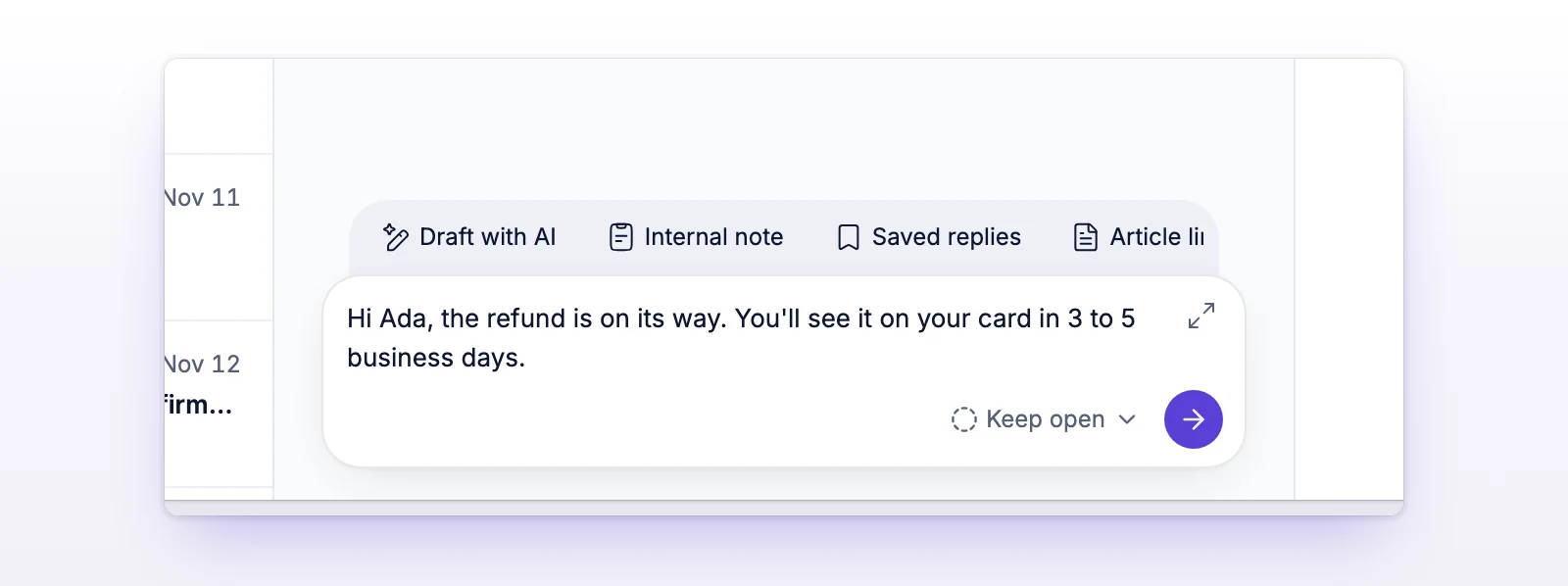
A reply can be up to 20,000 characters. A counter appears when you get close.
Use Expand composer if you want more room to write. Use Collapse composer to shrink it again.
On an email ticket, the To, Cc, and Bcc lines sit above the message. See Use Cc and Bcc. To send to someone else entirely, see Change the requester.
The Status after reply menu sits next to the send button. What it offers depends on the ticket.
| Ticket is | Choices | Default |
|---|---|---|
| Open | Keep open, Close as resolved, Close as invalid | Keep open |
| Closed | Reopen to customer, Reopen to team | Reopen to customer |
On a closed ticket, the send button reads Send and reopen ticket. Replying to a closed ticket always reopens it.
For what each status means, see Ticket statuses.
| You send | The ticket |
|---|---|
| A reply, with Keep open | Moves to Waiting on customer. |
| A reply, with Close as resolved or Close as invalid | Closes. |
| A reply on a closed ticket | Reopens as Waiting on customer, or as Needs response if you chose Reopen to team. |
| A reply on a snoozed ticket | Stays snoozed. See Snooze a ticket. |
| An internal note | Keeps its status. Nothing is sent to the customer. |
When the customer answers, the ticket goes back to Needs response.
Under your message in the thread, a small icon shows where it stands. Hover over it for the time.
The row above the composer has four tools.
When teammates have the same ticket open, a small badge hangs under the ticket header. It shows up to 3 avatars, a count for the rest, and the words viewing now. Hover over an avatar to see the name.
The badge only tells you who is looking. It doesn't lock the ticket, and it doesn't show who is typing. Anyone can still reply.
The message did not go out. Your text is kept. Select Retry to send it again.
initdesk could not confirm that the message was saved. Select Check and retry. initdesk checks first, so you don't send a duplicate. If you choose Send again anyway, you may create a duplicate.
You can also select Copy text to keep your words, or Discard copy to remove the local copy. Discarding doesn't cancel a message that may already be saved.
Remove some bold, links, or lists, or shorten the message.
On WhatsApp, you can reply freely for 24 hours after the customer's last message. After that, the composer asks you to choose a template. See Use WhatsApp templates.
During the free trial, a reply to a customer can't add Cc or Bcc recipients beyond the requester. Send the reply without them.