⌘ K

Search

Search portal content

AI customer support in one tabAI customer support in one tab
⌘ K

Search

Search portal content

AI customer support in one tabAI customer support in one tab
  • Reply to a ticket
  • Ticket statuses
  • Start a new ticket
  • Assign tickets
  • Add internal notes
  • Use saved replies
  • Send and view attachments
  • Tag tickets
  • Set ticket priority
  • Snooze a ticket
  • Follow up with customers
  • Replies to closed tickets
  • Search and filter tickets
  • Save ticket views
  • Update tickets in bulk
  • Merge tickets
  • Change the requester
  • Move to another inbox
  • Report spam
  • Translate messages
  • Use Cc and Bcc
  • Sender verification
  • Handle sensitive requests
  • Manage customers
  • Manage companies
  • Ticket analytics
  1. Home
  2. Manage tickets

Translate messages

Read a customer's message in your own language with one click from the message menu, then switch back to the original any time.

Translate messages

Read a customer's message in your own language with one click from the message menu, then switch back to the original any time.

When a customer writes in a language you don't read, translate the message in place. The translation is for you. Nothing changes for the customer or your team.
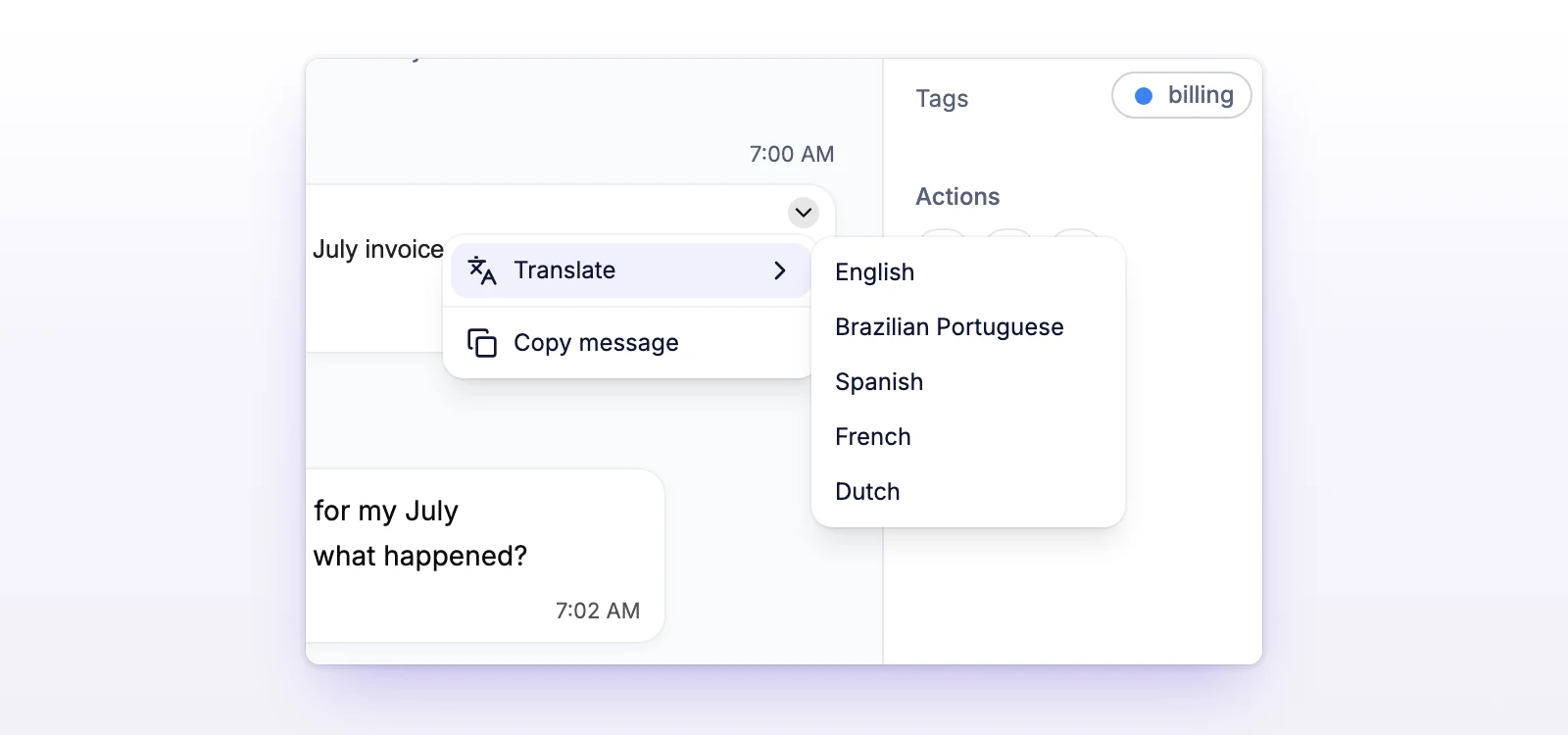
Translate a message

  1. Open the ticket.
  2. Point at the message. A small arrow appears in its top corner. On a touch screen it's always there. This is the Message actions menu.
  3. Select the arrow, then Translate.
  4. Pick a language.
The message menu with the Translate submenu open
Open the message menu, choose Translate, then pick a language.

The message shows "Translating…" and then the translation. A line above it says "Translated to" and the language, with a Show original link.

Select Show original to go back. Pick another language from the same menu to translate again.

Which languages

You can translate into English, Português (Brasil), Español, Français, or Nederlands. Language names show in your own interface language. Your organization's working language is listed first.

The working language is a shared setting for your team. Account owners and admins can change it in Settings > General, under Working language.

What gets translated

  • Any message in the ticket that has text: the customer's first message, later customer messages, and your team's replies. Internal notes don't have the menu.
  • One message at a time. Translating one message doesn't translate the others.
  • The text is translated into the language you pick, whatever language the customer wrote in. You don't choose the source language.

What it doesn't do

  • It doesn't translate the reply you write. The composer has no translate option. Write in the customer's language yourself, or review your reply before you send it.
  • It doesn't change the stored message. The customer's original is what's saved, and Show original brings it back.
  • Your teammates don't see your translation. They translate the message themselves.
  • A translation isn't saved. It goes away when you leave the ticket, and you'll translate again next time. Picking the same language again in the same visit shows the result you already have.
  • It doesn't translate attachments or images. Images in the original message don't show in the translation, but Show original brings them back.

If something's not working

If you see "Couldn't translate this message. Try again."

The translation didn't come back. Try again in a moment.

If you see "Too many translations right now. Try again in a moment."

You've asked for several translations in a short time. Wait a moment and try again.

If the arrow isn't there

A message that's still sending, or one with no text, has no menu. Wait until it's sent. On a computer, point at the message to show the arrow.

Related

  • Reply to a ticket
  • Use AI drafts
  • Change your language
  • Set up your organization
Report spam

Mark a ticket as spam to clear it from your queue, keep it off your bill, and send the sender's future messages to the Spam view.

Use Cc and Bcc

Copy colleagues on a reply with Cc, send a hidden copy with Bcc, and see who receives each message on an email ticket.

Powered by initdesk
On this page
  • Translate messages
  • Translate a message
  • Which languages
  • What gets translated
  • What it doesn't do
  • If something's not working
  • If you see "Couldn't translate this message. Try again."
  • If you see "Too many translations right now. Try again in a moment."
  • If the arrow isn't there
  • Related