Search and filter tickets
Search tickets by subject, customer, ticket number, or message text, then narrow the list with filters and change the order.
Search portal content
Search portal content
Search tickets by subject, customer, ticket number, or message text, then narrow the list with filters and change the order.
Search tickets by subject, customer, ticket number, or message text, then narrow the list with filters and change the order.
Use search when you know something about the ticket: a word from the subject, the customer's name or email, or the ticket number. Use filters when you want to narrow a list, for example to one inbox, one assignee, or one tag.
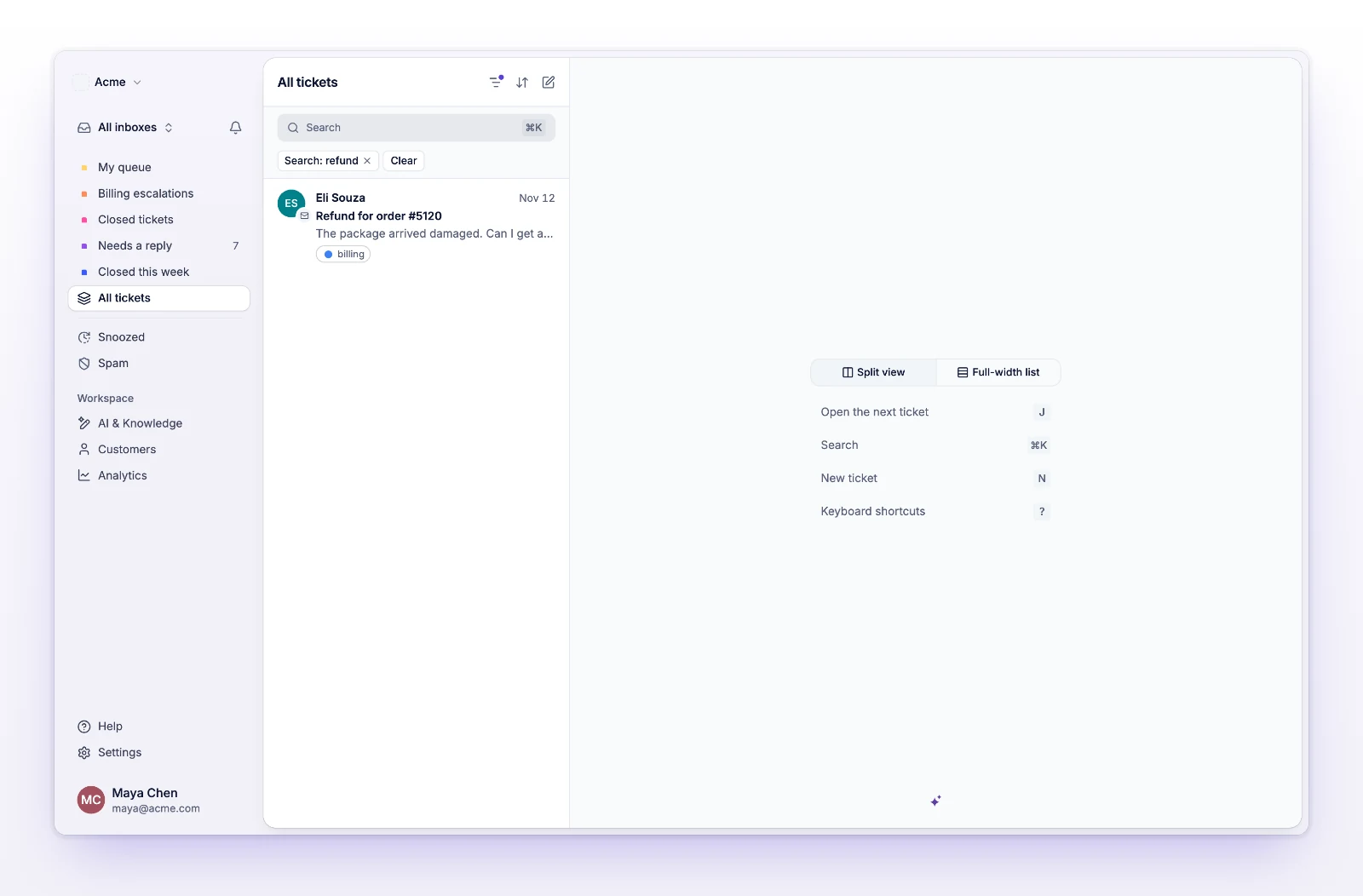
The list shows the matching tickets under the All tickets view. Searching always starts from all tickets, across all inboxes, and not from the view you were in. Your search appears as a Search: chip under the Search field.
Search stops at 200 characters. Spam tickets aren't part of a normal search. See Search spam tickets.
| You type | initdesk looks at |
|---|---|
| Words | The subject, the customer's name, the first message, replies, internal notes, and tags. |
| A ticket number (digits only) | The ticket with that number, and nothing else. |
| An email address | Tickets from the customer with exactly that address. |
A few rules help you get what you expect:
invo finds "invoice" in a subject.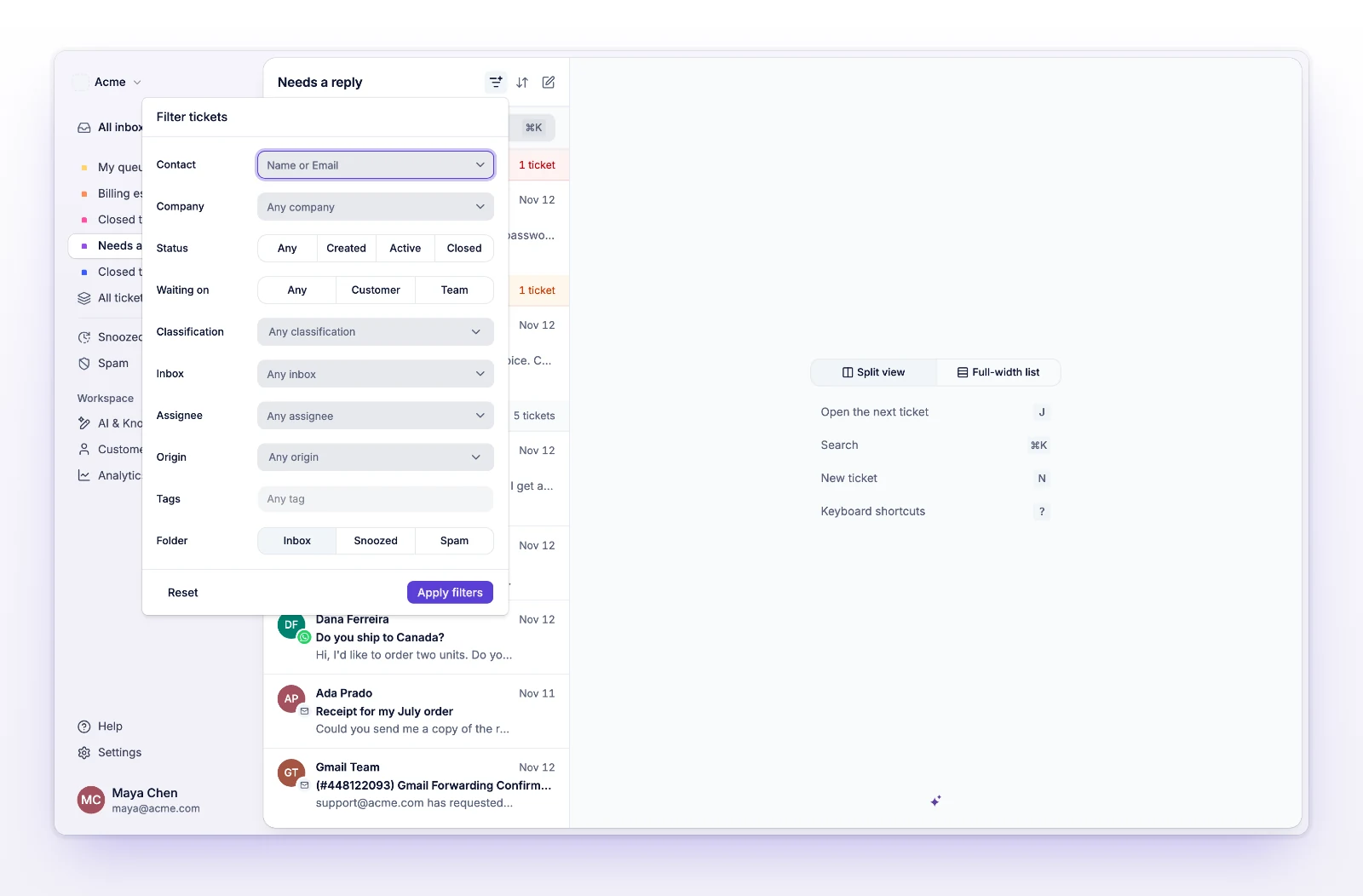
| Filter | Options |
|---|---|
| Contact | Search by name or email, then pick a customer. Type at least 2 characters. |
| Company | Pick a company. |
| Status | Any, Created, Active, or Closed. |
| Waiting on | Any, Customer, or Team. Picking one sets Status to Active. |
| Classification | Any classification, Resolved, Invalid, Customer inactivity, No response, or Other. This is the reason a ticket was closed. |
| Inbox | One inbox, or Any inbox. |
| Assignee | One person on your team, or Any assignee. |
| Origin | Any origin, Email, API, Telegram, WhatsApp, or Help Center. How the ticket entered initdesk. |
| Tags | One or more tags. A ticket matches if it has any of them. |
| Folder | Inbox, Snoozed, or Spam. |
Select Reset to empty every filter in the popover, then Apply filters to show the full list again. Reset keeps your search words.
Filters stack with your search. A search for "refund" with Assignee set to one person shows only that person's refund tickets.
Search includes snoozed tickets and leaves out spam. To search spam, run your search, then select Filter, set Folder to Spam, and select Apply filters. Your search words stay applied.
Select the sort icon in the queue header (Ticket ordering) and pick one:
Picking a date order replaces priority-first order. initdesk remembers your choice the next time you open the list. Clearing filters doesn't change it.
Under the Search field, Active filters shows one chip per filter. Select a chip to remove only that filter. Select Clear to remove the search word and all filters at once. Clear doesn't change your view, inbox, or order.