⌘ K

Search

Search portal content

AI customer support in one tabAI customer support in one tab
⌘ K

Search

Search portal content

AI customer support in one tabAI customer support in one tab
  • Reply to a ticket
  • Ticket statuses
  • Start a new ticket
  • Assign tickets
  • Add internal notes
  • Use saved replies
  • Send and view attachments
  • Tag tickets
  • Set ticket priority
  • Snooze a ticket
  • Follow up with customers
  • Replies to closed tickets
  • Search and filter tickets
  • Save ticket views
  • Update tickets in bulk
  • Merge tickets
  • Change the requester
  • Move to another inbox
  • Report spam
  • Translate messages
  • Use Cc and Bcc
  • Sender verification
  • Handle sensitive requests
  • Manage customers
  • Manage companies
  • Ticket analytics
  1. Home
  2. Manage tickets

Report spam

Mark a ticket as spam to clear it from your queue, keep it off your bill, and send the sender's future messages to the Spam view.

Report spam

Mark a ticket as spam to clear it from your queue, keep it off your bill, and send the sender's future messages to the Spam view.

Spam clutters your queue and, if you leave it, can count toward your ticket total. Mark it as spam and it leaves your queues, stops counting, and the sender's next messages land in the Spam view instead of your open work.
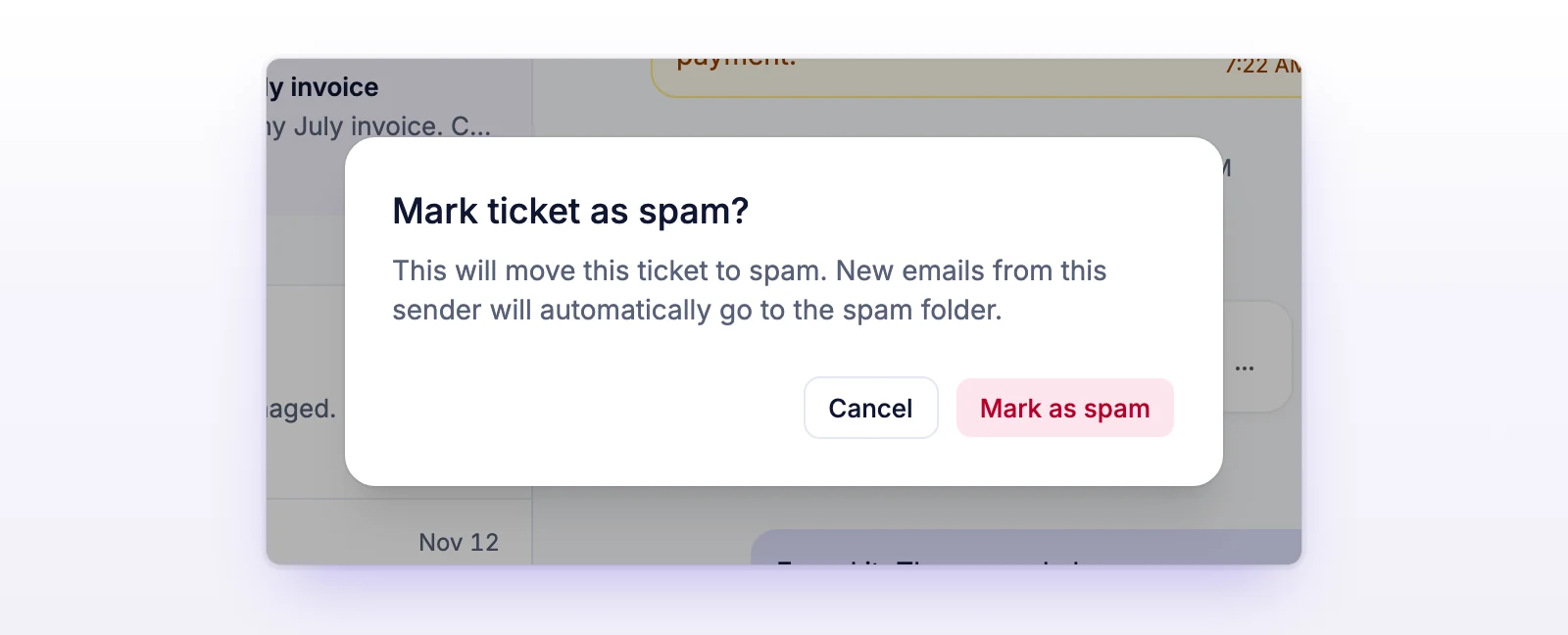
Report a ticket as spam

  1. Open the ticket.
  2. In the ticket details sidebar, under Actions, select Report spam. Hover over the button to see its keyboard shortcut.
  3. In Mark ticket as spam?, select Mark as spam.
The Mark ticket as spam dialog
Marking a ticket as spam also marks its sender.

You'll see "Ticket marked as spam." The ticket moves out of your views and into Spam. Its status, assignee, and tags don't change.

To mark many tickets at once, use Report spam in Update tickets in bulk.

Undo it with Not spam

  1. Open the Spam view in the sidebar, then open the ticket.
  2. Under Actions, select Not spam.

The button switches back with no confirmation, and you'll see "Ticket removed from spam." The ticket and its sender are no longer spam.

Find spam tickets

Select Spam in the sidebar's Ticket views group. You can also select Filter in the ticket list and set Folder to Spam. Spam tickets never appear in your other views or in search.

What happens to the sender

When you mark a ticket as spam, initdesk also marks the sender, the customer on that ticket, as spam. After that:

  • New tickets from that customer are created as spam, on any channel: email, Telegram, WhatsApp, the Help Center, or the API.
  • initdesk still receives the message. It doesn't bounce it or tell the sender.
  • Spam tickets don't notify your team, don't send an automatic reply, and don't get AI tags or summaries.
  • The customer's other existing tickets stay where they are. Only the ticket you mark moves to spam.

Not spam clears the spam mark on the ticket and the customer. Their other tickets that are already spam stay spam. Select Not spam on each one.

Turn spam on or off for a customer

You can also change it on the customer's page. Open the customer from Customers and use the Marked as spam switch. It changes how future messages are handled. It doesn't move the customer's existing tickets.

Spam and your bill

Spam doesn't count as a ticket. A ticket counts toward your total only if it's not spam at the time usage is counted. initdesk counts usage 1 day before your renewal, for tickets created before the cutoff 5 days before renewal. That leaves you time to clean up. Mark spam before the count to keep it off the invoice. Details are in How tickets are billed.

How it behaves

  • Spam tickets can't be snoozed or merged. Reporting a snoozed ticket as spam ends the snooze.
  • Spam is separate from closing. A closed ticket still counts toward your total. Marking it as spam doesn't close it.
  • Replies from a customer on a ticket that's already spam don't notify your team.
  • Marking spam is a decision about one sender, not a block list for a domain.

Related

  • Update tickets in bulk
  • How tickets are billed
  • Manage customers
  • Ticket statuses
Move to another inbox

Send a ticket to a different inbox when it landed in the wrong place. Replies on email tickets then go out from the new inbox address.

Translate messages

Read a customer's message in your own language with one click from the message menu, then switch back to the original any time.

Powered by initdesk
On this page
  • Report spam
  • Report a ticket as spam
  • Undo it with Not spam
  • Find spam tickets
  • What happens to the sender
  • Turn spam on or off for a customer
  • Spam and your bill
  • How it behaves
  • Related