⌘ K

Search

Search portal content

AI customer support in one tabAI customer support in one tab
⌘ K

Search

Search portal content

AI customer support in one tabAI customer support in one tab
  • Reply to a ticket
  • Ticket statuses
  • Start a new ticket
  • Assign tickets
  • Add internal notes
  • Use saved replies
  • Send and view attachments
  • Tag tickets
  • Set ticket priority
  • Snooze a ticket
  • Follow up with customers
  • Replies to closed tickets
  • Search and filter tickets
  • Save ticket views
  • Update tickets in bulk
  • Merge tickets
  • Change the requester
  • Move to another inbox
  • Report spam
  • Translate messages
  • Use Cc and Bcc
  • Sender verification
  • Handle sensitive requests
  • Manage customers
  • Manage companies
  • Ticket analytics
  1. Home
  2. Manage tickets

Follow up with customers

Find tickets where you're waiting for the customer, nudge them with a reply, and let initdesk send a reminder or close quiet tickets for you.

Follow up with customers

Find tickets where you're waiting for the customer, nudge them with a reply, and let initdesk send a reminder or close quiet tickets for you.

A ticket is Waiting on customer when you replied and the next move is theirs. These tickets can sit quiet for days. Check them on a schedule, nudge the customer, and let initdesk send a reminder or close the ones that go cold.

Find tickets waiting on the customer

Open the Waiting on customer view in the left sidebar. It lists open tickets where the customer owes the next reply. Snoozed tickets are not in it.

You can also add it to your own view. In a custom filter, set the Waiting on rule to The customer. See Save ticket views.

If your team removed the Waiting on customer view, use Filters above the ticket list and set Waiting on to Customer.

Nudge a customer yourself

  1. Open the ticket.
  2. Write a short follow-up. See Reply to a ticket.
  3. Send it.

The ticket stays Waiting on customer. If the customer doesn't need anything more from you, close it from the ticket. See Ticket statuses.

If you're waiting on something from someone else, snooze the ticket instead. See Snooze a ticket.

Send reminders and close quiet tickets automatically

Each inbox has two timers. Both are off until you turn them on.
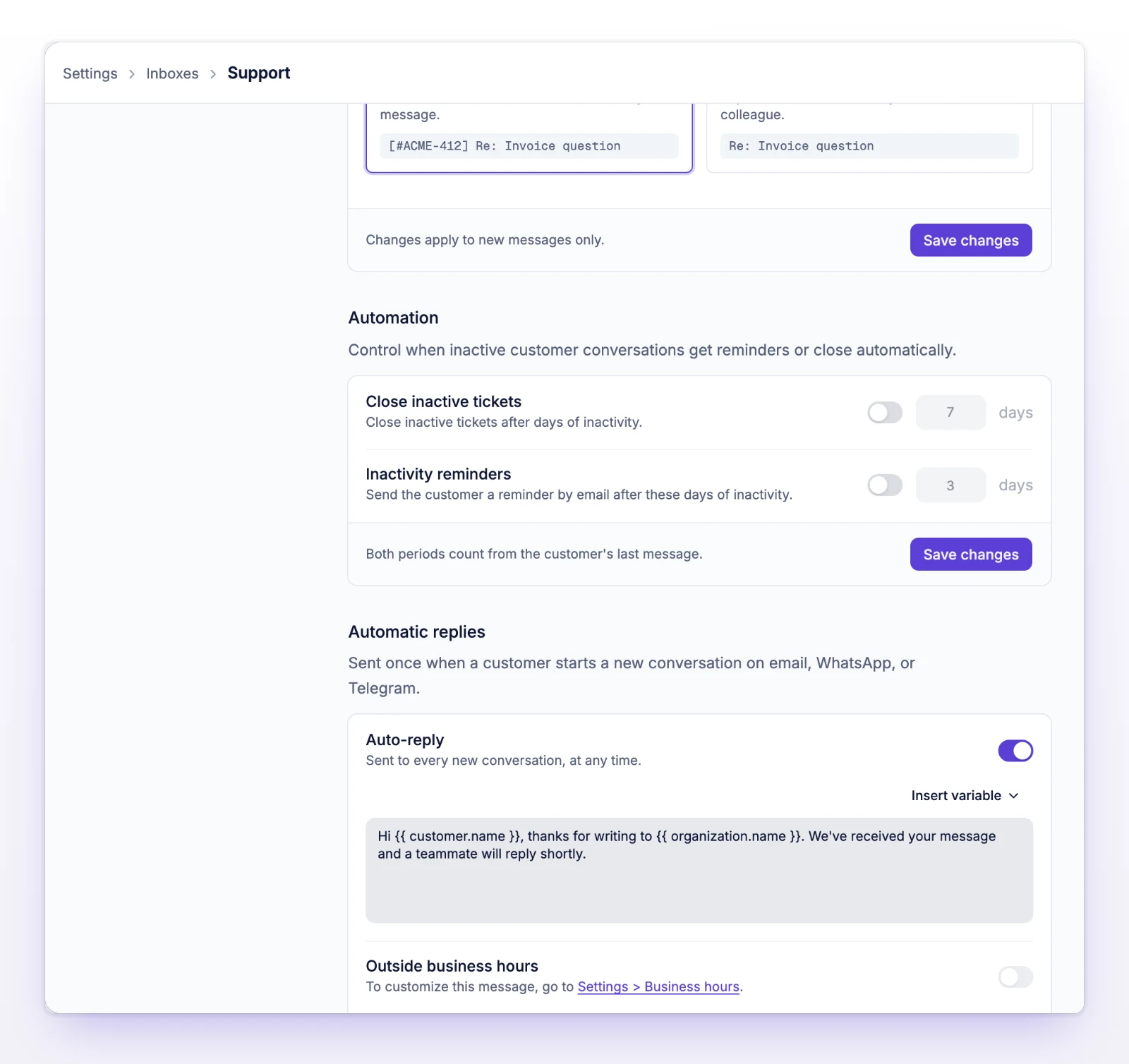
  1. Go to Settings > Inboxes.
  2. Open the inbox.
  3. In Automation, turn on Inactivity reminders, Close inactive tickets, or both.
  4. Set the number of days for each: Remind after and Close after.
  5. Select Save changes.
The Automation section with Close inactive tickets and Inactivity reminders
Turn on reminders and auto-close, and set the number of days for each.
Setting What it does
Inactivity reminders Sends the customer a reminder after the number of days you set.
Close inactive tickets Closes the ticket after the number of days you set.

The rules for the numbers:

  • Use whole numbers of days, 1 or more. initdesk rejects an auto-close period shorter than 2 days.
  • With both timers on, Remind after has to be shorter than Close after. Otherwise initdesk says "Remind before the ticket closes." on the first field and "Close after the reminder is sent." on the second.

You can use one timer without the other. For example, 3 days to remind and 7 days to close.

What the reminder does

initdesk sends the customer a short message and adds it to the ticket. It reads something like "We have not heard from you in a while. Please reply if you still need assistance." If the inbox shows ticket numbers to customers, the message includes the number. Each ticket gets one reminder. The setting describes it as an email.

What auto-close does

initdesk sends the customer a closing message, for example "This conversation was closed due to inactivity. Please reach out again if you need further assistance." It then closes the ticket. The thread shows Closed for customer inactivity, and the ticket's closed reason is Customer inactivity.

If the customer replies afterward, the ticket reopens. See Replies to closed tickets.

Which tickets the timers apply to

The timers act on a ticket only when all of these are true:

  • It's open and Waiting on customer.
  • It isn't snoozed. Time a ticket spends snoozed doesn't count.
  • It hasn't been merged into another ticket.
  • It isn't an imported ticket.

The timers count the days since the last activity on the ticket. For a ticket waiting on the customer, that is usually your last reply.

The timers check every ticket in the inbox, not only new ones. When you turn on Close inactive tickets, tickets that have already been quiet longer than your setting can close right away, and each one sends the customer a closing message. Start with a number of days that is longer than your oldest waiting ticket, then lower it.

Find tickets that closed from inactivity

Use Filters above the ticket list and set Classification to Customer inactivity. Or in a custom filter, add a Closed as rule with Customer inactivity. See Save ticket views.

What follow-up doesn't do

  • Timers don't run on snoozed tickets or on tickets waiting on your team.
  • You can't edit the reminder or closing text. initdesk writes it in the ticket's language.
  • The timers count calendar days. They don't use your business hours.

If something's not working

If you see "Enter a whole number of days." or "Use at least 1 day."

Enter a whole number that's 1 or more. A switch that's on needs a number.

If the timers don't act on a ticket

Check that the ticket is Waiting on customer, not Needs response, and that it isn't snoozed. Also check that the switch is on for the ticket's inbox, not another one.

Related

  • Ticket statuses
  • Snooze a ticket
  • Reply to a ticket
  • Create an inbox
Snooze a ticket

Park a ticket until a set time. It leaves your queue and comes back when the time is up, or sooner if the customer replies.

Replies to closed tickets

A customer reply to a closed ticket reopens that same ticket on email and in the Help Center. On Telegram and WhatsApp, a time window decides.

Powered by initdesk
On this page
  • Follow up with customers
  • Find tickets waiting on the customer
  • Nudge a customer yourself
  • Send reminders and close quiet tickets automatically
  • What the reminder does
  • What auto-close does
  • Which tickets the timers apply to
  • Find tickets that closed from inactivity
  • What follow-up doesn't do
  • If something's not working
  • If you see "Enter a whole number of days." or "Use at least 1 day."
  • If the timers don't act on a ticket
  • Related