⌘ K

Search

Search portal content

AI customer support in one tabAI customer support in one tab
⌘ K

Search

Search portal content

AI customer support in one tabAI customer support in one tab
  • Create an inbox
  • Choose inbox channels
  • Forward your support address
  • Forward from Google Workspace
  • Forward from Gmail
  • Forward from Microsoft 365
  • Send from your own domain
  • Sender names and signatures
  • Fix email problems
  • Connect WhatsApp
  • Use WhatsApp templates
  • Connect Telegram
  • Set up auto-reply
  • Choose ticket numbering
  1. Home
  2. Inboxes & channels

Create an inbox

Create an inbox for a product, team, or customer group. Rename it, choose the primary inbox, set inactivity timers, or delete an inbox safely.

Create an inbox

Create an inbox for a product, team, or customer group. Rename it, choose the primary inbox, set inactivity timers, or delete an inbox safely.

On this page
  • Create an inbox
  • Add a new inbox
  • Settings on an inbox
  • General
  • Automation
  • Automatic replies
  • Delete an inbox
  • If something's not working
  • If you can't see Settings > Inboxes
  • If a deleted inbox still shows on your screen
  • Related

An inbox is where customer messages become tickets. Create one for each product, team, or customer group that needs its own address and its own settings. initdesk has no limit on the number of inboxes.

Account owners and admins manage inboxes. The Inboxes page is hidden from other people on your team.

Use one inbox with several channels when the same team answers everything. Use a second inbox when the work needs a different team, different automatic replies, or a different sender identity. For a brand with its own policies and help center, create a separate organization.

Add a new inbox

  1. Go to Settings > Inboxes.
  2. Select Add inbox.
  3. Enter an Inbox name. Your team sees this name. Customers never see it. The limit is 64 characters.
  4. Enter an Address prefix. It's the first part of the email address for this inbox. Use up to 32 letters, numbers, and the characters ., _, %, and -, with no spaces.
  5. Select Create inbox.
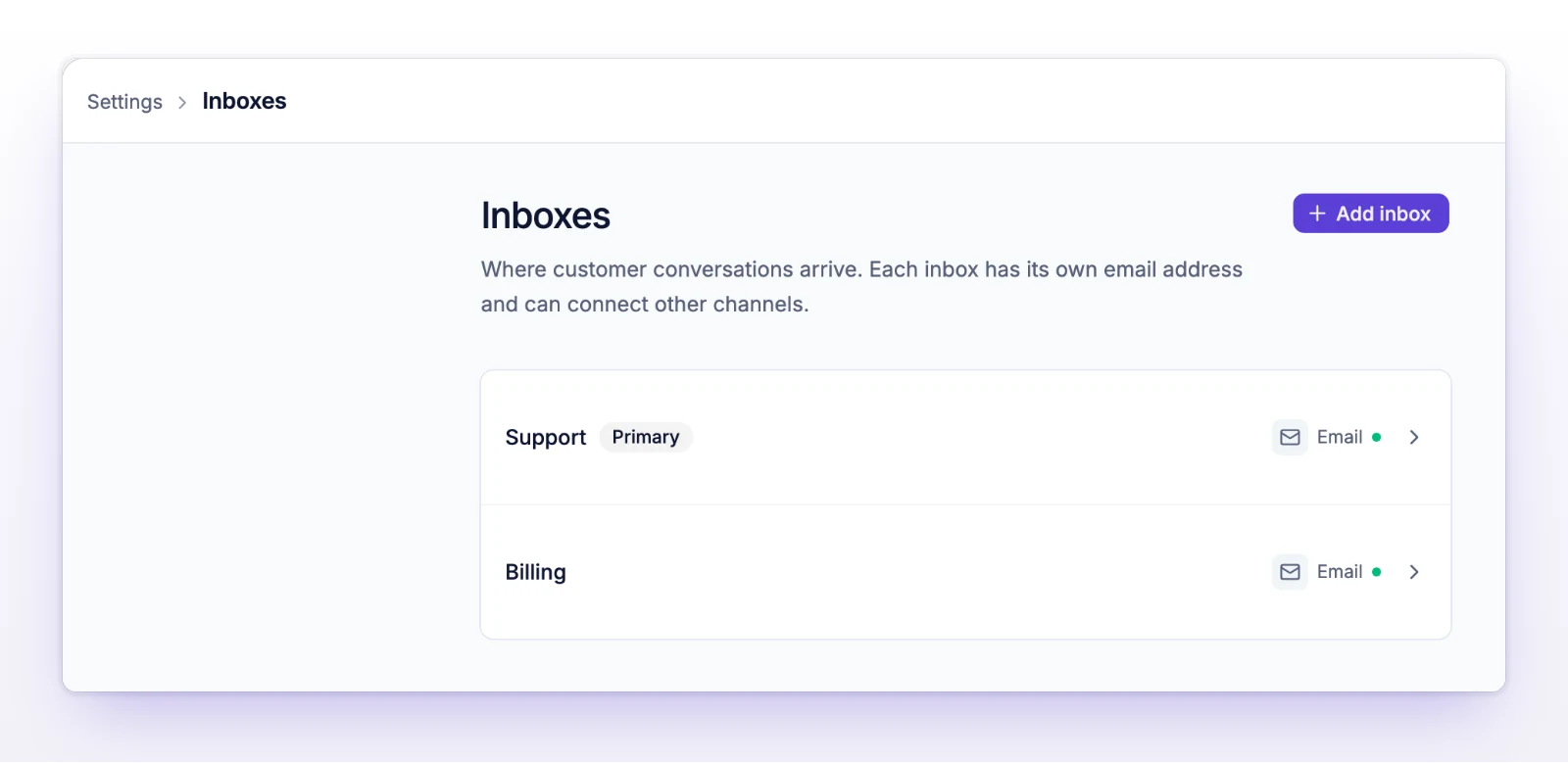
The Inboxes list with an Add inbox button and one inbox marked Primary
Every organization has one primary inbox. Add more from this page.

If you see "That address prefix is already taken. Try another one.", pick a different prefix.

initdesk opens the new inbox. Its address is on the Email page, labeled initdesk inbox address. To receive your own support address in the inbox, see Forward your support address. To add WhatsApp or Telegram, see Choose inbox channels.

Settings on an inbox

Go to Settings > Inboxes and select the inbox.
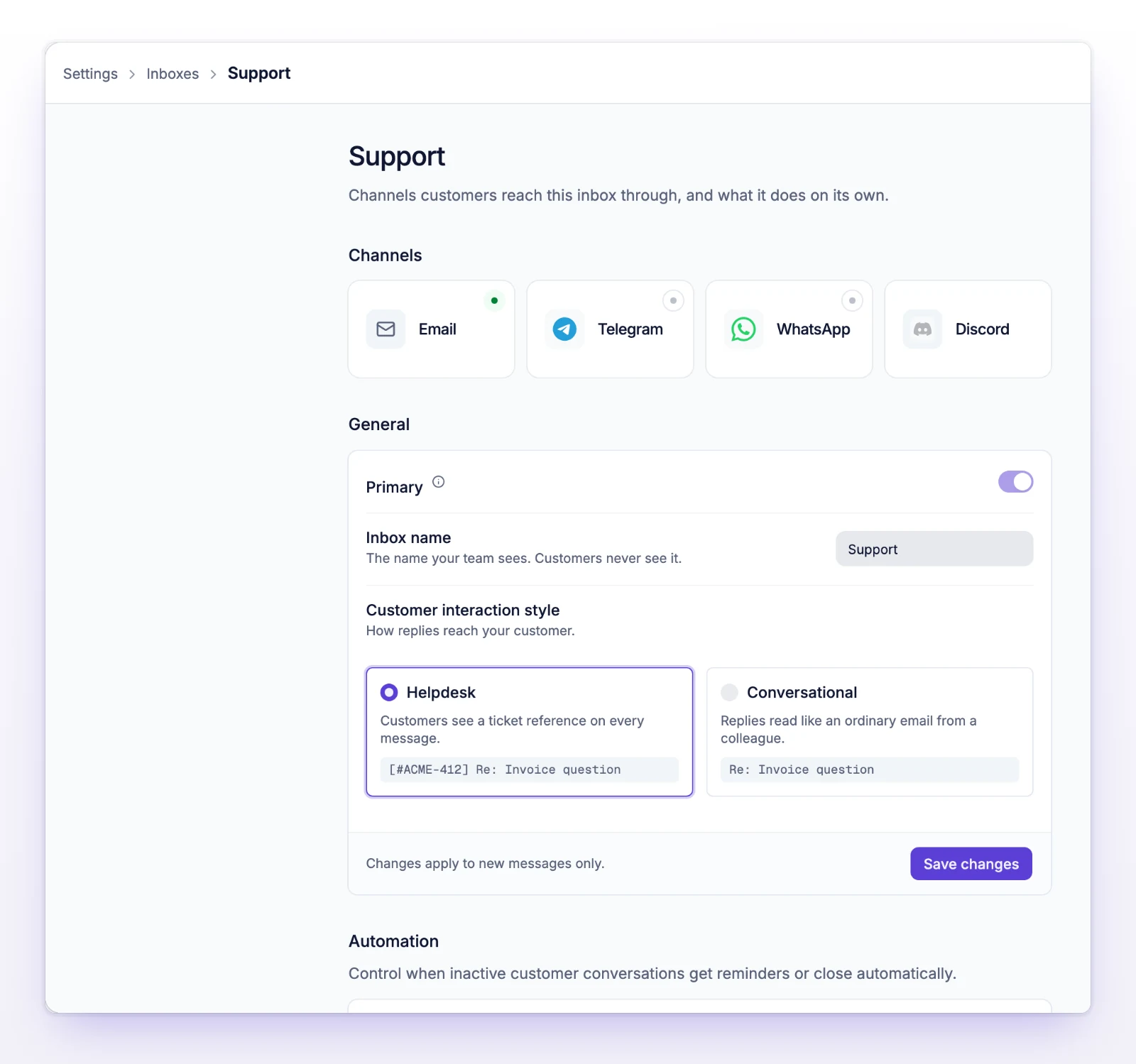
An inbox page with channel cards and the General section
Each inbox page holds its channels, general settings, timers, and automatic replies.
Section What it holds
Channels One card per channel: Email, Telegram, WhatsApp, and Discord.
General Primary, Inbox name, and Customer interaction style.
Automation Close inactive tickets and Inactivity reminders.
Automatic replies The reply a customer gets when a new ticket starts.

General

  • Primary: Messages that aren't addressed to another inbox arrive in the primary inbox, so every organization has exactly one. Help Center and AI chat tickets go there too. Turning Primary on takes effect right away and moves the role from the old inbox. You can't turn it off. To change the primary inbox, open another inbox and turn Primary on there.
  • Inbox name: The name your team sees.
  • Customer interaction style: Helpdesk or Conversational. See Choose ticket numbering.

Inbox name and Customer interaction style save together with Save changes. The style applies to new messages only.

Automation

  • Close inactive tickets closes a ticket after the number of days you set in Close after.
  • Inactivity reminders emails the customer after the number of days you set in Remind after.

Both periods count from the customer's last message. Select Save changes to apply them. The timers don't run while a ticket is snoozed. See Snooze a ticket.

Automatic replies

Each inbox can send one reply when a customer starts a new ticket. See Set up auto-reply.

Delete an inbox

You can't delete the primary inbox. Make another inbox primary first.

  1. Open the inbox.
  2. Select Delete.
  3. Read the dialog, then select Delete inbox.

What happens to its tickets:

  • Email tickets move to the primary inbox. This can't be undone.
  • Tickets from other channels, such as WhatsApp or Telegram, can't move. The dialog lists each channel and how many conversations it has, and asks you to confirm. If you continue, those conversations are deleted permanently.
  • An inbox that still has a company email address can't be deleted. The dialog says Remove company email address first. Select Open company email address, remove the address, then come back. See Send from your own domain.

If something's not working

If you can't see Settings > Inboxes

Only account owners and admins can manage inboxes. Ask one of them to change the setting, or to change your role.

If a deleted inbox still shows on your screen

You'll see "This inbox is no longer available. It may have been deleted from another session." Go back to Settings > Inboxes and reload.

Related

  • Choose inbox channels
  • Forward your support address
  • Set up auto-reply
  • Invite your team
Inactive organizations

An organization with no team reply for 30 days and no active subscription gets warnings, then is deleted. Here is the rule and how to stop it.

Choose inbox channels

See where customers can reach an inbox: email, WhatsApp, and Telegram. Pick the channels you need, then follow the link to set each one up.

Powered by initdesk