⌘ K

Search

Search portal content

AI customer support in one tabAI customer support in one tab
⌘ K

Search

Search portal content

AI customer support in one tabAI customer support in one tab
  • Create an inbox
  • Choose inbox channels
  • Forward your support address
  • Forward from Google Workspace
  • Forward from Gmail
  • Forward from Microsoft 365
  • Send from your own domain
  • Sender names and signatures
  • Fix email problems
  • Connect WhatsApp
  • Use WhatsApp templates
  • Connect Telegram
  • Set up auto-reply
  • Choose ticket numbering
  1. Home
  2. Inboxes & channels

Connect WhatsApp

Connect a WhatsApp Business number to an inbox through Meta. Customer messages become tickets, and you reply from initdesk.

Connect WhatsApp

Connect a WhatsApp Business number to an inbox through Meta. Customer messages become tickets, and you reply from initdesk.

Connect a WhatsApp Business number to an inbox and every customer message to that number becomes a ticket. You reply from initdesk, and your team uses the same tools as for email.

Before you start

  • You need to be an account owner or admin.
  • Have a Meta Business account that you manage.
  • Have a phone number that can receive a code by SMS or call. It can't be registered on a personal WhatsApp account.
  • Plan for about five minutes. Meta may ask you to verify the business.
  • One inbox connects to one WhatsApp number. A number can only be connected to one inbox.

initdesk never sees your Meta password. The number and its messages stay in your Meta Business account.
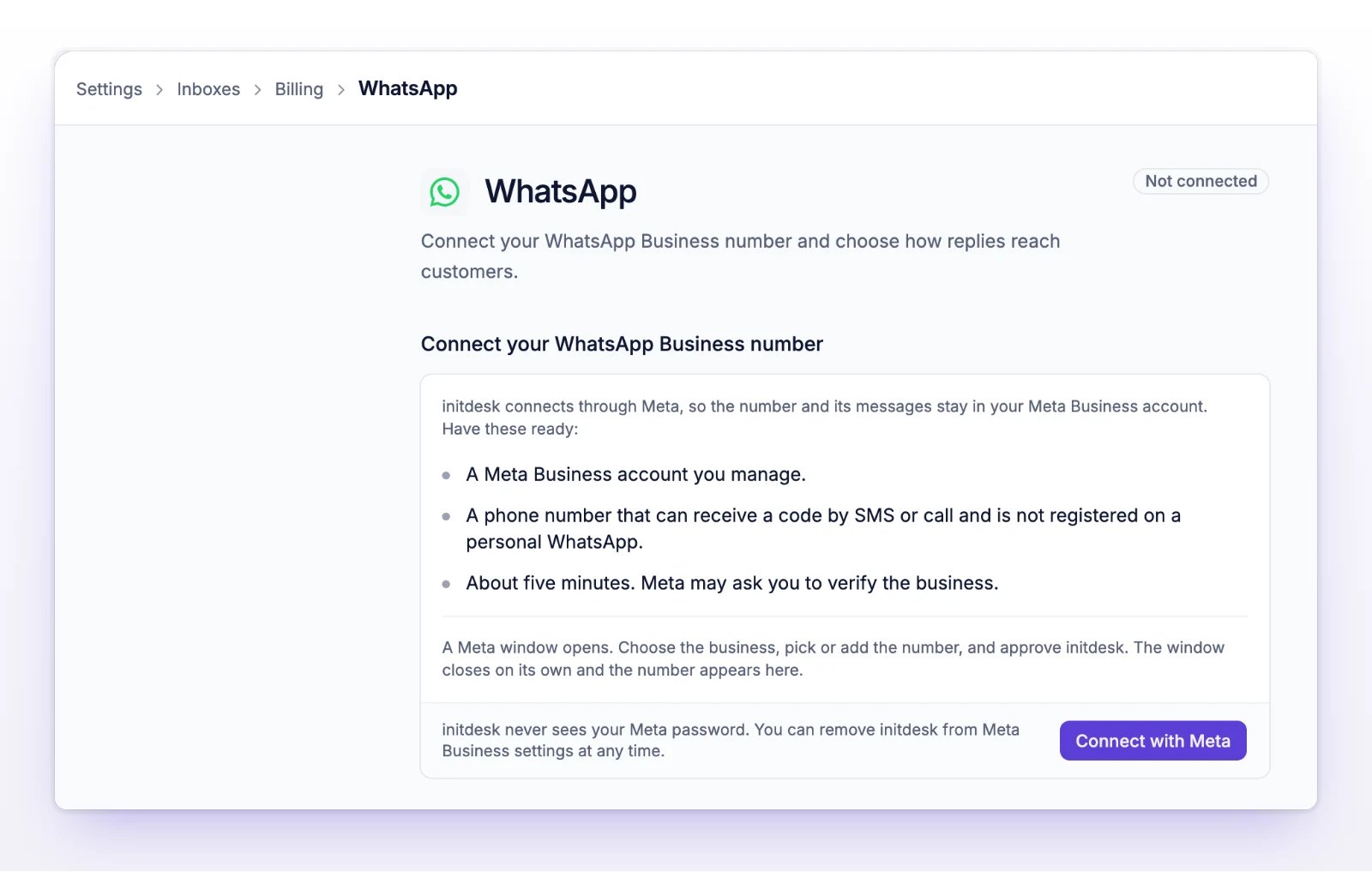
Connect a number

  1. Go to Settings > Inboxes and open the inbox.
  2. Select the WhatsApp card.
  3. Select Connect with Meta.
  4. In the Meta window, choose your business, pick or add the number, and approve initdesk.
The WhatsApp page before connecting, with a checklist and a Connect with Meta button
Have a Meta Business account and a phone number ready, then select Connect with Meta.

The Meta window closes on its own, and the number appears on the page under Number. The card on the inbox shows Active.

Connecting to Meta needs JavaScript in your browser.

What customers and your team see

  • A customer messages your number on WhatsApp. A ticket opens in the inbox with the origin WhatsApp.
  • Text, images, videos, documents, stickers, and voice messages arrive on the ticket. Other types, such as locations and contact cards, don't create a message.
  • You reply from the ticket. Inside the 24-hour window you can send text, images, and documents. You can't send voice messages.
  • The customer's next messages continue the same ticket for 24 hours after their last message. After that, a new message opens a new ticket. If you close a ticket and the customer writes again inside those 24 hours, the ticket reopens.
  • initdesk never puts the ticket number in a WhatsApp message to the customer, whatever your Customer interaction style is.

The 24-hour window

WhatsApp only lets a business send free-form messages for 24 hours after the customer's last message. After that, you can only send an approved message template until the customer writes back. See Use WhatsApp templates.

Voice messages

A customer's voice message appears on the ticket with a player and a download link. initdesk also transcribes it, so you can read it. While that's in progress you'll see Receiving audio… and Transcribing….

Transcription skips voice messages longer than 5 minutes. If it can't transcribe a message you'll see No transcription available. An admin can turn it off with Transcribe voice messages in Settings > General, and the ticket then shows Transcription is turned off.

Change the settings

Open Settings > Inboxes, select the inbox, then WhatsApp. Under Conversations:

  • Receive messages turns off with the switch. While it's off, new messages don't create tickets.
  • Show teammate names puts the name of the teammate who wrote a reply in front of it. It applies to normal replies. Message templates never include the name.

Select Save changes.

Automatic replies come from the inbox, not this page. See Set up auto-reply.

Keep the connection healthy

Meta gives initdesk access to your number for about two months at a time. Within 14 days of the end date, the page shows Meta's access to this number runs out soon with the date. Reconnect before that date so messages keep arriving.

To reconnect, open the WhatsApp page and select Reconnect with Meta in the Connection card, then go through the Meta window again. Reconnect also after you change the number in your Meta Business settings.

The Connection card also has Open WhatsApp Manager. You create message templates there, not in initdesk.

Disconnect WhatsApp

  1. Open the WhatsApp page for the inbox.
  2. Select Disconnect.
  3. Confirm in the Disconnect WhatsApp? dialog.

New WhatsApp messages stop creating tickets, and initdesk's access to the number is removed from Meta. Existing conversations stay in Tickets.

If something's not working

If the card says Attention, or you see "WhatsApp is not delivering messages"

The page says why:

  • "Meta no longer accepts initdesk's access to this number. Reconnect to start receiving messages again."
  • "Meta stopped delivering messages to initdesk. Reconnect to register the webhook again."

Select Reconnect with Meta and complete the Meta window.

If you see "Meta did not accept the sign-in. Try connecting again."

The Meta window didn't finish. Select Connect with Meta again and complete every step in the window.

If you see "This WhatsApp number is already connected to another inbox. Disconnect it there first."

A number can only belong to one inbox. Disconnect it from the other inbox, then connect it here.

If you see "initdesk could not finish setting up this number with Meta. Try connecting again."

Select Connect with Meta and go through the Meta window again.

If you see "The number is connected, but initdesk did not get Meta's final answer."

The number is connected, but initdesk didn't hear back from Meta in time. If messages don't arrive, select Reconnect with Meta.

If you see "Connecting is unavailable right now"

initdesk couldn't reach Meta's setup. Try again in a few minutes.

If you leave the page while the Meta window is open

initdesk asks you to confirm, and leaving cancels the connection. Start again with Connect with Meta.

Related

  • Use WhatsApp templates
  • Choose inbox channels
  • Set up auto-reply
  • Start a new ticket
Fix email problems

Find your symptom: missing tickets, a stuck verification email, forwarding bounces, duplicates, failed inbound checks, and DNS records that won't verify.

Use WhatsApp templates

After 24 hours of silence, WhatsApp only allows approved templates. Send one from a ticket, or start a new WhatsApp ticket with one.

Powered by initdesk
On this page
  • Connect WhatsApp
  • Before you start
  • Connect a number
  • What customers and your team see
  • The 24-hour window
  • Voice messages
  • Change the settings
  • Keep the connection healthy
  • Disconnect WhatsApp
  • If something's not working
  • If the card says Attention, or you see "WhatsApp is not delivering messages"
  • If you see "Meta did not accept the sign-in. Try connecting again."
  • If you see "This WhatsApp number is already connected to another inbox. Disconnect it there first."
  • If you see "initdesk could not finish setting up this number with Meta. Try connecting again."
  • If you see "The number is connected, but initdesk did not get Meta's final answer."
  • If you see "Connecting is unavailable right now"
  • If you leave the page while the Meta window is open
  • Related