
Sender names and signatures
Choose the name customers see on replies, set a signature for each inbox, and let each person on your team add a personal email signature.
Search portal content
Search portal content
Choose the name customers see on replies, set a signature for each inbox, and let each person on your team add a personal email signature.
Choose the name customers see on replies, set a signature for each inbox, and let each person on your team add a personal email signature.
Customers see two things you control on every email: the sender name and the signature. The sender name belongs to each inbox. The signature comes from the inbox, unless a person on your team has set a personal one.
| What | Where | Who can change it |
|---|---|---|
| Sender name | Inbox, Email, Message settings | Account owners and admins |
| Inbox signature | Inbox, Email, Message settings | Account owners and admins |
| Personal signature | Settings > Email signature | Each person, for their own email |
| Personal signatures on or off | Settings > Email signature | Account owners and admins |
The sender name is the display name customers see in the From line of replies from this inbox. For example, Acme Support <support@yourcompany.com>.
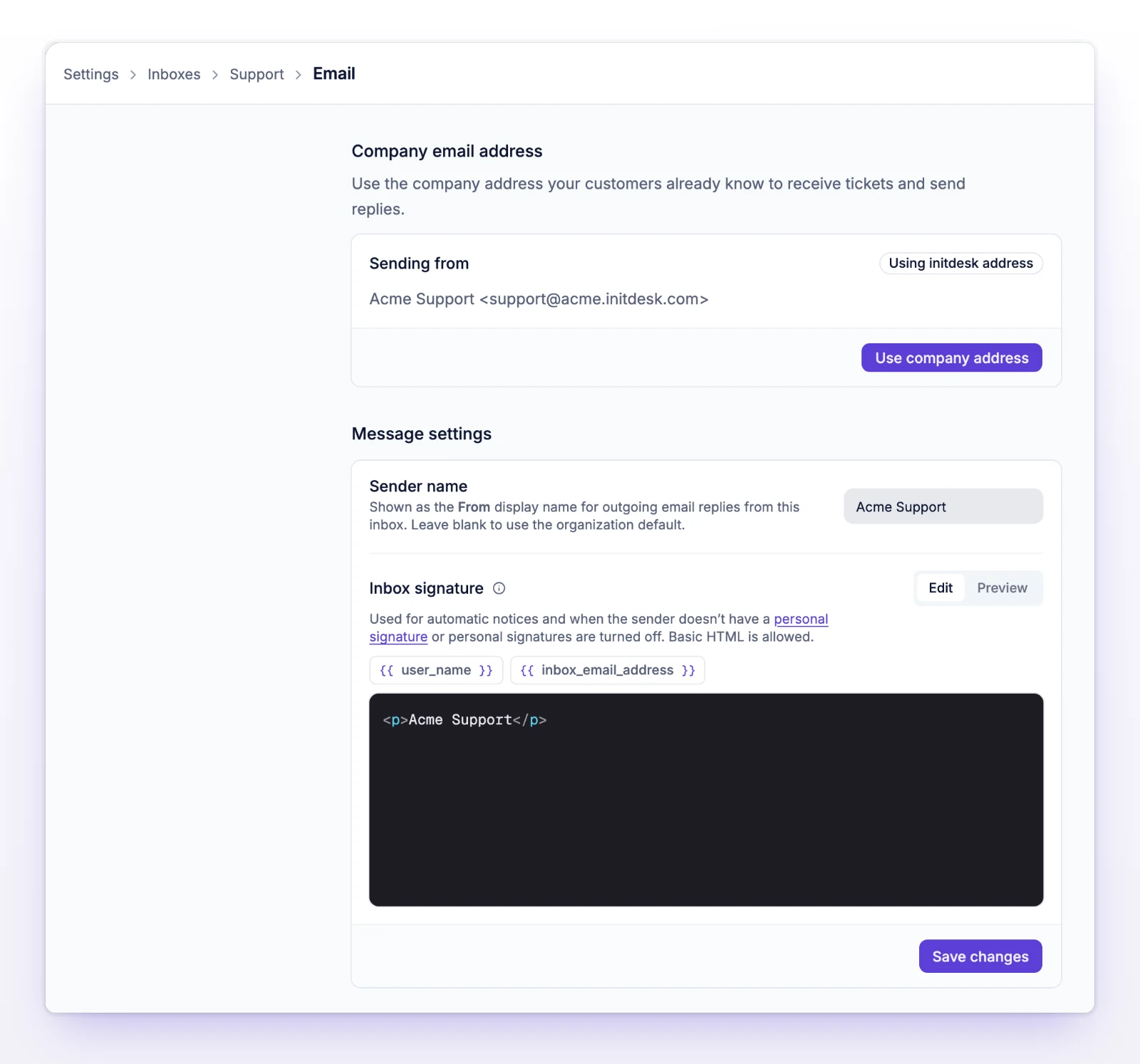
If you leave it blank, initdesk uses the organization default. For a new organization, that's the organization name. Customers see the name with whichever address the reply comes from: your own address when Company email address is live, otherwise an initdesk address. To change the address, see Send from your own domain.
The inbox signature is the sign-off at the bottom of email from an inbox.
{{ user_name }} becomes the sender's name, and {{ inbox_email_address }} becomes the inbox's address.The inbox signature is used:
If the signature is empty, initdesk adds no sign-off at all. It doesn't invent one.
A personal signature replaces the inbox signature completely, on email you send from any inbox in the organization. Other people on your team can't edit it.
Go to Settings > Email signature.
Under Start from a template, choose Minimal, Profile, or Branded, or write your own. Branded needs an organization logo.
Edit the HTML signature. Use HTML. Markdown isn't supported. You can insert variables from the variable menu:
| Variable | What customers see |
|---|---|
{{ user_name }} |
Your display name |
{{ inbox_email_address }} |
The address of the inbox the message is sent from |
{{ user_profile_picture }} |
Your uploaded or Google photo. Empty if you have none. |
{{ organization_logo }} |
The organization logo. Empty if there is none. |
Check the preview, then select Save.
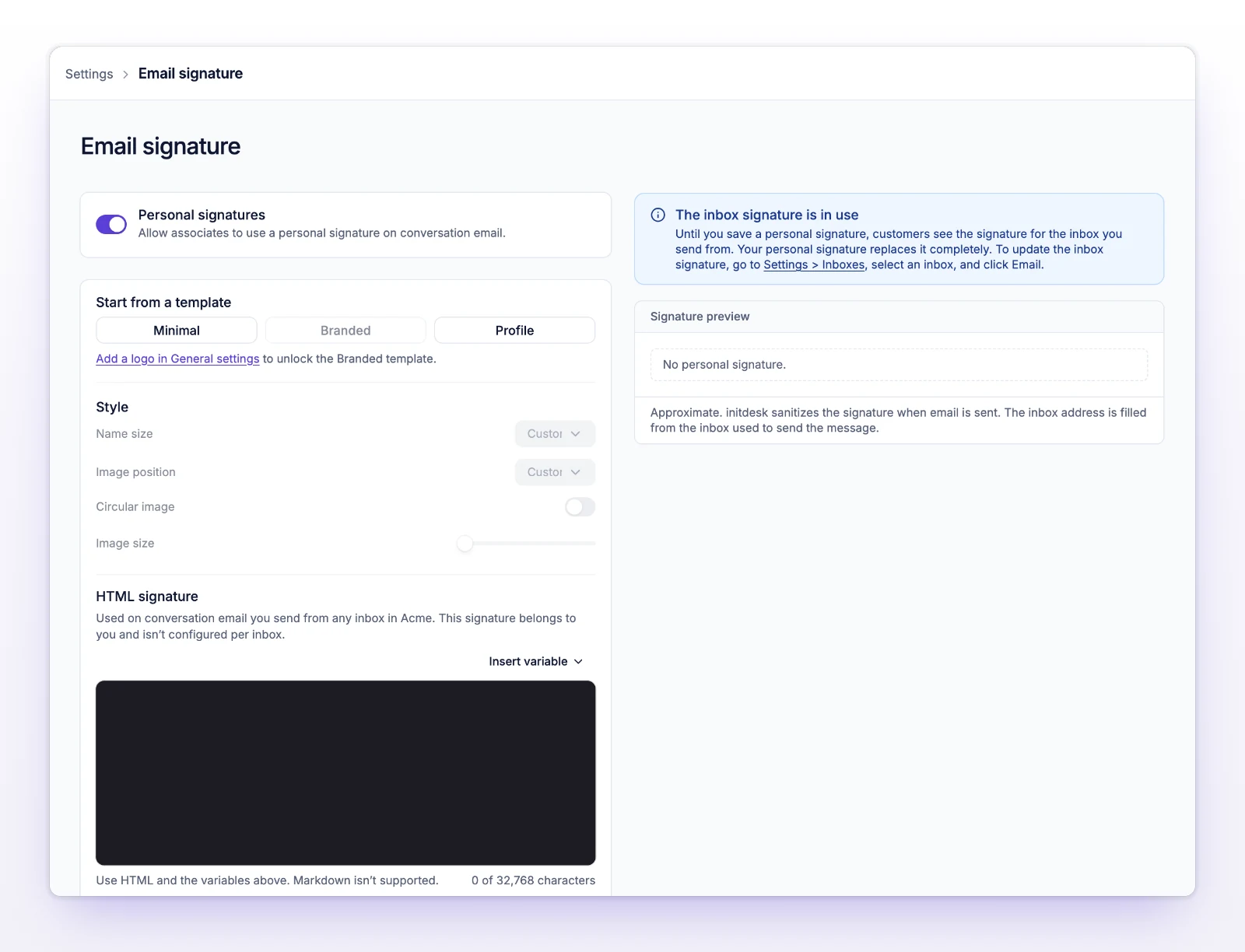
Your signature is used on replies you send, and on the first email of tickets you open. Images must use public HTTPS addresses. initdesk has no signature image upload. The limit is 32,768 characters.
To go back to the inbox signature, select Delete, then Delete signature. You can't undo it.
Account owners and admins control this with the Personal signatures switch at the top of Settings > Email signature. When it's off, all email uses the inbox signature. Saved personal signatures are kept, and they apply again when you turn it back on. People who aren't admins see a notice that personal signatures are off and can't edit their own.
| Situation | Signature |
|---|---|
| You have a saved personal signature and the setting is on | Your personal signature |
| You have no personal signature | The inbox signature |
| The setting is off | The inbox signature |
| Automatic notices | The inbox signature |
| Both are empty | No signature |
Your signature uses a variable that doesn't exist. Use only the four in the table above, written exactly, such as {{ user_name }}.
The signature has a broken {{ }} or {% %} pair, or an {% if %} without {% endif %}. Close every pair, then save again.
Shorten the signature. For the inbox signature, the limit is 4,000 characters.
Check that Personal signatures is on, that the email was sent after you saved, and that you are not looking at the plain-text version, which shows a short footer instead.