
Fix email problems
Find your symptom: missing tickets, a stuck verification email, forwarding bounces, duplicates, failed inbound checks, and DNS records that won't verify.
Search portal content
Search portal content
Find your symptom: missing tickets, a stuck verification email, forwarding bounces, duplicates, failed inbound checks, and DNS records that won't verify.
Find your symptom: missing tickets, a stuck verification email, forwarding bounces, duplicates, failed inbound checks, and DNS records that won't verify.
Find your symptom below. Receiving problems (email doesn't become a ticket) usually come from forwarding at your email provider. Sending problems (replies come from the wrong address, or the domain won't verify) come from the Company email address setup.
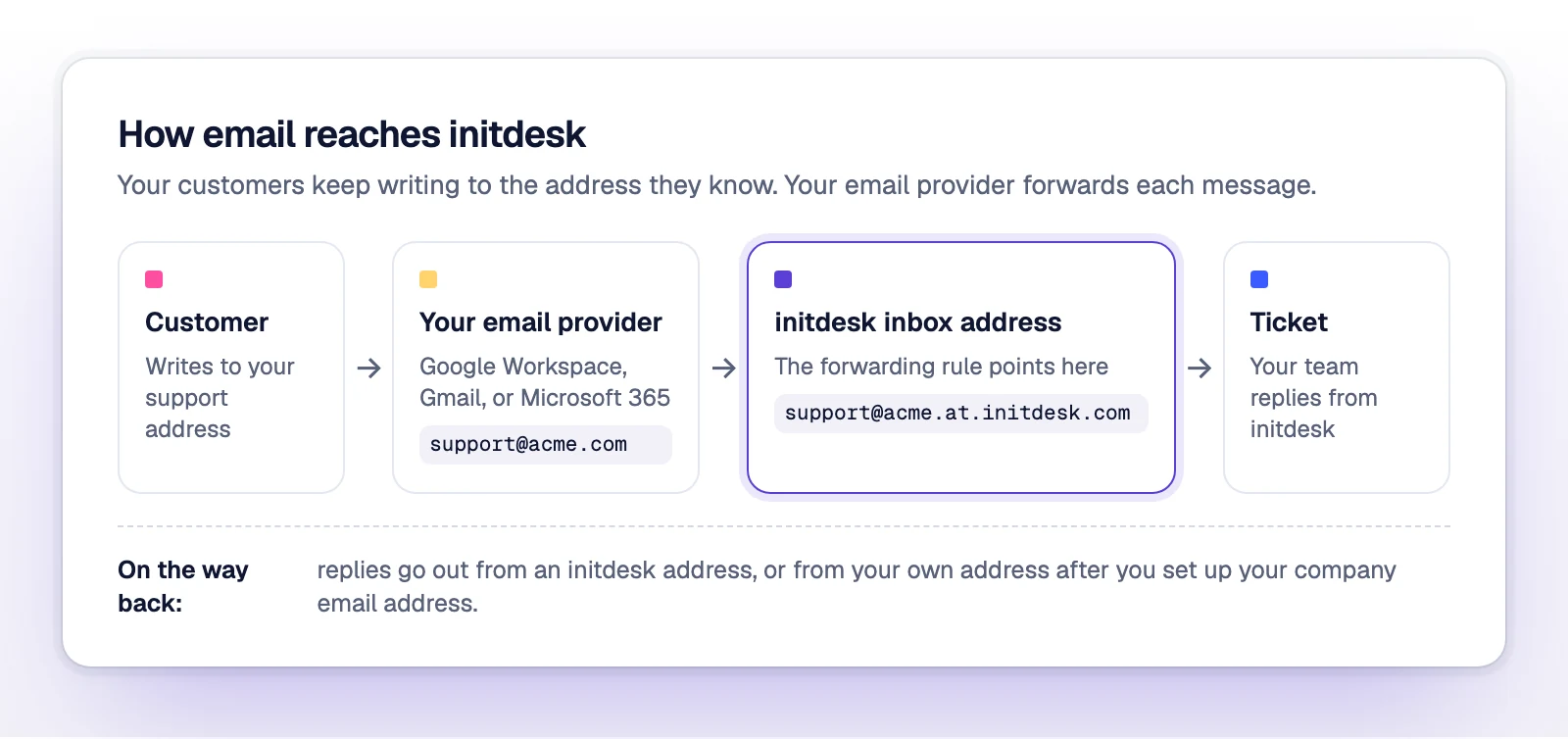
Gmail sends it to your initdesk inbox address, where it becomes a ticket. Check that you typed the address exactly, then look in the inbox and in spam. Repeat Add a forwarding address in Gmail to send a new one. If Gmail won't let you add an address at all, an admin has probably turned off forwarding. See Forward from Gmail.
Verifying the address doesn't turn forwarding on. In Gmail, select Forward a copy of incoming mail to, choose the address, and select Save Changes.
The bounce says 5.7.520 Access denied, Your organization does not allow external forwarding. Microsoft blocks forwarding to outside addresses by default, and an admin has to allow it. See Forward from Microsoft 365. It doesn't mean initdesk rejected the email.
Gmail doesn't forward mail it marks as spam, and Google routing rules skip it unless you check Bypass spam filter for this message. In Gmail, a filter with Never send it to Spam helps.
Two methods are forwarding the same address, such as a routing rule plus a Gmail filter, or an Outlook rule plus the forwarding setting. Keep one.
An Outlook rule uses Forward to, which makes the message look like it came from your mailbox. Change it to Redirect to. In Google, use admin routing.
That's a sender verification warning, not a delivery problem. See Sender verification.
Open Settings > Sending domains and select the domain. A record marked Missing isn't published yet. A record marked Mismatch exists with a different value. Compare the Name and Value at your DNS provider with the ones in initdesk, correct them, then select Check DNS. If your provider adds your domain to every name, enter the name without the final .yourcompany.com.
The page also shows "{found} of {required} required records found." DNS changes can take time to spread, so wait a few minutes and check again.
Review the records, fix any mismatch, and select Check DNS again.
The records may not have spread yet. Wait and check again.
You checked too many times in a short period. Wait a minute. initdesk also checks again on its own.
That's fine. DMARC is Recommended and doesn't block verification.
A record that was there is gone or changed, so DNS stopped verifying. New tickets send from the initdesk sender until the records are back. Restore the records and select Check DNS.
initdesk accepts only a domain your organization owns and hasn't added already. Enter the part after the @ in your address, without www..
You'll see "Complete the sending-domain and inbound checks before enabling." You need a verified domain, a saved address, and Inbound connected.
You sent checks too quickly. Wait, then select Send inbound check again.
The page shows what happened to the last check. Match the title:
| Title | Meaning and fix |
|---|---|
| Last check did not return in time | The check message didn't reach the inbox before it expired. Check automatic forwarding, the destination, and spam or mailbox filters. Keep the original subject and message headers. Send another check. |
| Delivery status could not be checked | The check didn't return, and initdesk couldn't confirm delivery. Same fix as above. |
| Last check rejected by the receiving server | Your mail server rejected the message. Confirm that the mailbox exists and accepts email from initdesk, then send another check. If it's still rejected, contact initdesk support. |
| Last check blocked by Amazon SES | Amazon SES (the service initdesk sends email through) blocked delivery after an earlier rejection or a spam complaint. Confirm that the mailbox exists and the owner wants this email, then contact initdesk support to review the block. |
| Last check rejected by the email provider | Contact initdesk support to review the rejection before sending another check. |
| Last check could not be sent | Try again later. If it continues, contact initdesk support. |
| The last failure has no recorded cause | Send another check. If it fails again, contact initdesk support. |
The message describes the last attempt. After you fix the cause, select Send again for a fresh result.
Check that the status is Live and that the ticket is new. Existing tickets keep the sender they started with.
Check that the domain is Verified and that all records still show Found. Keep one SPF record per domain. initdesk's SPF record is on a subdomain, so you shouldn't need to edit your main one. Mail forwarded to initdesk can fail SPF on the way in. That's normal and separate from sending.
Select Contact initdesk support under the failure message, or contact us from the help center. Tell us the inbox, your support address, your email provider, and the message you see.