Create a Telegram bot with BotFather and connect it to an inbox. Messages sent to the bot become tickets, and you reply from initdesk.
Connect Telegram
Create a Telegram bot with BotFather and connect it to an inbox. Messages sent to the bot become tickets, and you reply from initdesk.
Connect a Telegram bot to an inbox and every message people send to the bot becomes a ticket. You reply from initdesk. Telegram needs a bot that you own, so you create one in Telegram first.
Before you start
You need to be an account owner or admin.
You need a Telegram account.
One inbox connects to one bot. A bot can only be connected to one inbox.
Create the bot and connect it
In initdesk, go to Settings > Inboxes and open the inbox.
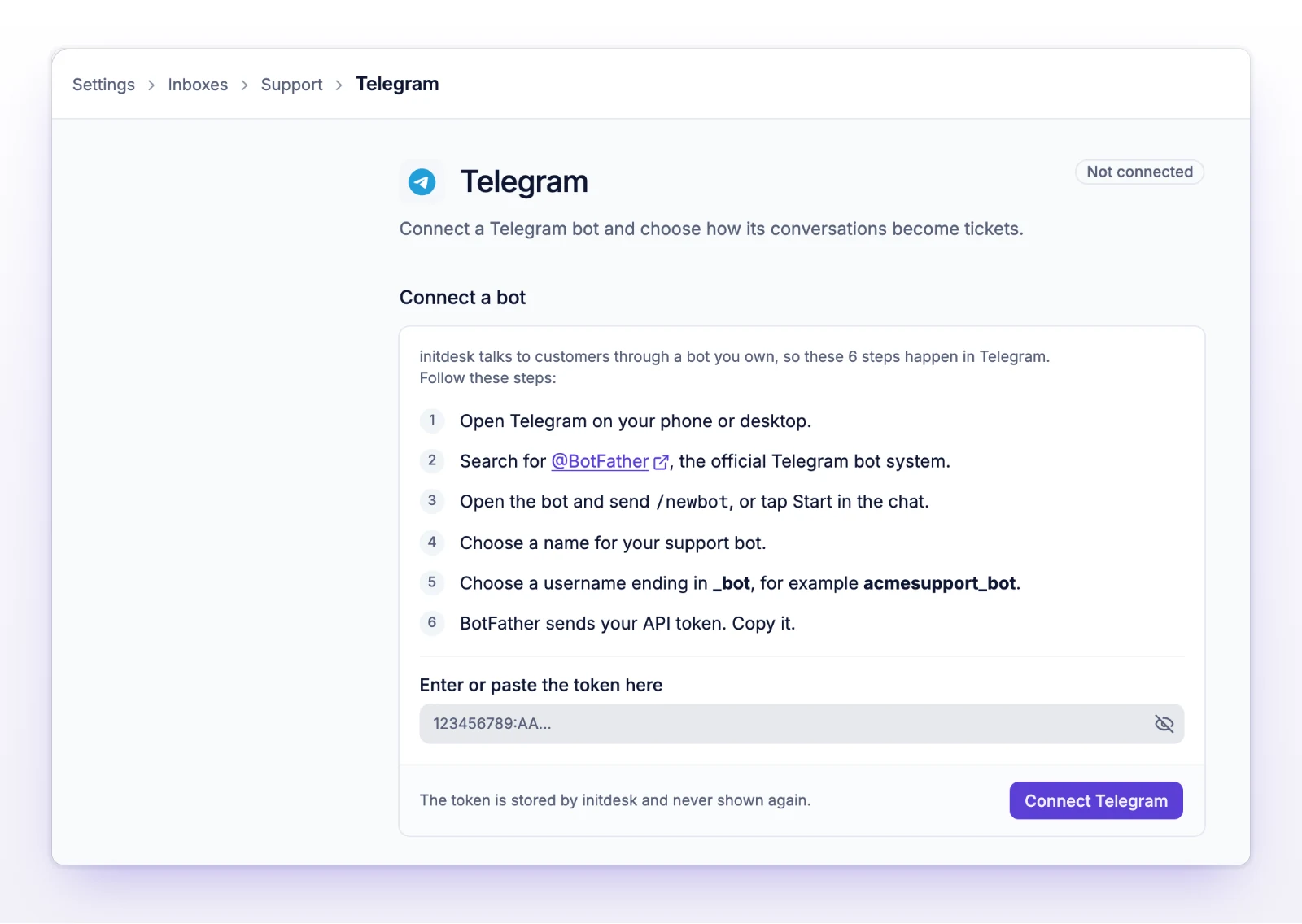
Select the Telegram card. The page lists the steps to follow in Telegram.
In Telegram, open the app on your phone or desktop.
Search for @BotFather, the official Telegram bot system.
Open it and send /newbot, or tap Start in the chat.
Choose a name for your support bot.
Choose a username ending in _bot, for example acmesupport_bot.
BotFather sends you an API token. Copy it.
Back in initdesk, paste the token into Bot token, then select Connect Telegram.
Create a bot in Telegram, then paste its token here.
initdesk stores the token and never shows it again. The page then shows your bot's handle under Bot, and the card on the inbox says Active.
Customers find your bot by its username. Share that link or handle where customers look for help.
What customers and your team see
A customer sends a message to your bot. A ticket opens in the inbox with the origin Telegram.
Customers can send text, photos, documents, voice messages, audio, video, and stickers. They arrive on the ticket.
You reply from the ticket. You can send text, photos, and documents.
Only private chats with the bot work. Messages in groups are ignored.
Your inbox's Customer interaction style decides whether messages from initdesk mention the ticket number. See Choose ticket numbering.
Change the settings
Open Settings > Inboxes, select the inbox, then Telegram. Under Conversations:
Receive messages turns new Telegram messages into tickets. Turn it off to stop that.
Show teammate names puts the name of the teammate who wrote a reply in front of it.
Session window sets how many hours a conversation stays on one ticket, from 1 to 168 hours. The default is 24. Any message that arrives before the window ends continues the same ticket. After the window ends, the next message opens a new ticket. The window counts from the customer's last message, and your replies don't extend it.
Reopen closed tickets: when it's on, a closed ticket reopens if the customer writes again inside the session window. When it's off, that message opens a new ticket. It's on by default.
Select Save changes.
Automatic replies come from the inbox, not this page. See Set up auto-reply.
Replace the bot token
If you regenerate the token in BotFather, or initdesk reports a token problem, replace the token.
Open the Telegram page for the inbox.
In the Bot token card, paste the new token into New token.
Select Replace token.
Disconnect Telegram
Open the Telegram page for the inbox.
Select Disconnect.
Confirm in the Disconnect Telegram? dialog.
New Telegram messages stop creating tickets, and the stored bot token is removed. Existing conversations stay in Tickets.
If something's not working
If the card says Attention, or you see "Telegram is not delivering messages"
The page says why:
"Telegram rejected the stored bot token. Rotate it to start receiving messages again."
"Telegram stopped delivering updates to initdesk. Rotate the bot token to re-register the webhook."
Replace the token as described above. If you regenerated the token in BotFather, use the new one.
If you see "Telegram rejected that token. Check it and try again."
The token is wrong or no longer valid. Copy it again from BotFather. Make sure you copied all of it, with no spaces.
If you see "Paste the token BotFather gave you."
The Bot token field is empty. Paste the token and try again.
If a bot is already connected to another inbox
A bot can belong to one inbox. Disconnect it from the other inbox first, or create a second bot for this one.
If messages in a group don't arrive
Only private chats with the bot create tickets. Ask the person to message the bot directly.