⌘ K

Search

Search portal content

AI customer support in one tabAI customer support in one tab
⌘ K

Search

Search portal content

AI customer support in one tabAI customer support in one tab
  • Create an inbox
  • Choose inbox channels
  • Forward your support address
  • Forward from Google Workspace
  • Forward from Gmail
  • Forward from Microsoft 365
  • Send from your own domain
  • Sender names and signatures
  • Fix email problems
  • Connect WhatsApp
  • Use WhatsApp templates
  • Connect Telegram
  • Set up auto-reply
  • Choose ticket numbering
  1. Home
  2. Inboxes & channels

Choose ticket numbering

Pick the format of new ticket IDs for your organization, and choose per inbox whether customers see a ticket number in your messages.

On this page
  • Choose ticket numbering
  • Choose the ticket ID format
  • Choose how customers see tickets
  • Helpdesk
  • Conversational
  • How it behaves
  • Common setups
  • If something's not working
  • If customers still see ticket numbers after you switched to Conversational
  • If ticket IDs look different after you changed the format
  • Related

Choose ticket numbering

Pick the format of new ticket IDs for your organization, and choose per inbox whether customers see a ticket number in your messages.

Two settings control ticket numbers. Ticket ID format decides how new ticket IDs are written, for your whole organization. Customer interaction style decides, per inbox, whether customers see the ticket number in what initdesk sends them. Your team sees ticket IDs inside initdesk either way.

Account owners and admins can change both.
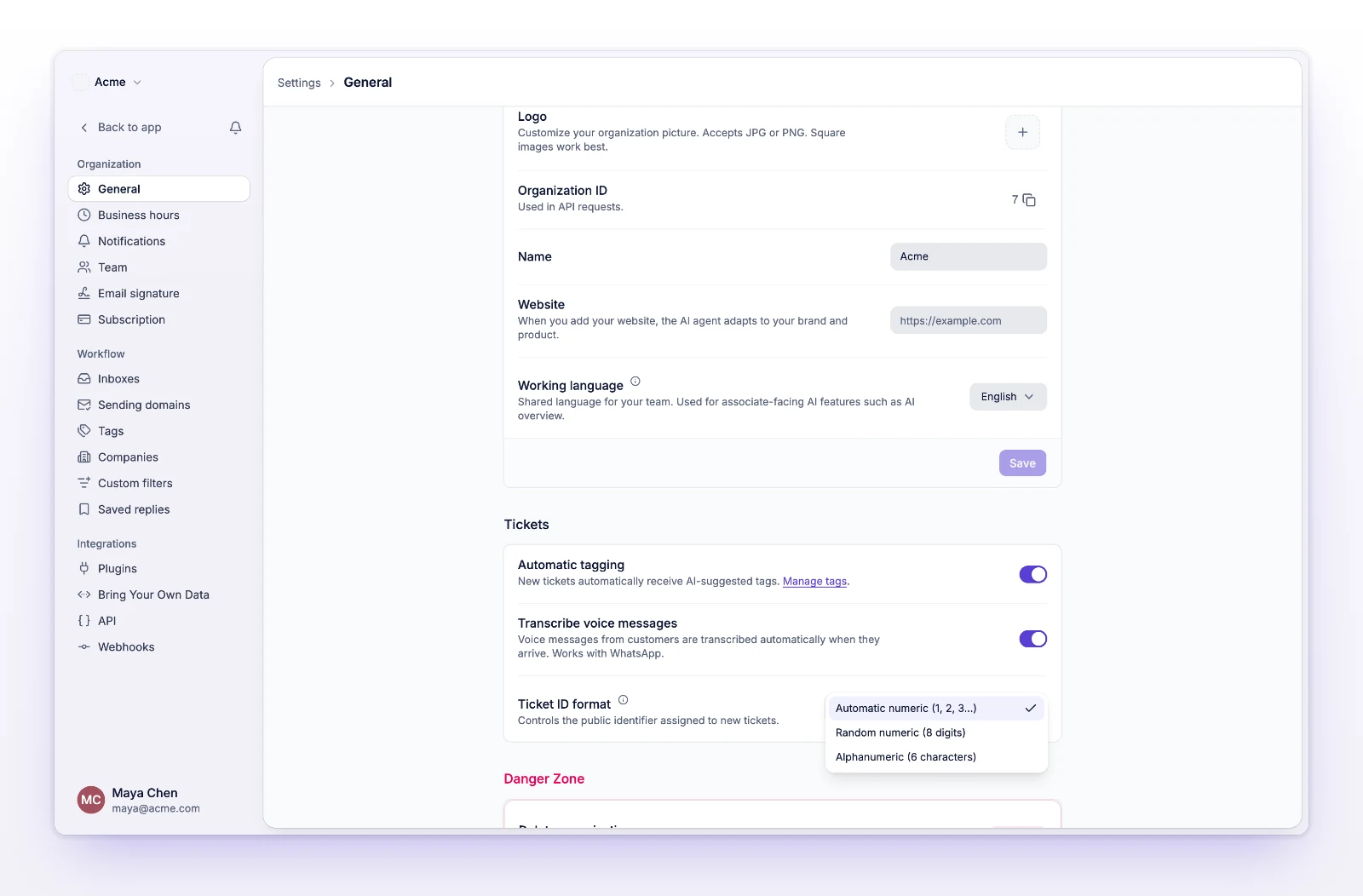
Choose the ticket ID format

  1. Go to Settings > General.
  2. Find Ticket ID format, and choose a format. It saves when you choose it.
The Ticket ID format select with three options
Choose how new ticket IDs are written.
Format What new tickets get
Automatic numeric (1, 2, 3…) The next number in order
Random numeric (8 digits) A random 8-digit number
Alphanumeric (6 characters) A 6-character ID of letters and numbers

The format applies to tickets created after the change. Existing tickets keep their IDs.
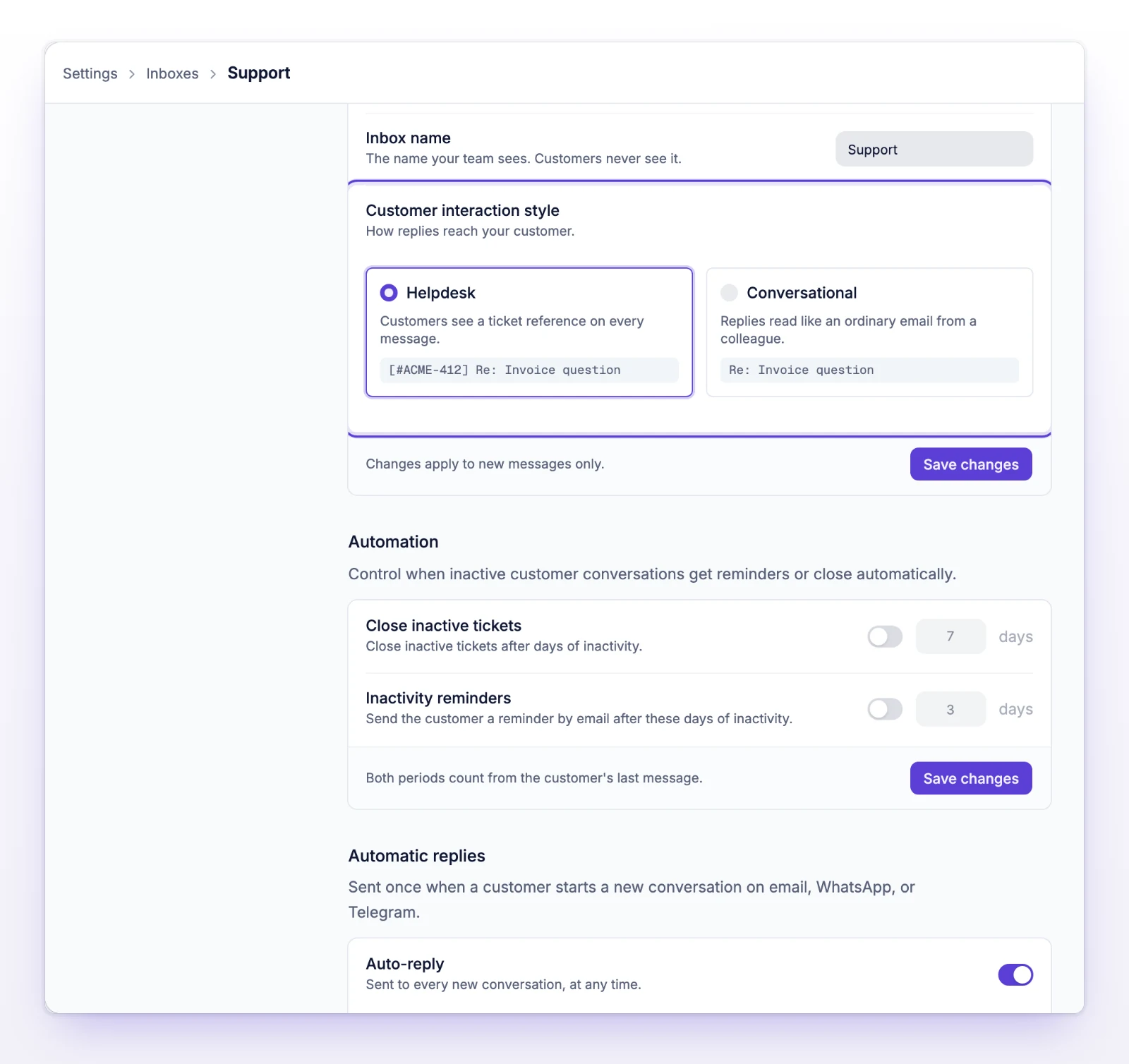
Choose how customers see tickets

  1. Go to Settings > Inboxes and open the inbox.
  2. Under General, choose a Customer interaction style.
  3. Select Save changes.
The Customer interaction style choice with Helpdesk and Conversational
Each inbox has its own interaction style.

The change applies to new messages only.

Helpdesk

"Customers see a ticket reference on every message." Messages from initdesk mention the ticket number. For example:

  • The confirmation email says "We received your message (ticket #123)."
  • Reply notification emails say "Your ticket #123 has been updated."
  • Inactivity reminders and auto-close notices name the ticket.
  • The default Auto-reply text names the ticket.
  • A ticket you start yourself by email gets the subject "Ticket #123 - Your subject".

Conversational

"Replies read like an ordinary email from a colleague." The same messages leave out the ticket number. This is the default for new inboxes.

How it behaves

What Helpdesk Conversational
Ticket number in messages to customers Yes No
Ticket IDs in your team's views Yes Yes
  • WhatsApp messages never include the ticket number, whatever the style is.
  • The style doesn't change what your team sees, and it doesn't hide tickets from anyone.
  • Satisfaction survey emails always show the ticket number.
  • A custom Auto-reply includes the ticket number only if the text contains the Ticket number variable. See Set up auto-reply.
  • The ticket ID format applies to the whole organization. The interaction style is per inbox, so two inboxes can differ.

Common setups

  • Formal support desk: Automatic numeric IDs, and Helpdesk on every inbox.
  • Mixed teams: Pick one ID format. Use Helpdesk for billing and Conversational for sales.
  • Conversational brand, structured inside: Alphanumeric IDs, and Conversational on customer-facing inboxes.

If something's not working

If customers still see ticket numbers after you switched to Conversational

Check that you saved the setting on the right inbox, since each inbox has its own. The change applies to new messages. Messages already sent keep their numbers, and survey emails still show the number.

If ticket IDs look different after you changed the format

The format applies to new tickets only. Older tickets keep the ID they were created with.

Related

  • Set up auto-reply
  • Create an inbox
  • Choose inbox channels
Set up auto-reply

Tell customers right away that their message arrived. Set one reply for business hours and one for after hours, per inbox.

Reply to a ticket

Open a ticket, write your reply, pick what happens to the ticket next, and send. Here is the everyday loop and what the ticket does after.

Powered by initdesk