⌘ K

Search

Search portal content

AI customer support in one tabAI customer support in one tab
⌘ K

Search

Search portal content

AI customer support in one tabAI customer support in one tab
  • Create an inbox
  • Choose inbox channels
  • Forward your support address
  • Forward from Google Workspace
  • Forward from Gmail
  • Forward from Microsoft 365
  • Send from your own domain
  • Sender names and signatures
  • Fix email problems
  • Connect WhatsApp
  • Use WhatsApp templates
  • Connect Telegram
  • Set up auto-reply
  • Choose ticket numbering
  1. Home
  2. Inboxes & channels

Use WhatsApp templates

After 24 hours of silence, WhatsApp only allows approved templates. Send one from a ticket, or start a new WhatsApp ticket with one.

Use WhatsApp templates

After 24 hours of silence, WhatsApp only allows approved templates. Send one from a ticket, or start a new WhatsApp ticket with one.

WhatsApp lets you send free-form messages only for 24 hours after the customer's last message. After that, you can contact the customer only with a message template that Meta has approved. This article covers what you'll see when the window closes, and how to send a template.
How the 24-hour window works

  • The window opens when the customer messages you and lasts 24 hours from their last message.
  • Your own replies and templates don't extend it. Only a new message from the customer does.
  • While the window is open, the ticket has the normal editor: text, attachments, and Saved replies.
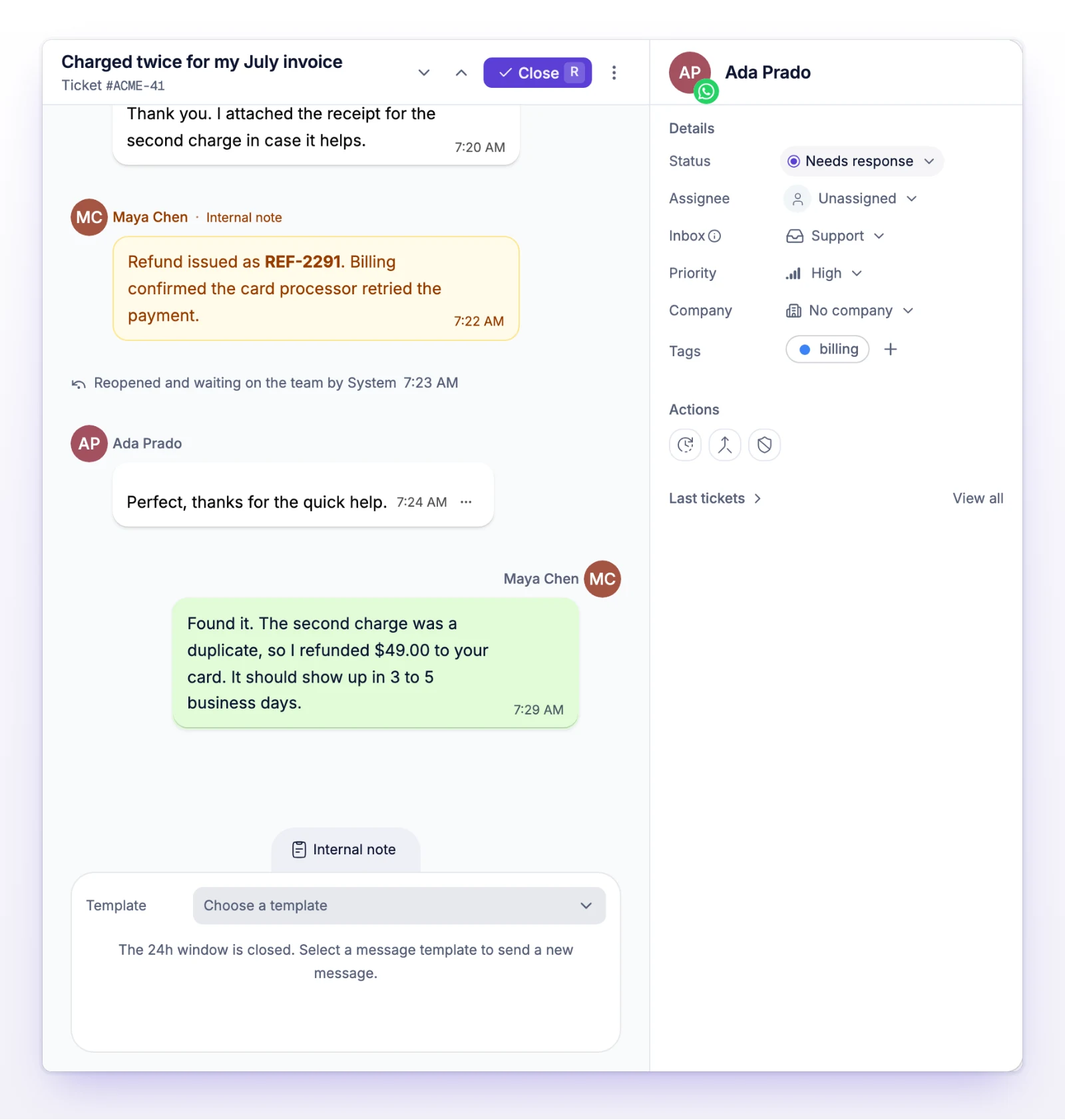
  • When it closes, the ticket shows "The 24h window is closed. Select a message template to send a new message." and a Template selector replaces the editor.
  • You can still add internal notes at any time.

Before you start

  • Your inbox needs a connected WhatsApp number. See Connect WhatsApp.
  • You need at least one approved template. Create templates in WhatsApp Manager, not in initdesk. On the WhatsApp page of the inbox, Open WhatsApp Manager takes you there.
  • initdesk lists templates that are approved and in the Utility or Marketing category. Templates that aren't approved, and templates with an image, video, document, or location header, don't appear. If the list is empty you'll see "No approved templates are available for this sender."

Send a template on a ticket

  1. Open the WhatsApp ticket.
  2. Under Template, select Choose a template and pick one. Each template is marked Utility or Marketing.
  3. Fill in each variable. Fields are labeled Header, Body, or Button, with placeholders such as Variable 1.
  4. To fill a variable with customer data, use Insert customer data. It offers the customer's name and, if they have one, their email.
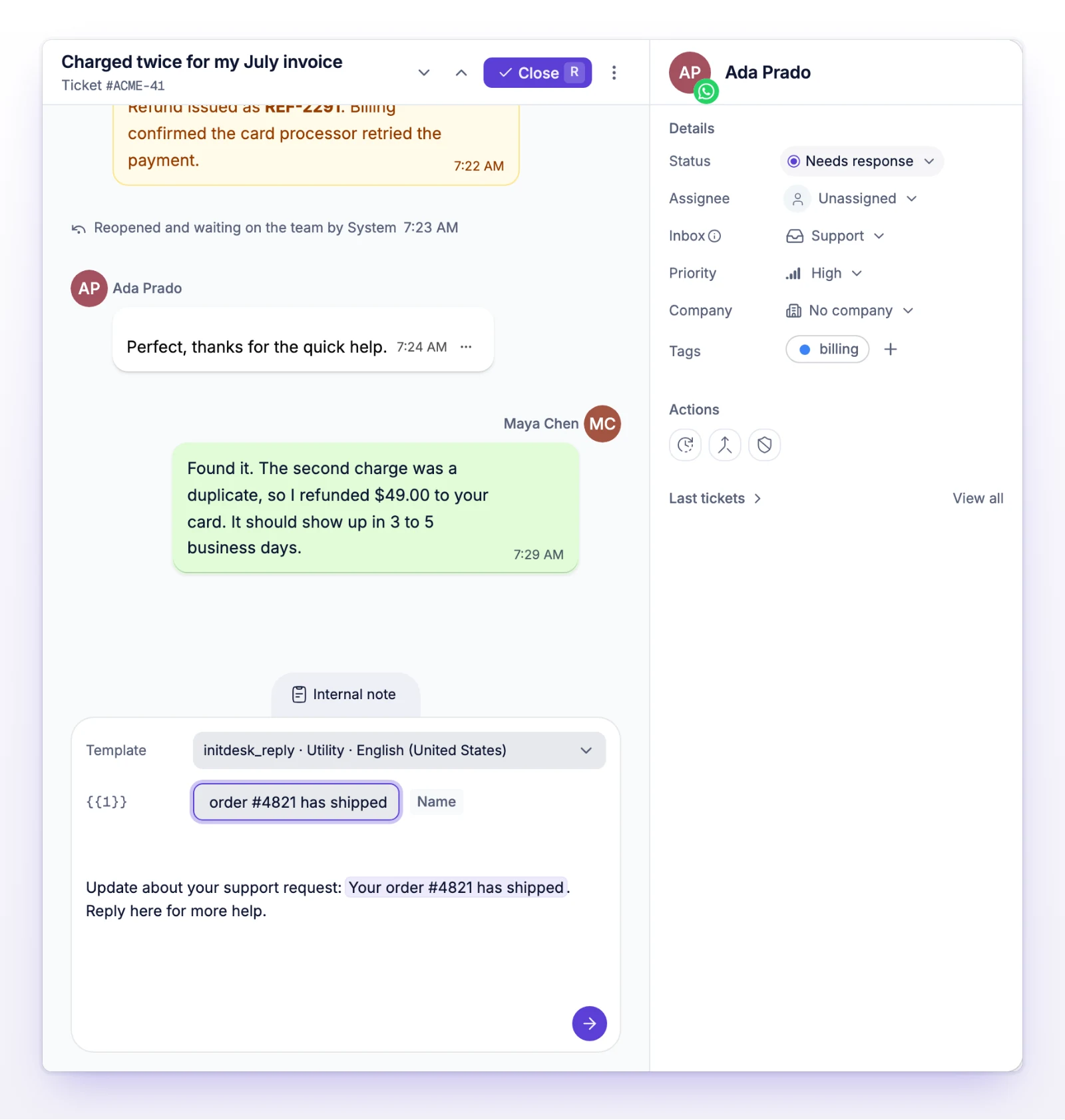
  5. Check Message preview. It shows the message the customer will get.
  6. Select Send message, or press Cmd+Enter (Ctrl+Enter on Windows).
A WhatsApp ticket showing the closed 24-hour window note and the Template selector
When the window is closed, choose an approved template instead of typing a reply.
A selected template with filled-in variables and the Message preview
Fill in each variable and check the preview before you send.

Each variable value can be up to 1,024 characters, and a value can't contain template placeholders such as {{1}}.

After you send a template, the ticket says "Waiting for the customer's reply to unlock the message editor." You can send another approved template in the meantime. When the customer replies, the window reopens and the normal editor comes back.

If the customer replies within 24 hours of your template, their reply stays on the same ticket. If it takes longer, their message opens a new ticket.

Start a new WhatsApp ticket with a template

Use this to reach out first. A conversation you start on WhatsApp always begins with a template, because the customer hasn't messaged you in the last 24 hours.

  1. Open the New ticket window. For how to open it, see Start a new ticket.
  2. Under From, choose the inbox. It needs a connected WhatsApp number.
  3. Under Channel, choose WhatsApp.
  4. In To, enter the customer's phone number with the country code, starting with +.
  5. Optional: enter a Name for the customer.
  6. Enter a Subject. It names the ticket in initdesk and isn't sent on WhatsApp.
  7. Choose a template, fill in its variables, and check the preview.
  8. Select Send message.

initdesk creates the ticket with your template as its first message and opens it. If the phone number belongs to a customer you already have, the ticket goes to that customer.

If you type a reply and the window has closed

If the window closes while you're writing, initdesk keeps your text and shows "The WhatsApp reply window has closed. Your text is preserved. Choose a template to contact the customer." Pick a template to send. initdesk never turns your free text into a template for you. If the customer replies while you're still editing a template, your edit stays and you can switch back to a normal reply.

If something's not working

If you see "Template sending is not available for this organization yet."

Template sending isn't turned on for this organization. Use Help in the sidebar to contact us.

If you see "No approved templates are available for this sender."

Meta has to approve a template before you can send it. Create or fix templates in WhatsApp Manager. Templates with media headers aren't supported.

If you see "This template is no longer available. Choose another template."

The template changed or was removed in WhatsApp Manager. Choose a different one.

If you see "Enter a valid international phone number."

Use the full number with country code, starting with +.

If you see "Sending could not be confirmed. The message may have been sent."

Check the ticket before you try again, so the customer doesn't get the message twice. Select Reload conversation to see the latest state. initdesk never resends a template for you.

If you see "The message could not be sent. Your draft is saved."

Your draft stays in place. Check the fields, then send again.

If you see "The sending limit was reached. Try again later."

A sending limit was hit. Wait a while, then send again.

Related

  • Connect WhatsApp
  • Start a new ticket
  • Use saved replies
  • Add internal notes
Connect WhatsApp

Connect a WhatsApp Business number to an inbox through Meta. Customer messages become tickets, and you reply from initdesk.

Connect Telegram

Create a Telegram bot with BotFather and connect it to an inbox. Messages sent to the bot become tickets, and you reply from initdesk.

Powered by initdesk
On this page
  • Use WhatsApp templates
  • How the 24-hour window works
  • Before you start
  • Send a template on a ticket
  • Start a new WhatsApp ticket with a template
  • If you type a reply and the window has closed
  • If something's not working
  • If you see "Template sending is not available for this organization yet."
  • If you see "No approved templates are available for this sender."
  • If you see "This template is no longer available. Choose another template."
  • If you see "Enter a valid international phone number."
  • If you see "Sending could not be confirmed. The message may have been sent."
  • If you see "The message could not be sent. Your draft is saved."
  • If you see "The sending limit was reached. Try again later."
  • Related