
Use saved replies
Write an answer once, fill in the customer's name and ticket number automatically, and insert it into any ticket in one click.
Search portal content
Search portal content
Write an answer once, fill in the customer's name and ticket number automatically, and insert it into any ticket in one click.
Write an answer once, fill in the customer's name and ticket number automatically, and insert it into any ticket in one click.
A saved reply is an answer your team writes often: a refund policy, a password reset, a shipping update. Write it once. Insert it into any ticket in one click, with the customer's name and the ticket number filled in.
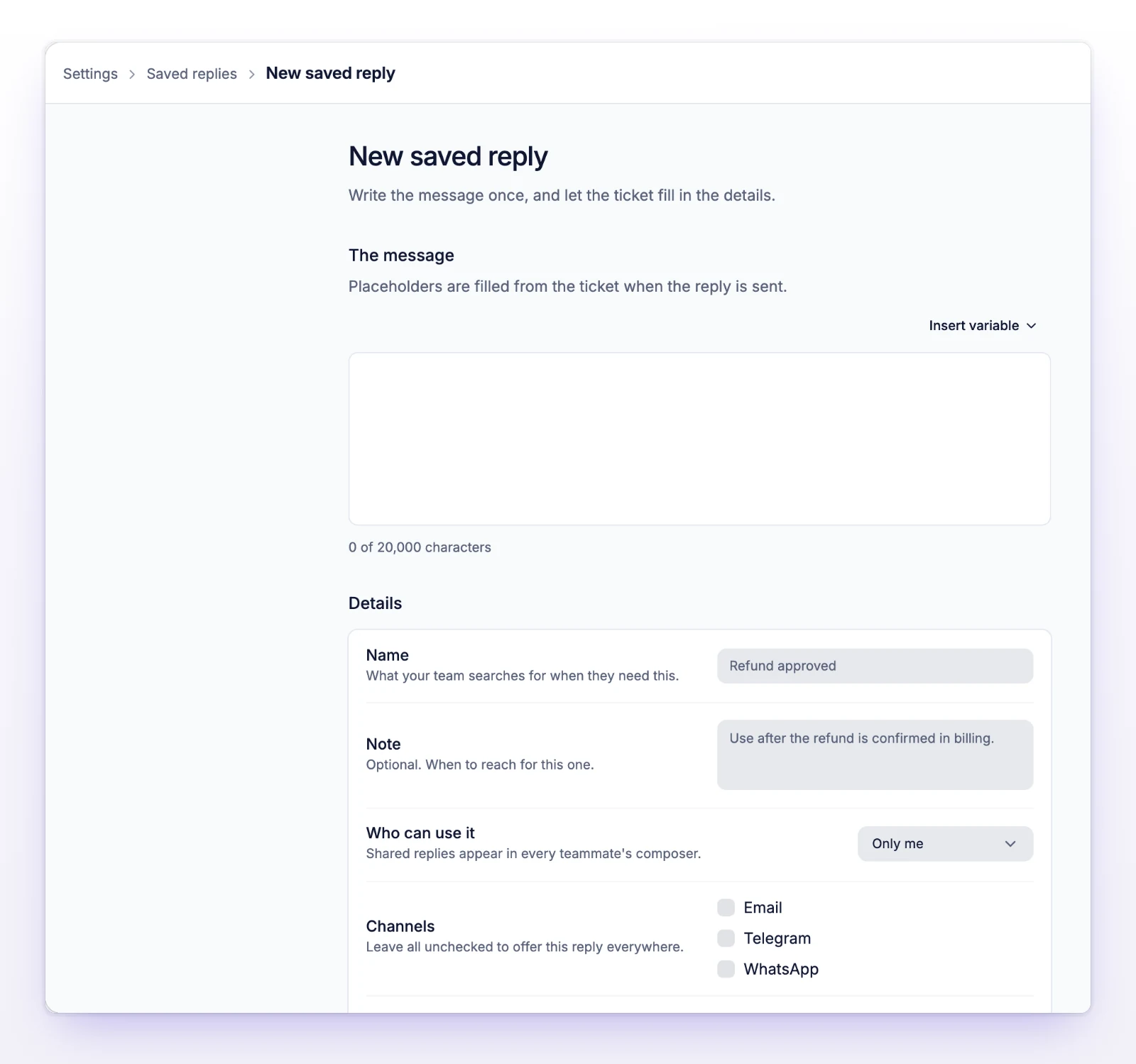
You can add a Note to remind your team when to use the reply. A name can be up to 255 characters, a note up to 2,000, and a message up to 20,000.
Placeholders fill in from the ticket when you insert the reply.
| Placeholder | Fills in |
|---|---|
{{customer.name}} |
The person who opened the ticket |
{{associate.name}} |
The teammate who inserts the reply |
{{ticket.id}} |
The ticket's reference number |
For example, "Hi {{customer.name}}, thanks for writing in about ticket #{{ticket.id}}." becomes a normal sentence in the composer.
Any other text in double braces is sent as written. The form warns you when it sees one.
| Choice | Who sees it | Who can create it |
|---|---|---|
| Only me | You. It stays in your own library. | Anyone on your team |
| Everyone | Every teammate, in their composer | Admins and owners |
Anyone can read a shared reply, but only admins and owners can change one. A teammate who opens a shared reply sees Read-only.
Each library has a limit: 10 replies in your own library, and 15 shared replies for the whole organization. The meters under the table show Your library and Shared. When a library is full, delete a reply to make room.
Channels lists Email, Telegram, and WhatsApp. Leave all unchecked to offer the reply everywhere. Check one or more to offer it only on tickets from those channels.
After sending sets what happens to the ticket once the reply goes out. Pick one of:
This saves a click for routine answers. The teammate can still change it in the Status after reply menu before sending. If the action doesn't fit the ticket, for example Reopen to customer on an open ticket, initdesk shows "This saved reply’s status isn’t available on this ticket." and leaves the status alone. See Ticket statuses.
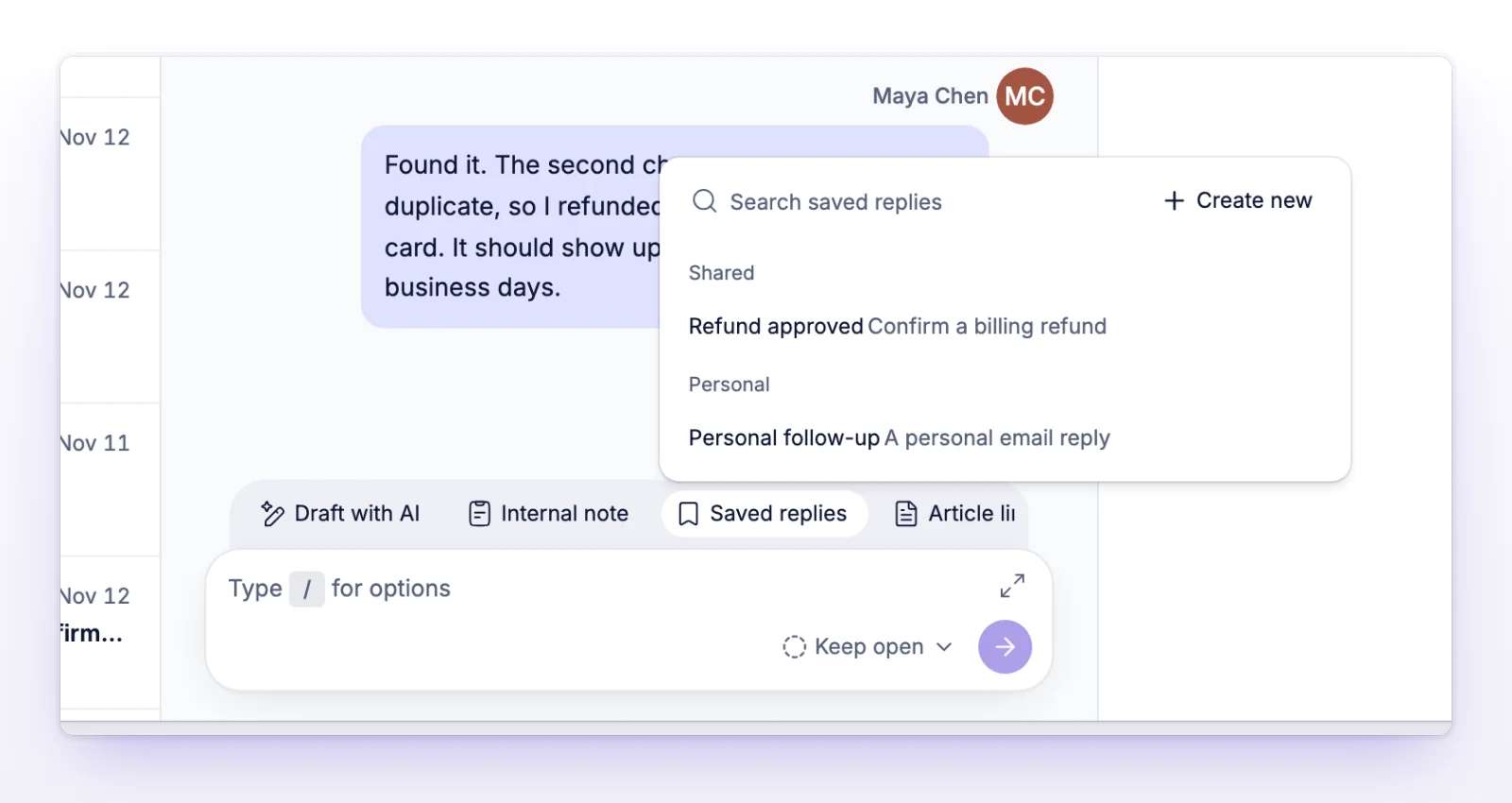
The reply replaces what is in the composer. Write your own text after you insert it, not before. The composer then switches back to a reply if you were writing an internal note.
Edit the text before you send it. Your edits change only this message, never the saved reply.
The list only shows replies that fit the ticket's channel. If you don't see a reply, check its Channels setting.
Select Create new in the list to jump to the page where you add a reply.
The same Saved replies button is in the New ticket window. See Start a new ticket.
On Settings > Saved replies, the table shows each reply with its Channels and Who can use it.
Select Article links above the composer to put a link to one of your published Help Center articles in the reply.
Only published articles appear. If you have none, initdesk says "Publish an article before adding Help Center links to a reply." See Publish articles.
The link counts toward the 20,000-character limit of the reply.
Both the Name and the Message are required.
You have 10 personal replies. Delete one you don't use. If you're an admin and see "Both libraries are full. Delete a reply to make room.", the shared library is full too.
initdesk couldn't fill in the placeholders. Your composer is unchanged. Try again.
Check its Channels. A reply limited to Email doesn't show on a WhatsApp ticket.