
Set ticket priority
Mark how urgent a ticket is so your team works the most pressing ones first. Set it from the ticket or the list, and sort by it.
Search portal content
Search portal content
Mark how urgent a ticket is so your team works the most pressing ones first. Set it from the ticket or the list, and sort by it.
Mark how urgent a ticket is so your team works the most pressing ones first. Set it from the ticket or the list, and sort by it.
Priority tells your team what to work on first. It doesn't change whose turn it is, and it doesn't close or move the ticket.
| Level | When to use it |
|---|---|
| Urgent | Blocking or time-sensitive |
| High | Needs attention soon |
| Medium | Typical work |
| Low | Can wait |
| No priority | Not triaged yet, or you looked and chose not to rank it |
Every new ticket starts as No priority. That includes tickets you start yourself, so set a level after the ticket exists.
Priority is not the same as a tag. A tag named "urgent" doesn't change how the list orders tickets.
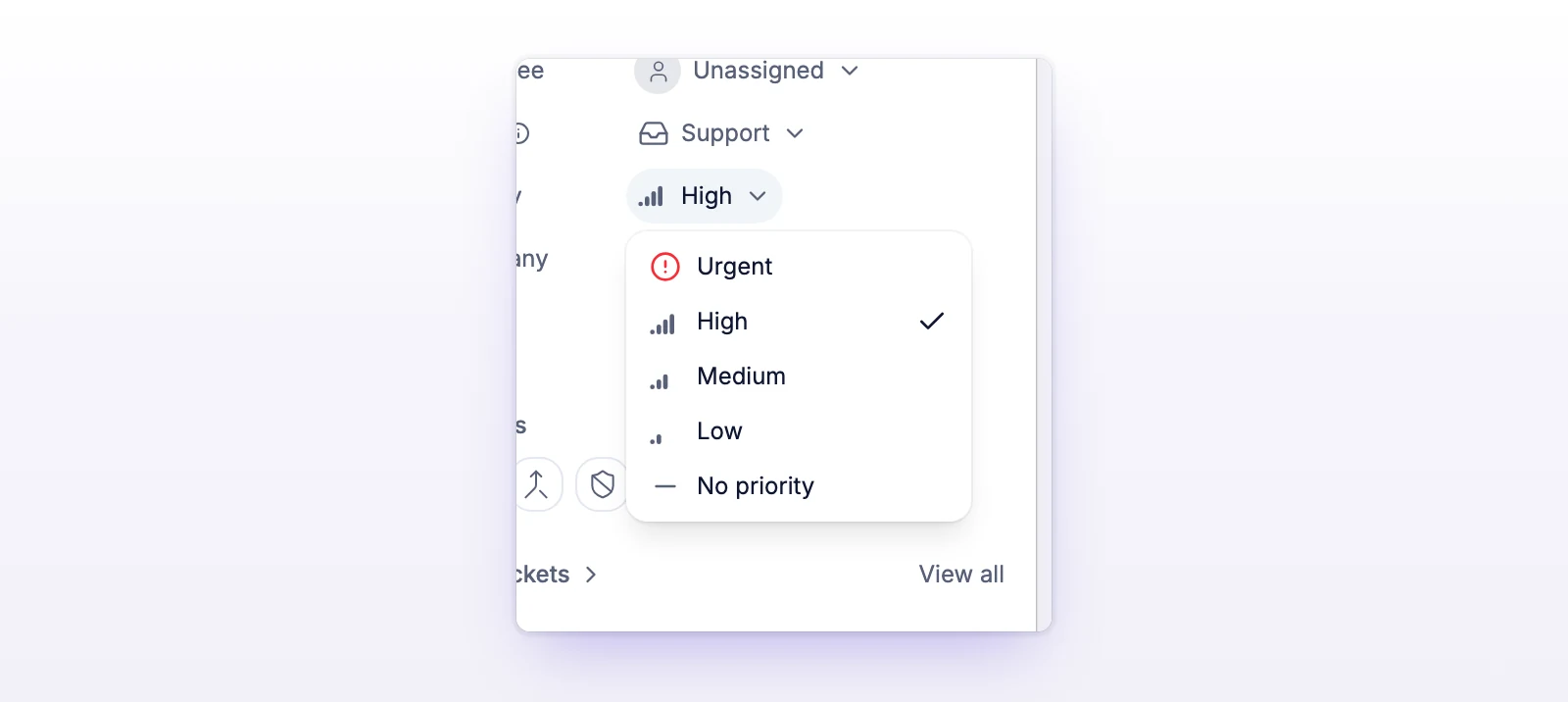
Press P to open the same menu from the keyboard.
You can also set it from the ticket list. Hover over a row, or focus it with the keyboard, and select the priority icon.
You can change priority on open and closed tickets. Closing a ticket doesn't clear it.
The thread records the change as a line like "{name} set priority to High". Only your team sees it. Changing priority also sends a priority change event to your webhooks and Slack. See Set up webhooks.
The ticket list starts in Priority first. Tickets are grouped under headings for Urgent, High, Medium, Low, and No priority. Headings with no tickets are left out. If no ticket on the page has a priority, you see one plain list.
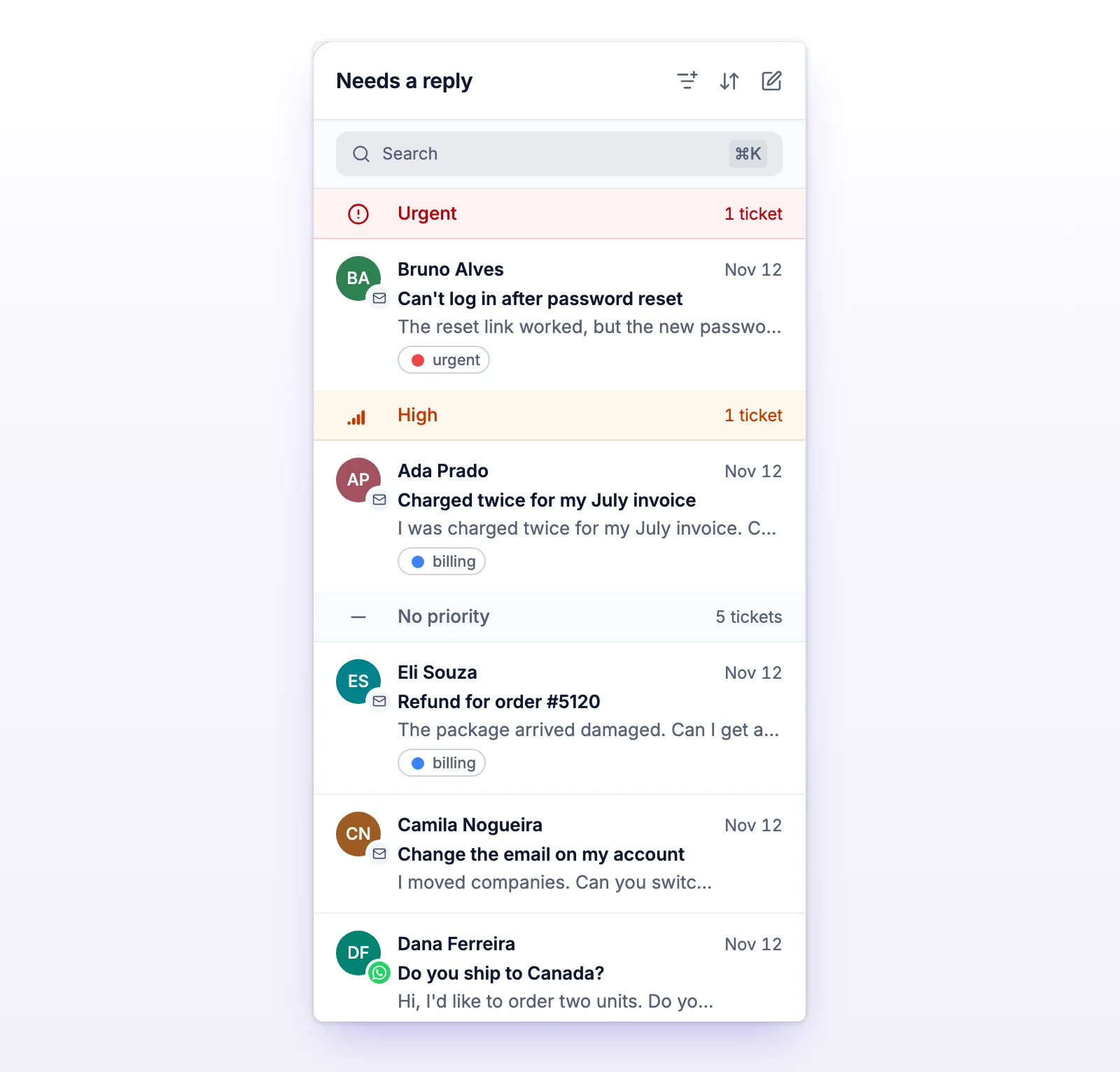
Inside a level, tickets stay in initdesk's usual order: relevance first, then most recently updated.
To change the order, use Ticket ordering above the list:
Any other choice replaces priority order until you go back to Priority first.
In a custom filter, add a Priority rule to build a view for the levels you care about, like Urgent and High. See Save ticket views.
There is no bulk action for priority. Change tickets one at a time. See Update tickets in bulk.
When you merge two tickets, the one you keep takes the more urgent of the two levels. A merge never makes a ticket less urgent. See Merge tickets.
You may no longer have access to this ticket's inbox. Ask an admin to check.
initdesk couldn't tell if the new level saved. Select Check current priority to see the current value before you try again.
Wait a few seconds and try again.