
Update tickets in bulk
Select several tickets in the list, then close them, change who they're waiting on, or mark them as spam in one step.
Search portal content
Search portal content
Select several tickets in the list, then close them, change who they're waiting on, or mark them as spam in one step.
Select several tickets in the list, then close them, change who they're waiting on, or mark them as spam in one step.
Use bulk actions to clean up a queue fast: close a batch of finished tickets, hand a batch back to the customer, or clear out spam.
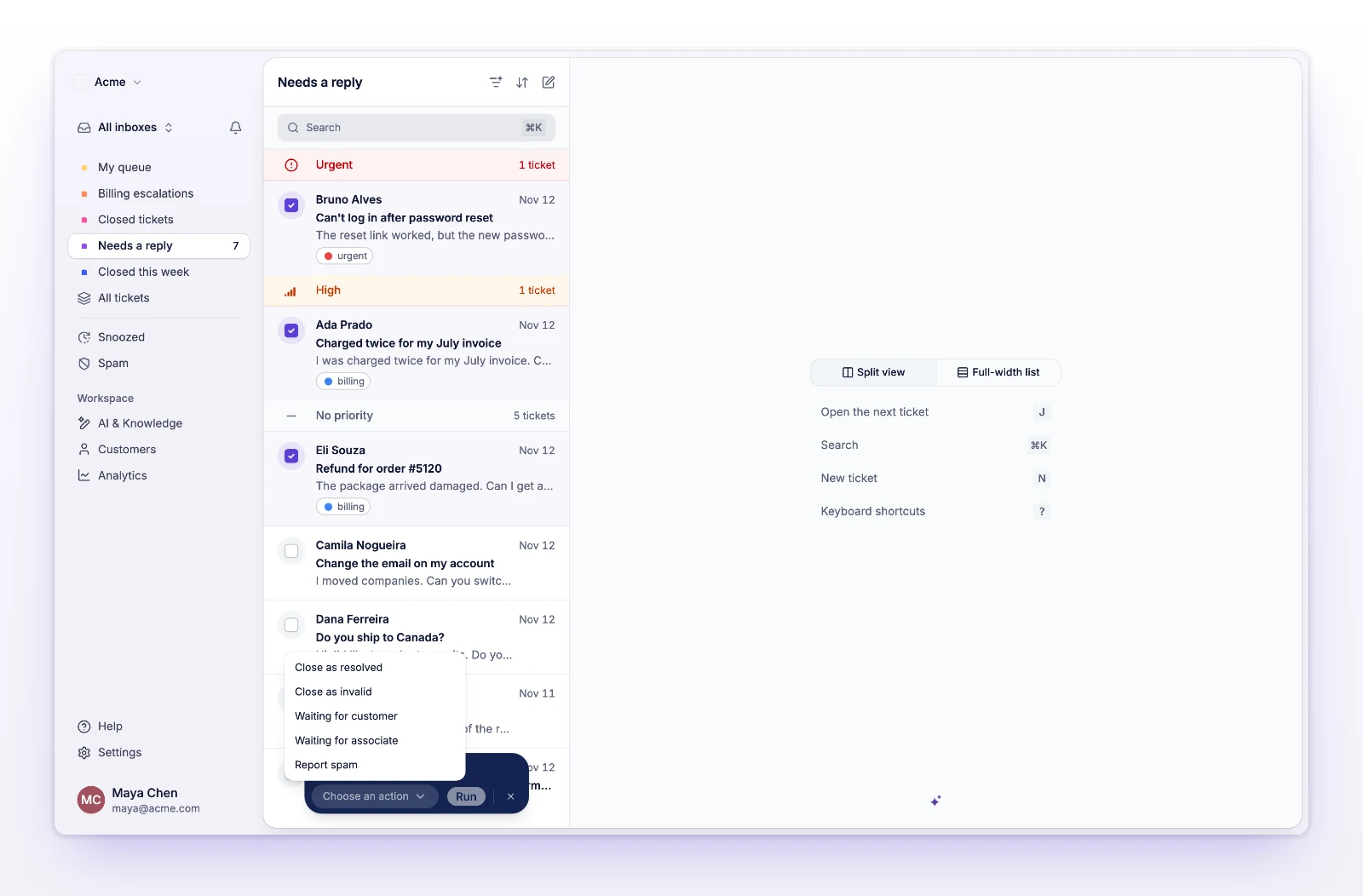
A status line shows progress, then a result such as "3 closed as resolved". The tickets leave the list if they no longer match the view. Select Clear selection (the x next to Run) to deselect everything without changing anything.
| Action | What it does to each ticket |
|---|---|
| Close as resolved | Closes the ticket as resolved. |
| Close as invalid | Closes the ticket as invalid. |
| Waiting for customer | Reopens the ticket as active and sets it to waiting on the customer. |
| Waiting for associate | Reopens the ticket as active and sets it to waiting on your team. (The menu says "associate" for a person on your team.) |
| Report spam | Marks the ticket as spam. You confirm first. |
Closing a ticket ends any snooze on it. See Snooze a ticket.
Report spam asks "Mark # tickets as spam?" and warns that new emails from these senders will go to spam automatically. Select Mark as spam to confirm, or Cancel. Every other action runs as soon as you select Run.
Spam works the same way as marking one ticket. It also marks each sender as spam. See Report spam.
Nothing was changed, or the request didn't finish. Try again. If it keeps failing, refresh the page.
The update may have gone through. Check the list before you run the action again.
A ticket that a teammate merged into another one while you were selecting can't be changed. Refresh the list and run the action again. See Merge tickets.