
Keyboard shortcuts
Every initdesk keyboard shortcut for searching, moving through the ticket list, handling a ticket, and writing a reply. Press ? in the app to see them.
Search portal content
Search portal content
Every initdesk keyboard shortcut for searching, moving through the ticket list, handling a ticket, and writing a reply. Press ? in the app to see them.
Every initdesk keyboard shortcut for searching, moving through the ticket list, handling a ticket, and writing a reply. Press ? in the app to see them.
Press ? anywhere in your organization to open the Keyboard shortcuts dialog. This page lists the same shortcuts.
On a Mac, the primary key is Cmd. On Windows and Linux, it's Ctrl.
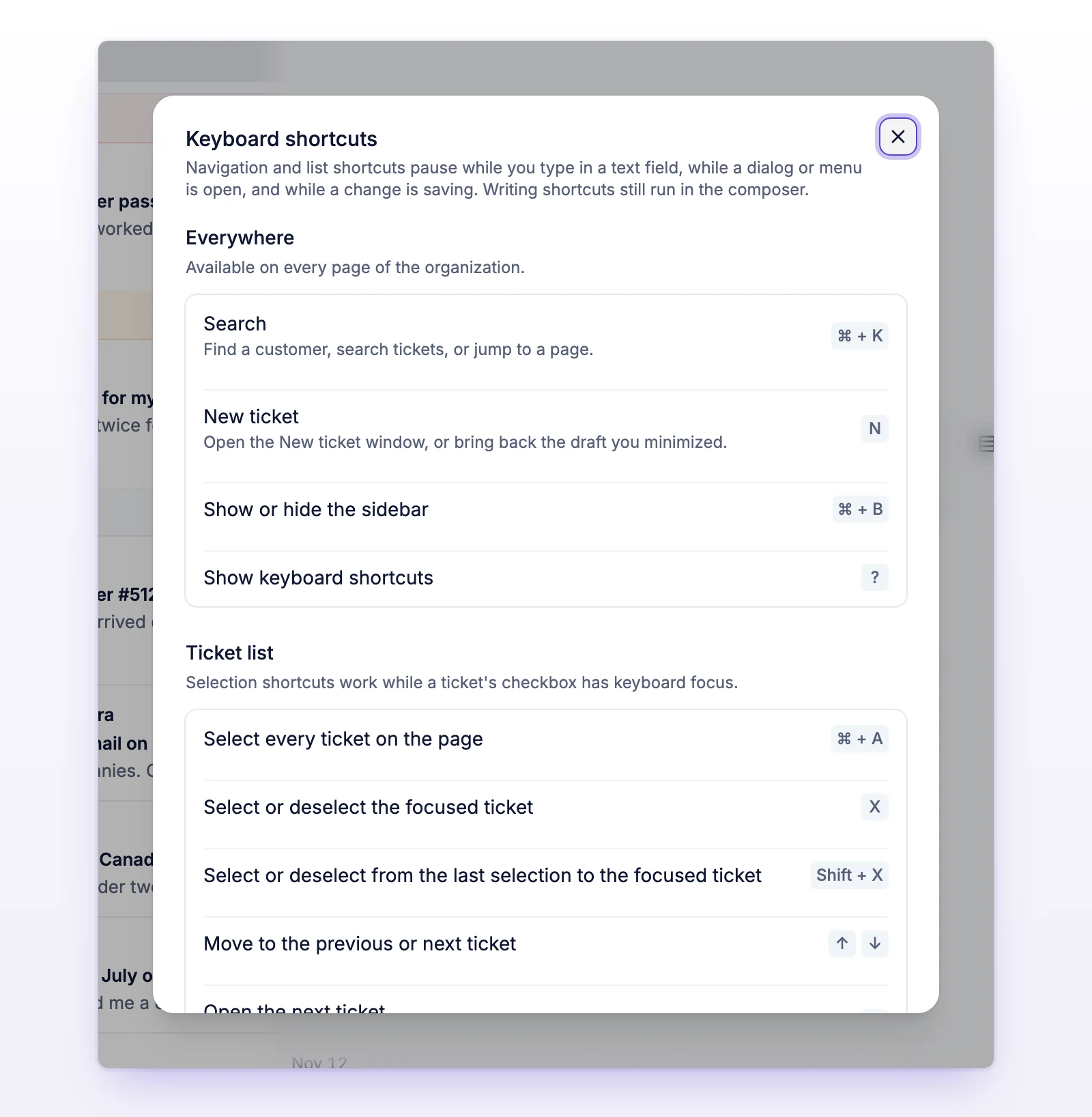
Navigation and list shortcuts pause while you type in a text field, while a dialog or menu is open, and while a change is saving. Writing shortcuts still work in the composer.
Single-key shortcuts such as ! and # use the keys that produce that character on your keyboard layout.
These work on every page of the organization.
| Shortcut | What it does |
|---|---|
| Cmd / Ctrl + K | Search. Find a customer, search tickets, or jump to a page. See Use the command menu. |
| N | Open the New ticket window, or bring back the draft you minimized. |
| Cmd / Ctrl + B | Show or hide the sidebar. |
| ? | Show keyboard shortcuts. |
Selection shortcuts work while a ticket's checkbox has keyboard focus.
| Shortcut | What it does |
|---|---|
| Cmd / Ctrl + A | Select every ticket on the page. |
| X | Select or deselect the focused ticket. |
| Shift + X | Select or deselect from the last selection to the focused ticket. |
| Up arrow / Down arrow | Move to the previous or next ticket. |
| J | Open the next ticket. When no ticket is open, it opens the first ticket in the list. |
| Shift + R | Refresh the list. |
These work while you're reading a ticket.
| Shortcut | What it does |
|---|---|
| J | Next ticket. It follows the filter and order of the list you came from. |
| K | Previous ticket. |
| Esc | Back to the list. It closes the ticket and leaves the list in place, or returns to the customer you opened it from. |
| [ | Hide or show the ticket list. Works on wide screens while a ticket is open. The list returns when you close the ticket. |
| ] | Show or hide ticket details. |
| R | Close as resolved. Closing opens the next ticket in the list. |
| I | Close as invalid. Closing opens the next ticket in the list. |
| A | Set the status to Needs response. Also reopens a closed ticket. |
| C | Set the status to Waiting on customer. Also reopens a closed ticket. |
| T | Change the assignee. |
| P | Change the priority. |
| ! | Mark as spam. |
| # | Delete the ticket. initdesk asks you to confirm first. |
These work while the cursor is in a reply, an internal note, or a new message.
| Shortcut | What it does |
|---|---|
| Cmd / Ctrl + Enter | Send a message or add an internal note. |
| Cmd / Ctrl + K | Edit a link, when text or a link is selected. |
| Cmd / Ctrl + Enter | In the AI draft instructions, generate or refine the AI draft. |
| Esc | Close the AI draft panel, or stop a draft that is still writing. |
There is no shortcut for snoozing a ticket or setting tags. Use the buttons on the ticket. Anything not on this page has no shortcut.