Connect your Nomus tenant to link a ticket to a Nomus customer and see its recent orders and NF-e invoices in the ticket sidebar.
Connect Nomus
Connect your Nomus tenant to link a ticket to a Nomus customer and see its recent orders and NF-e invoices in the ticket sidebar.
Connect Nomus and your team sees the Nomus customer behind a ticket, along with its recent sales orders and NF-e invoices, in the ticket sidebar. initdesk links each ticket to one Nomus customer, by email when it can and by CNPJ (the Brazilian company tax ID) when you tell it which one.
Before you start
You need to be an owner or admin of your initdesk organization.
You need your Nomus company address (the tenant) and an integration key from your Nomus account.
Nomus is listed under Settings > Plugins for every organization.
Add your tenant and key
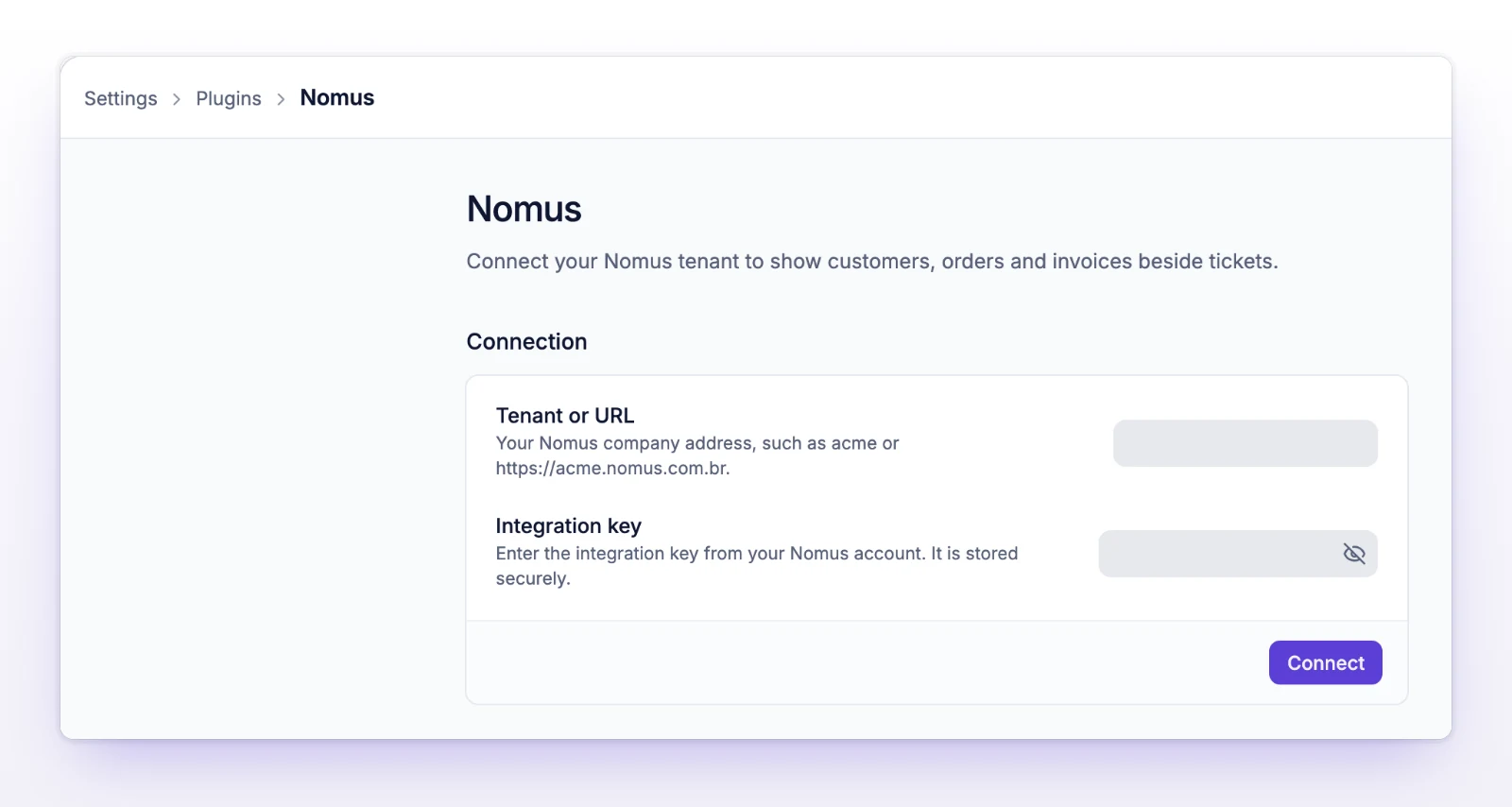
Go to Settings > Plugins and open Nomus.
Under Connection, enter Tenant or URL: your Nomus company address, such as acme or https://acme.nomus.com.br.
Enter the Integration key from your Nomus account. It's stored securely.
Select Connect.
Enter your tenant and integration key.
You see "Nomus settings saved." The Ticket sidebar section then says Active.
If the key saves but turning on can't be confirmed, you see Credential saved and a Check connection status button. You don't need to enter the key again.
Pause, replace the key, or disconnect
Pause hides Nomus data on tickets and keeps your settings. Select Activate to turn it on again.
To change the key, enter a new Integration key and select Save. Leave it empty to keep the saved key.
To remove the connection, select Disconnect and confirm Disconnect Nomus? The tenant and integration key are removed. Existing ticket links are kept, so they work again if you reconnect.
Link a ticket to a Nomus customer
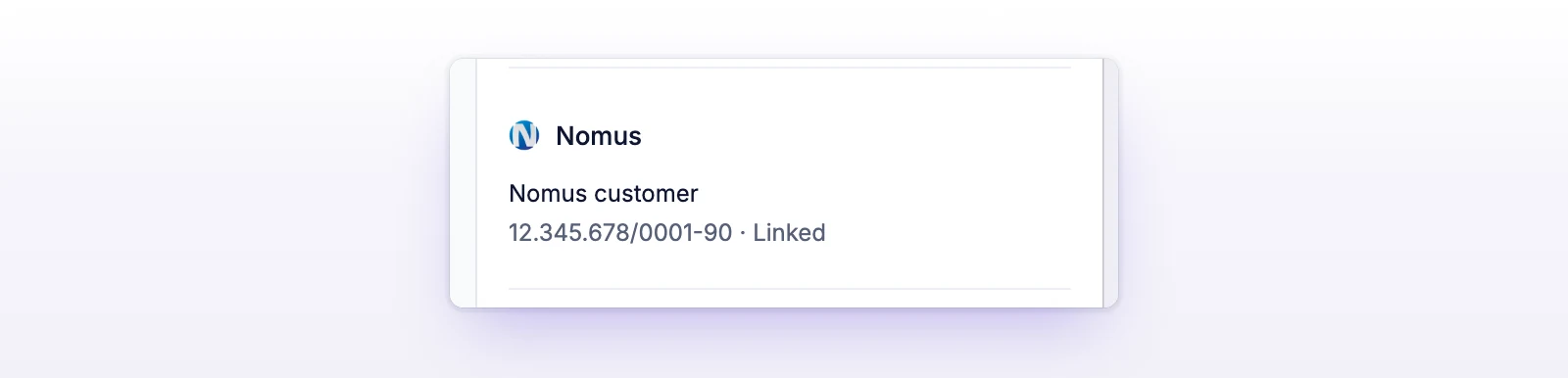
The ticket sidebar has a Nomus section.
initdesk first looks for an active Nomus customer with the requester's email. If exactly one matches, it links the ticket on its own.
If none or several match, the section reads Find a customer by CNPJ. Enter the customer's 14-digit CNPJ and select Find customer.
If more than one active customer uses that CNPJ, pick one under Choose a customer.
What your team sees on a ticket
The ticket shows the Nomus customer it's linked to.
Linked customer: Name, Customer ID, Code, CNPJ, City / state, Phone, and Email.
Orders and invoices: for each order, its Order code, Status, Amount, and Issued date, with its NF-e number and series. Select Open DANFE to open the invoice as a PDF.
Nomus returns the first page of orders only, and the section says so.
To link a different customer, select Change customer. The current customer stays linked until you confirm a new match.
How it behaves
Read-only. initdesk doesn't change anything in Nomus.
One customer per ticket. The link belongs to the ticket, not to the person.
Only active Nomus customers match.
Every teammate with access to the ticket sees the panel. Only owners and admins can connect or disconnect it.
If something's not working
If you see "No active customer matched this CNPJ. Check the number and try again."
Check the number. Nomus has no active customer with it.
If you see "Enter a CNPJ with 14 digits."
Enter all 14 digits. Dots and dashes are fine.
If you see "Customer data is unavailable"
Nomus didn't answer, or the response couldn't be read. Select Refresh status.
If you see "Enter a valid Nomus integration key." or "Enter a valid Nomus tenant or URL."
Check both values in your Nomus account.
If you see "Connection needs setup"
The plugin isn't connected or is paused. An admin can connect it in Settings > Plugins.