
Manage customers
Find anyone who has written to you, see every ticket they opened, rename them, and mark an address as spam from the Customers page.
Search portal content
Search portal content
Find anyone who has written to you, see every ticket they opened, rename them, and mark an address as spam from the Customers page.
Find anyone who has written to you, see every ticket they opened, rename them, and mark an address as spam from the Customers page.
Customers lists everyone who has written to one of your inboxes, with the tickets each person opened. Use it to see a person's history before you reply, to fix a name, or to mark an address as spam.
A customer is created when someone first writes in. You can't add one by hand, and a person you haven't heard from yet won't be on the list.
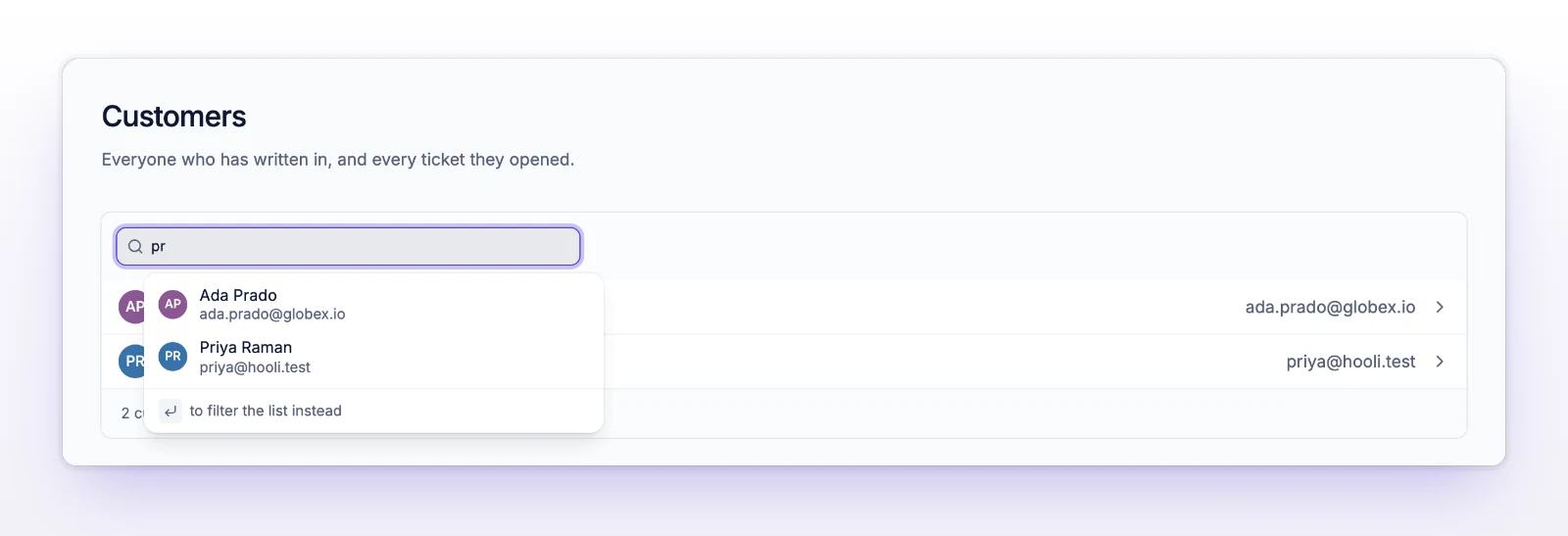
The list shows 25 people per page. Search ignores accents. The search term and page number are in the page address, so you can send a search to a teammate.
Someone already marked as spam has a Spam label on their row.
You can also open a customer from a ticket. In the ticket sidebar, select the customer's name.
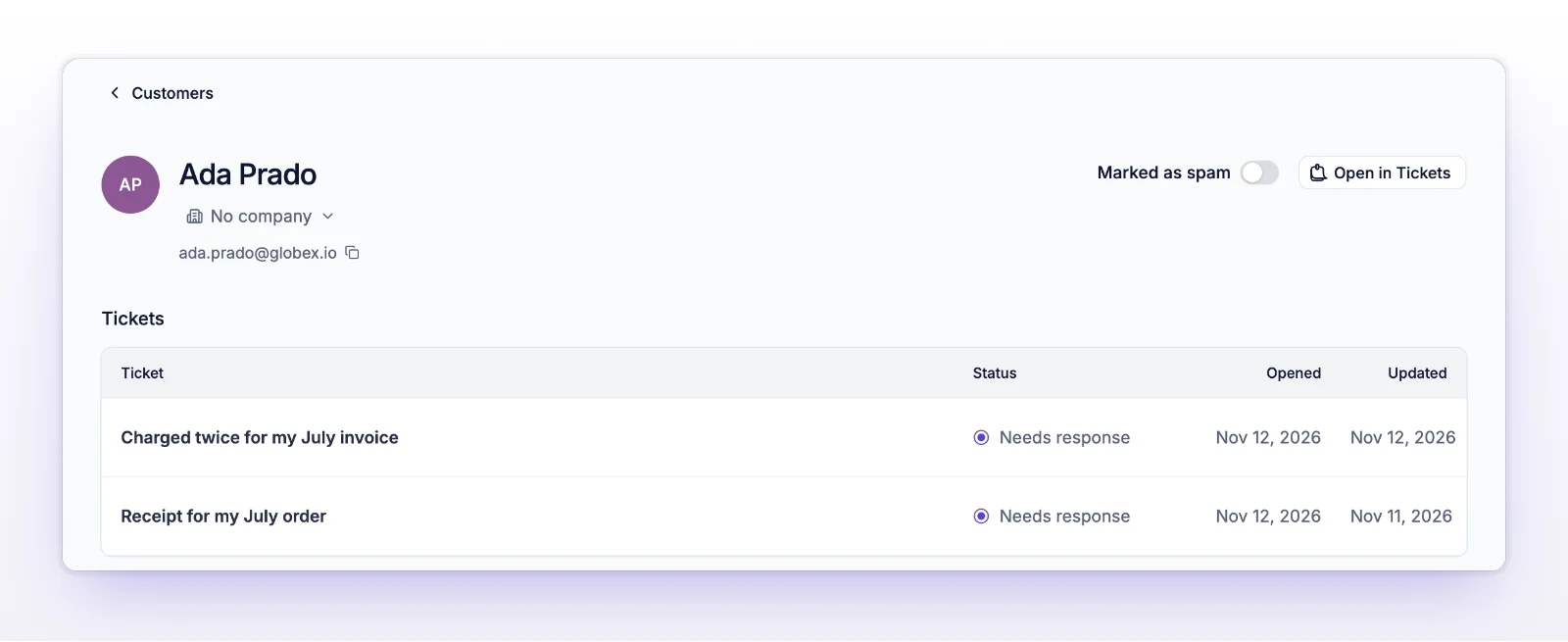
At the top you see their name, their email address (select it to copy), and their company if they belong to one. Below that is the Tickets table with these columns:
| Column | What it shows |
|---|---|
| Ticket | The subject. Select it to open the ticket. |
| Status | The ticket's status, such as Needs response or Closed. |
| Opened | When the customer opened the ticket. Hidden on narrow screens. |
| Updated | The last time the ticket changed. A status change counts, not only a reply. |
The table shows 20 tickets per page. If a customer has none, it says No tickets.
To see the same tickets in the full ticket list, select Open in Tickets. It opens Tickets filtered to this person.
You see "Customer name changed." when it's saved. The name can be up to 255 characters. If you see "You do not have permission to change this customer's name.", ask an admin on your team.
If your organization uses companies, the profile has a company row where you can pick one. When the person's email domain belongs to a company, a button offers to attach everyone from that domain who isn't in a company yet. See Manage companies.
Turn on Marked as spam on the customer's page. From then on, new tickets from that person are created as spam. Turn the switch off to undo it.
Spam works at the customer level in other places too:
Spam doesn't count as a ticket for billing. See Report spam.
The search behind the table didn't answer. The profile above it still works. Reload the page, or select Open in Tickets.
Nobody has written in with that name or address yet, or the spelling differs. Try part of the email address.