
Ticket statuses
Every ticket is waiting on your team, waiting on the customer, snoozed, or closed. Learn what moves a ticket between them and how to filter by each.
Search portal content
Search portal content
Every ticket is waiting on your team, waiting on the customer, snoozed, or closed. Learn what moves a ticket between them and how to filter by each.
Every ticket is waiting on your team, waiting on the customer, snoozed, or closed. Learn what moves a ticket between them and how to filter by each.
A ticket's status answers one question: whose turn is it? A ticket is waiting on your team, waiting on the customer, snoozed, or closed. You see the same four words in the ticket list, in the ticket header, and in your views.
| Status | Whose turn | What it means |
|---|---|---|
| Needs response | Your team | The customer wrote and nobody has answered yet. |
| Waiting on customer | The customer | You replied, or you asked a question, and now you're waiting. |
| Snoozed | Nobody, for now | You parked it until a set time. It comes back by itself. |
| Closed | Nobody | The conversation is finished. |
Spam is separate from these four. It's a flag on the ticket, not a status. See Report spam.
You rarely set a status by hand. Most changes happen when someone writes.
| What happens | The ticket becomes |
|---|---|
| A customer writes in | Needs response |
| A customer, or someone in Cc, replies while the ticket is open | Needs response |
| You send a reply to the customer | Waiting on customer |
| You add an internal note | No change |
| You start a ticket yourself with Start a new ticket | Waiting on customer |
| You close it | Closed |
| A customer replies to a closed ticket | Needs response. See Replies to closed tickets. |
| The time you set for a snooze arrives | Needs response |
A snooze sits on top of the other statuses. While a ticket is snoozed it shows as Snoozed, whoever's turn it is. See Snooze a ticket.
Open the ticket. You have three ways to do it.
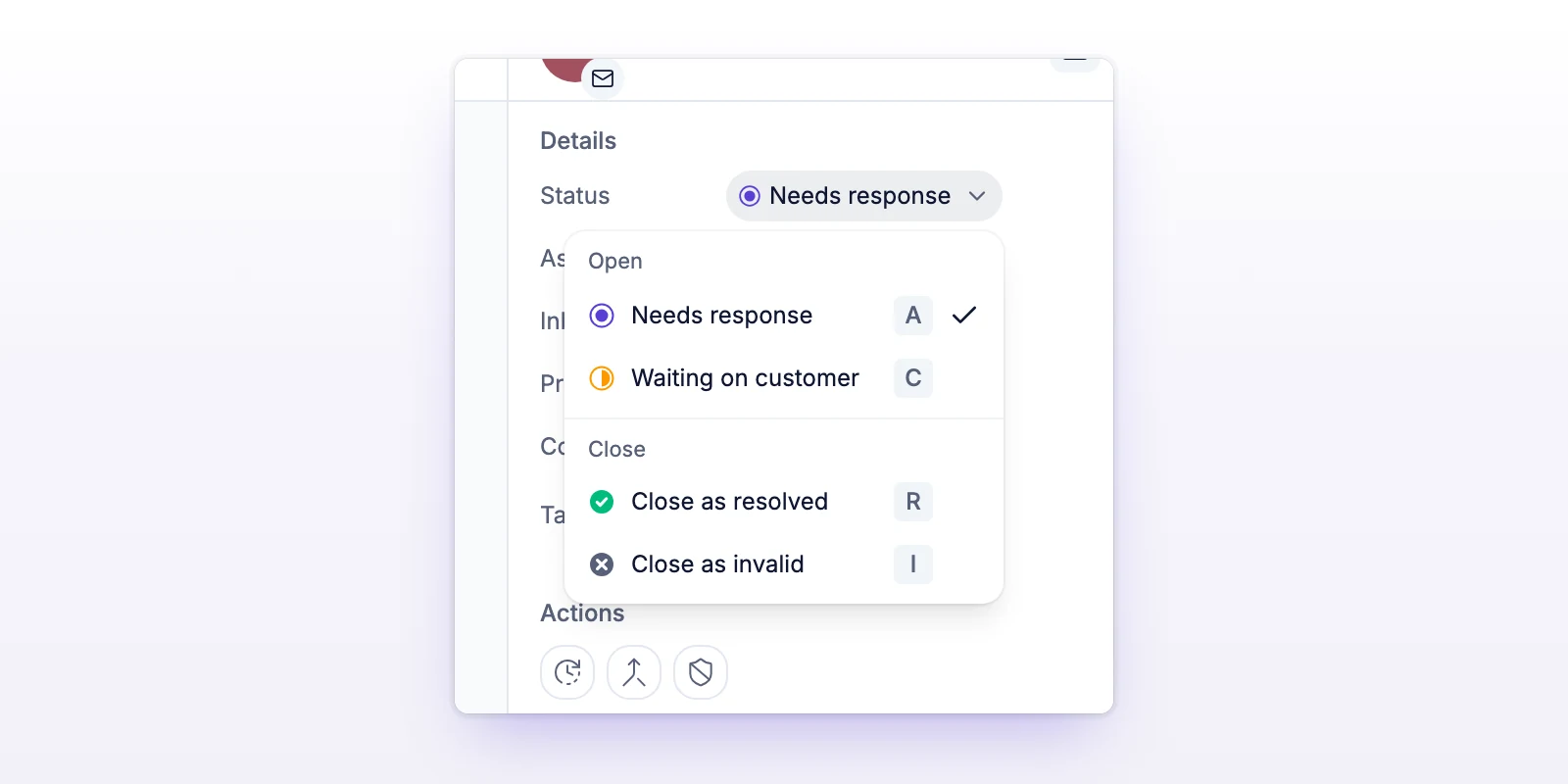
The Status menu has two groups.
Keys work while you read a ticket:
| Key | Does |
|---|---|
| R | Close as resolved |
| I | Close as invalid |
| A | Needs response (reopens a closed ticket) |
| C | Waiting on customer (reopens a closed ticket) |
When you close a ticket from the header or with a key, initdesk opens the next ticket in your list.
A closed ticket also records why it closed. You can filter by this.
| Reason | When it's set |
|---|---|
| Resolved | You chose Close as resolved. |
| Invalid | You chose Close as invalid. |
| Customer inactivity | The ticket closed automatically because the customer stopped replying. See Follow up with customers. |
| Other | The ticket was closed without a specific reason, including older tickets closed as other. |
The thread records each change: Closed as resolved, Closed as invalid, Closed for customer inactivity, Reopened and waiting on the team, and Reopened and waiting on the customer.
When you reopen a ticket, its closed reason is cleared. When you close one, nobody is waiting on anything, so a closed ticket never shows Needs response or Waiting on customer.
Ticket views: The left sidebar lists your views. New organizations start with My queue, Unassigned, Needs response, Waiting on customer, and Closed. Your team can rename, change, or delete these. Snoozed and Spam views come with initdesk too.
Filters: Select Filters above the ticket list and set:
Choosing a Waiting on value also limits the list to open tickets.
Saved views: In a custom filter you can add rules named Status, Waiting on, and Closed as. See Save ticket views.
Your reply may not have sent. Check the icon under your message in the thread. If it says Delivery failed, or you see Not sent, send it again. See Reply to a ticket.
The change didn't save. Try again. If you see "Couldn't confirm the ticket status. Refresh before trying again.", refresh the page to see the current status before you change it again.