Check who is really asking before you change an account, move money, or share data, using the checks initdesk already shows you.
Handle sensitive requests
Check who is really asking before you change an account, move money, or share data, using the checks initdesk already shows you.
Some requests do real damage if they come from the wrong person. Before you act on one, make sure it comes from your customer. initdesk shows you several checks, and none of them proves identity on its own. Use them together.
Check who the customer is and what they asked before, then act.
Requests that need a second look
Changing an email address, phone number, password, or login.
Changing bank details, paying an invoice, or sending a refund to a new account.
Exporting or sharing personal or account data.
Adding a user or admin to a customer's account.
Changing who a ticket belongs to, or who can see it. Changing the requester can also change who can open the ticket in the help center.
Anything urgent that asks you to skip your usual steps.
Check the request in initdesk
Read the sender's address, not the name. A display name can say anything. Look for lookalikes such as rn for m or acme-support.co for acme.com. The address shows in any sender warning, and on the customer's profile.
Look for a sender warning. A card above the message such as Warning: this sender may be fake means the email failed its check. We could not verify this sender means the check was inconclusive. See Sender verification. No warning doesn't mean safe, because a hacked account passes.
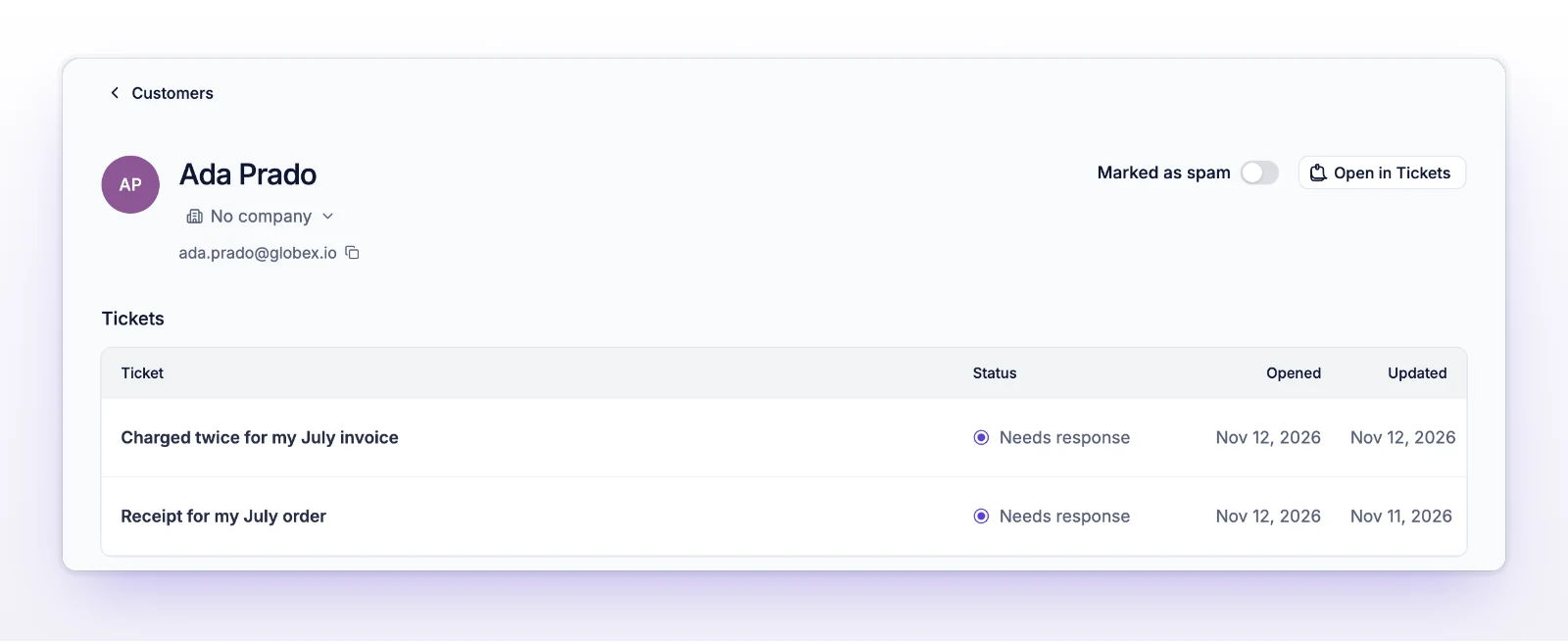
Check the customer's history. Open Customers in the left sidebar, then open the person. The Tickets table lists everything they've written. A request that doesn't fit their history, or comes from an address with no history at all, deserves more care. See Manage customers.
Compare with your own data. If you've set up Bring Your Own Data, the panel beside the ticket shows what your system has for this email address. A request that contradicts it, such as asking to change an address that doesn't match your records, is a red flag. See Bring your own data.
Confirm through a channel you already trust
Don't reply to the suspicious message. Reach the customer another way:
Never use a phone number, link, or address that appears in the suspicious message. For payments or bank changes, always confirm with a known contact first. Send data only to the verified contact, and only what was asked for.
Leave a trail for your team
Add an internal note on the ticket that says what you checked and what you found. The next person then sees it before they act. See Add internal notes. When in doubt, mention a teammate in that note and ask.
If the request turns out to be fake
Don't make the change or send anything.
Add an internal note that explains what happened.
Tell the real customer through the trusted channel, so they can secure their account.
Report the ticket as spam if it's clearly abuse. See Report spam.