⌘ K

Search

Search portal content

AI customer support in one tabAI customer support in one tab
⌘ K

Search

Search portal content

AI customer support in one tabAI customer support in one tab
  • Reply to a ticket
  • Ticket statuses
  • Start a new ticket
  • Assign tickets
  • Add internal notes
  • Use saved replies
  • Send and view attachments
  • Tag tickets
  • Set ticket priority
  • Snooze a ticket
  • Follow up with customers
  • Replies to closed tickets
  • Search and filter tickets
  • Save ticket views
  • Update tickets in bulk
  • Merge tickets
  • Change the requester
  • Move to another inbox
  • Report spam
  • Translate messages
  • Use Cc and Bcc
  • Sender verification
  • Handle sensitive requests
  • Manage customers
  • Manage companies
  • Ticket analytics
  1. Home
  2. Manage tickets

Add internal notes

Leave a private note on a ticket that only your team sees. Mention a teammate with @ and they get a notification.

Add internal notes

Leave a private note on a ticket that only your team sees. Mention a teammate with @ and they get a notification.

An internal note is a message only your team can read. Use it to pass context to a teammate, record what you tried, or ask a question without the customer seeing it. Mention a teammate with @ and they get a notification.

Add a note

  1. Open the ticket.
  2. Above the composer, select Internal note. The composer changes color, and the box reads Add an internal note.
  3. Write your note.
  4. Send with the arrow button (Add internal note), or press Cmd+Enter on a Mac or Ctrl+Enter on Windows.

To go back to replying, select Internal note again.

The note appears in the thread with the label Internal note. Customers never see it, and nothing is sent to them.
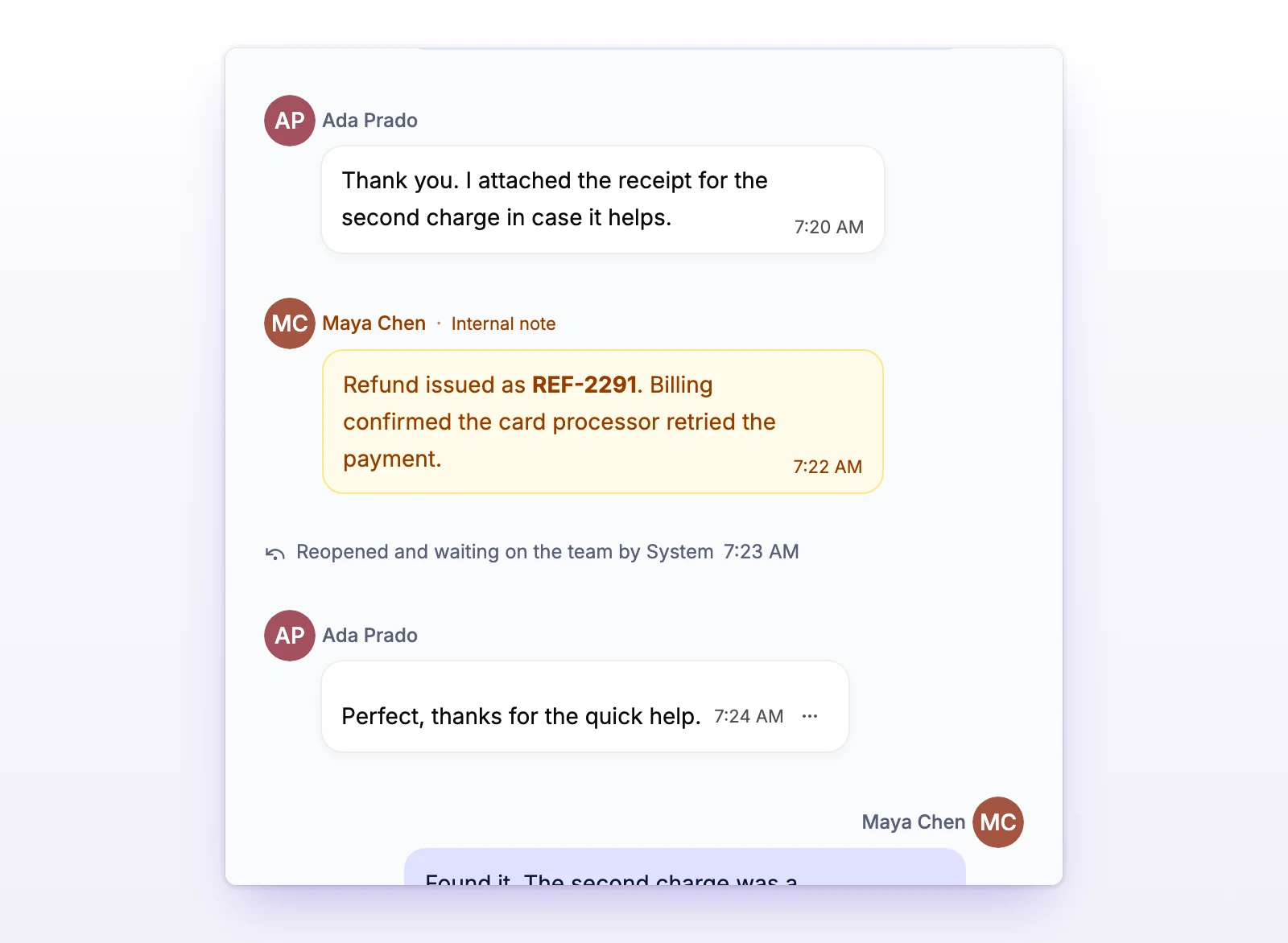
A ticket thread with an internal note labeled Internal note
Internal notes are labeled in the thread. Customers never see them.

Your reply draft and your note draft are kept apart. Switching between them doesn't lose either one.
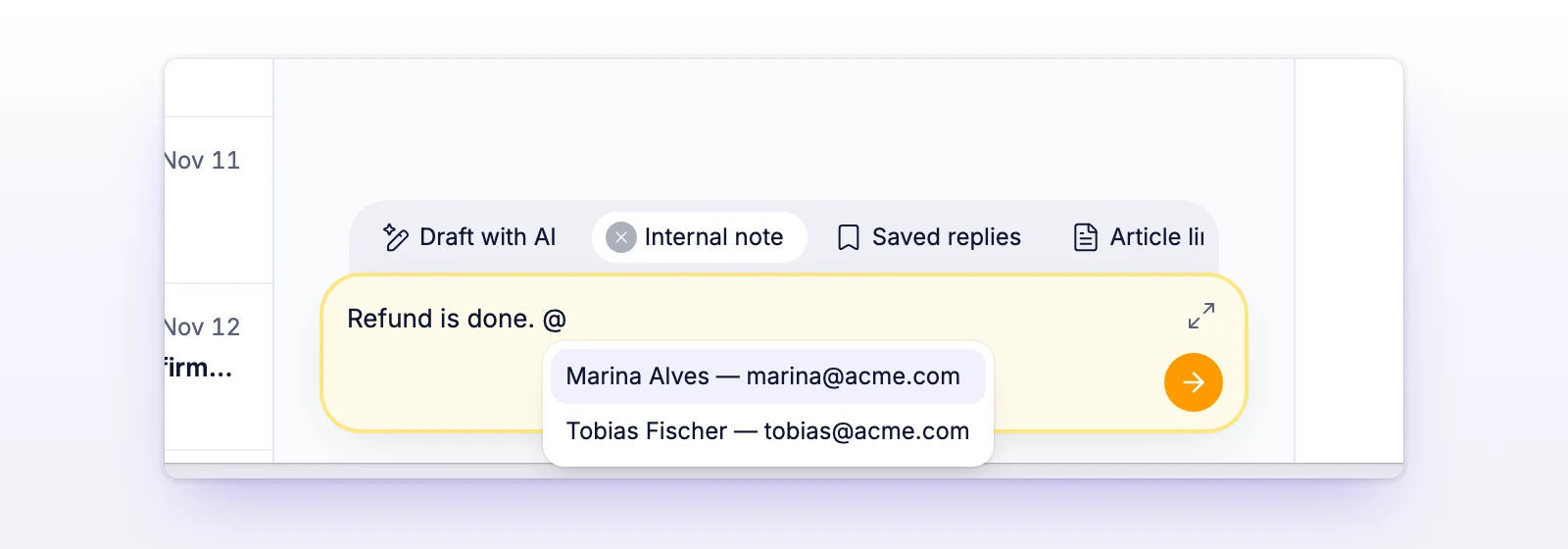
Mention a teammate

  1. In a note, type @.
  2. Start typing a name or email address.
  3. Pick the teammate from the list. The list shows up to 8 matches.
The composer in note mode with the @ mention list showing teammates
Type @ in a note to mention a teammate.

The list only includes teammates who can see this ticket's inbox, and it leaves you out. If someone doesn't appear, they don't have access to the inbox. See Invite your team.

The mention works only in internal notes. In a reply to the customer, @ does nothing special.

Reply to a teammate's note

Hover over a note from a teammate and select Reply. The composer switches to a note and mentions them for you.

Who gets notified

The teammate you mention gets a Mentioned in an internal note notification. By default that's a browser push (once they've turned on web push in that browser) and an email. They can also turn on In app. Each person chooses in their own notification settings. See Set up notifications.

You don't get a notification for mentioning yourself.

Attach files to a note

You can attach files to a note, the same way you do on a reply. Select Attach files after typing / at the start of a line, or drag a file into the composer. See Send and view attachments.

How notes behave

  • A note doesn't change the ticket's status. A ticket that's Waiting on customer stays that way, and a closed ticket stays closed. The Status after reply menu doesn't appear while you write a note.
  • A note doesn't reset a snooze.
  • Notes aren't included when you print a ticket. See Send and view attachments.

If something's not working

If you can't find a teammate when you type @

They don't have access to this ticket's inbox, or you're trying to mention yourself. Ask an admin to check their inbox access.

If the note won't send

Wait for attachments to finish uploading, or remove any that failed. A note needs text or an attachment.

Related

  • Reply to a ticket
  • Set up notifications
  • Invite your team
Assign tickets

Give a ticket an owner so your team knows who is handling it. Assign from the ticket or the list, and set a default owner for a company.

Use saved replies

Write an answer once, fill in the customer's name and ticket number automatically, and insert it into any ticket in one click.

Powered by initdesk
On this page
  • Add internal notes
  • Add a note
  • Mention a teammate
  • Reply to a teammate's note
  • Who gets notified
  • Attach files to a note
  • How notes behave
  • If something's not working
  • If you can't find a teammate when you type @
  • If the note won't send
  • Related