
Set up notifications
Choose when initdesk alerts you about new tickets, customer replies, and mentions, by email, browser push, or the in-app bell.
Search portal content
Search portal content
Choose when initdesk alerts you about new tickets, customer replies, and mentions, by email, browser push, or the in-app bell.
Choose when initdesk alerts you about new tickets, customer replies, and mentions, by email, browser push, or the in-app bell.
Choose what initdesk tells you about, and how. You can get an alert when a new ticket arrives, when a customer replies, and when a teammate mentions you in an internal note. Each alert can go to your email, your browser, the bell in the app, or any mix.
The settings are yours. They don't change what your teammates get. They're also separate in each organization, so set them in every organization where you want alerts.
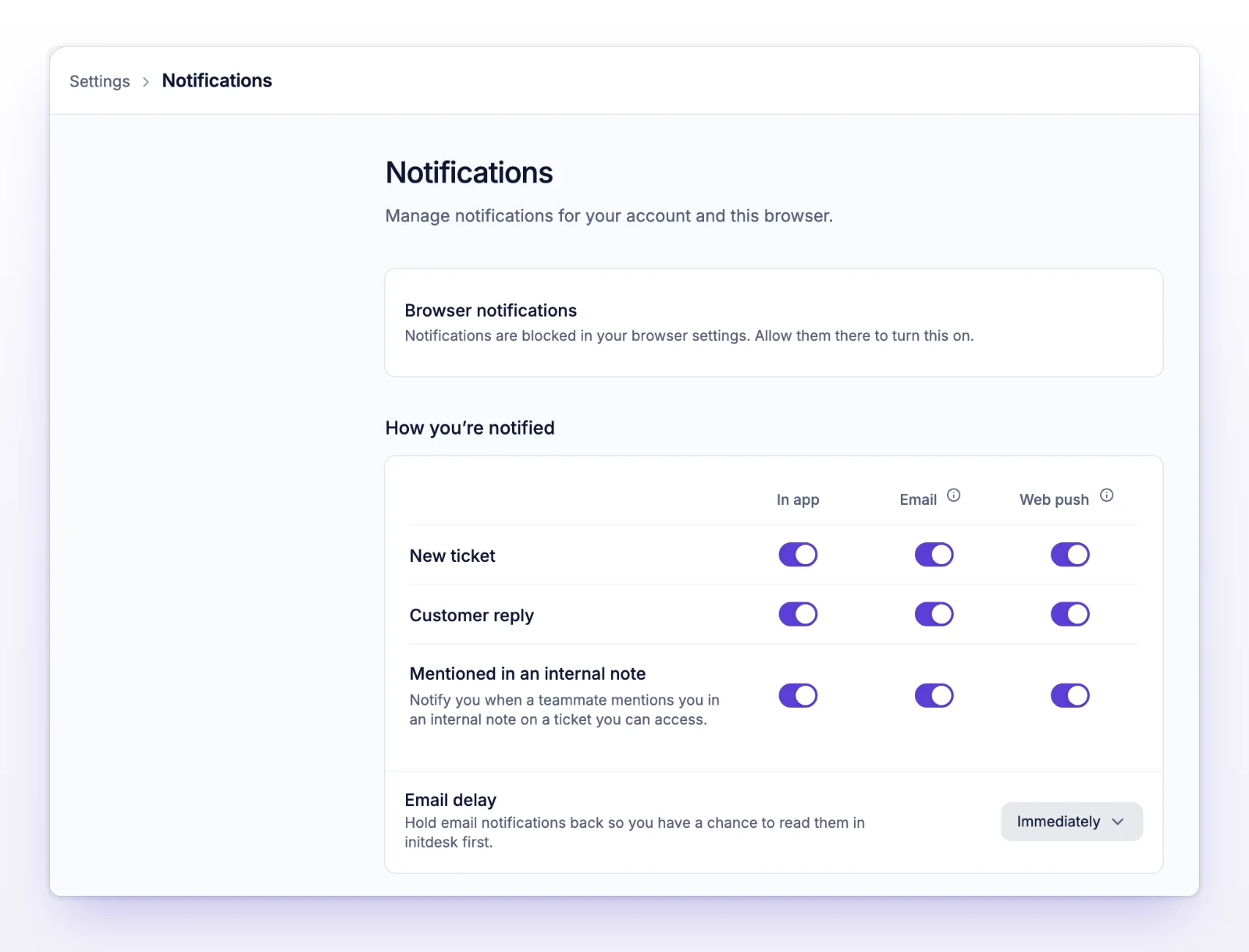
Each switch saves as soon as you change it. If a save fails, you'll see "We couldn't save your notification settings." Select Retry or Revert.
New ticket and customer reply alerts start turned off for everyone. Mention alerts start on for Email and Web push. So you hear about mentions without doing anything, but not about every ticket.
An alert only goes to people who can see the ticket's inbox and have the event turned on.
| Event | Who is notified |
|---|---|
| New ticket | Everyone with access to the inbox who turned it on. Tickets that came from an import don't send it. |
| Customer reply | If the ticket has an assignee, only the assignee. If nobody is assigned, everyone with access to the inbox who turned it on. |
| Mentioned in an internal note | The people mentioned in the note, if they can see the inbox. You aren't notified when you mention yourself. |
Spam tickets don't send alerts.
The Notifications bell in the sidebar collects your alerts. Select it to see them, with New marking what you haven't seen. With no alerts, it says "No notifications yet." When a ticket you snoozed wakes up, you also get an alert here. See Snooze a ticket.
initdesk emails your account address every time the event happens. The subject names the event, for example "New ticket #123: Printer jams", "New message on ticket #123: Printer jams", or "You were mentioned on ticket #123". The email shows your organization name, the customer's message, the names of any attachments, and a "View ticket" link. A mention email says who mentioned you but doesn't include the note.
Email delay holds new ticket and customer reply emails back so you can read them in initdesk first. Choose Immediately, 15 minutes, 30 minutes, or 1 hour.
Web push shows a notification from your browser, even when initdesk is closed. It isn't delayed. Each browser needs its own setup.
The line next to Browser notifications tells you the state, for example "This browser is receiving notifications." Select Turn off to stop notifications on this browser.
On iPhone and Android, add initdesk to your home screen to turn notifications on. See Install the app.
You blocked notifications for initdesk. Open your browser's site settings for initdesk, set notifications to allow, then reload the page.
Select Repair notifications.
The browser is set up, but every Web push switch is off. Turn one on.
Your browser doesn't support web push. Use another browser, or use email.
Web push isn't available right now. Use email or the in-app bell, and write to us from Help in the sidebar if it lasts.
Check, in this order: