
Connect Slack
Connect Slack so initdesk posts new tickets, customer replies, and other ticket events into the channels your team watches.
Search portal content
Search portal content
Connect Slack so initdesk posts new tickets, customer replies, and other ticket events into the channels your team watches.
Connect Slack so initdesk posts new tickets, customer replies, and other ticket events into the channels your team watches.
Connect Slack and initdesk posts ticket events into the channels you choose, so your team sees a new ticket or a customer reply without keeping initdesk open. It's one-way: initdesk posts to Slack, and you answer customers in initdesk.
You need to be an owner or admin of your initdesk organization, and allowed to add apps to your Slack workspace. Associates don't see the plugin settings.
You return to initdesk with the message "Slack connected." initdesk also tries to create a #initdesk-notifications channel, invite you to it, and post a welcome message there.
On the Slack page, the Notifications section has three parts.
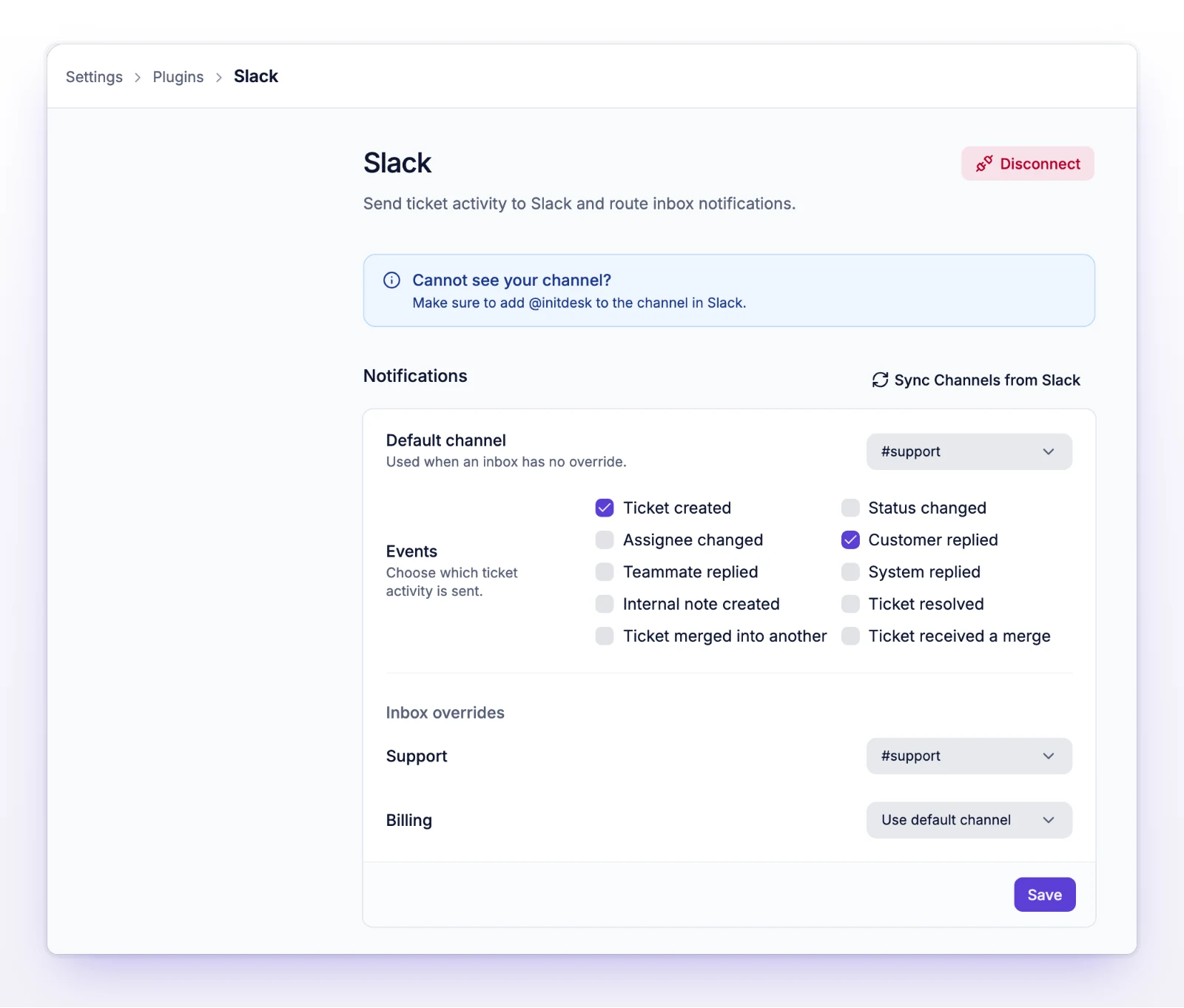
Select Save. New connections start with Ticket created, Customer replied, System replied, Internal note created, and Ticket resolved turned on.
The message for a new ticket shows the subject, the customer's name and email, the first 100 characters of the description, and an Open ticket button that opens the ticket in initdesk. Other events post a short message about that ticket. Nothing posts for events you left unchecked.
Ticket notifications stop posting to Slack and the channel routing is removed. Messages already in Slack stay there.
The Slack approval didn't finish. Select Connect Slack again, and ask a Slack admin to approve the app if your workspace requires it.
The channel you picked no longer exists or initdesk can't see it. Select Sync Channels from Slack and pick again.