⌘ K

Search

Search portal content

AI customer support in one tabAI customer support in one tab
⌘ K

Search

Search portal content

AI customer support in one tabAI customer support in one tab
  • Connect Slack
  • Use initdesk in ChatGPT
  • Use initdesk in Grok Bot
  • Use initdesk in Claude
  • Connect Linear
  • Connect Jira
  • Bring your own data
  • Connect AbacatePay
  • Connect Nomus
  1. Home
  2. Plugins

Connect AbacatePay

Connect AbacatePay with an API key and see the requester's customer record, checkouts, and subscriptions in the ticket sidebar.

Connect AbacatePay

Connect AbacatePay with an API key and see the requester's customer record, checkouts, and subscriptions in the ticket sidebar.

Connect AbacatePay and your team sees the requester's payment records beside every ticket: who they are in AbacatePay, their subscriptions, and their checkouts. It only reads data. You can't change a payment from initdesk.

Before you start

  • You need to be an owner or admin of your initdesk organization.
  • You need an API key from your AbacatePay account.

AbacatePay is listed under Settings > Plugins for every organization.
Add your API key

  1. Go to Settings > Plugins and open AbacatePay.
  2. Under Credential, paste your key into API key.
  3. Select Connect.
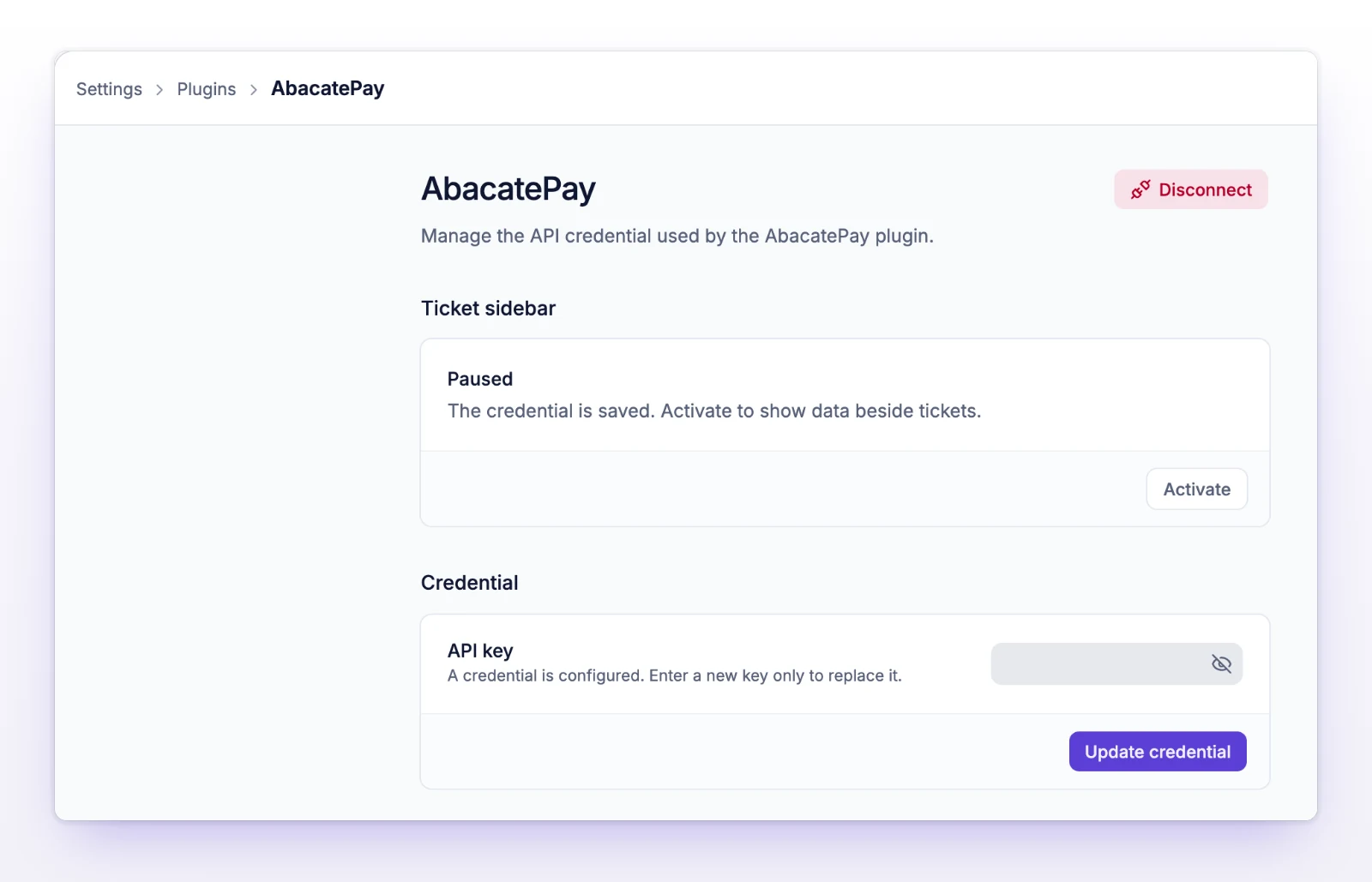
The AbacatePay page with the API key field and the Ticket sidebar section
Paste your API key, then activate the plugin.

initdesk stores the key securely and turns the plugin on. You see "AbacatePay settings saved." The Ticket sidebar section then says Active: "AbacatePay data is available beside tickets."

If the key saves but turning on can't be confirmed, you see Credential saved and a Check connection status button. You don't need to paste the key again.

Pause, replace the key, or disconnect

  • Pause stops showing AbacatePay data on tickets and keeps your key. Select Activate to turn it back on.
  • To replace the key, enter a new one under API key and select Update credential. Leave the field empty to keep the current key.
  • To remove it, select Disconnect and confirm Disconnect AbacatePay? The stored API key and the plugin configuration are removed.

What your team sees on a ticket

The ticket sidebar has an AbacatePay section. initdesk looks up the requester by the ticket's requester email, then shows:

The AbacatePay section in a ticket sidebar with a payment summary
See the requester's payments without leaving the ticket.
  • Customer: Name, Email, Document, Customer ID, and Created.
  • Subscriptions: each with Status, Amount, Created, and ID.
  • Checkouts: each with Status, Amount, Created, and ID.

Select Open AbacatePay to open the account in AbacatePay. Use the section's refresh control to read the data again.

How it behaves

  • Matching is by email. If AbacatePay has more than one customer with that email, initdesk shows the most recently created one and a Check the customer match warning.
  • Change the requester, change the match. If you change the ticket's requester, the panel follows the new email. See Change the requester.
  • Read-only. initdesk doesn't create, refund, or cancel anything in AbacatePay.
  • Every teammate with access to the ticket sees the panel. Only owners and admins can connect or disconnect it.

If something's not working

If you see "No AbacatePay customer matches this requester's email."

AbacatePay has no customer with that email. Check the requester's address, or that the customer paid with the same email.

If you see "Add a requester email to find a customer."

The ticket has no email address for the requester, so there's nothing to look up.

If you see "Connection needs setup"

The plugin isn't connected or is paused. An admin can connect it in Settings > Plugins.

If you see "Some payment data could not be loaded"

AbacatePay didn't return everything. The records that did load are shown. Refresh to try again.

If you see "Enter a valid AbacatePay API key."

Copy the key again from your AbacatePay account and paste it without extra spaces.

Related

  • Bring your own data
  • Connect Nomus
  • Manage customers
Bring your own data

Bring Your Own Data calls your own API with the customer's email and shows what it returns in the ticket sidebar, with no sync or import.

Connect Nomus

Connect your Nomus tenant to link a ticket to a Nomus customer and see its recent orders and NF-e invoices in the ticket sidebar.

Powered by initdesk
On this page
  • Connect AbacatePay
  • Before you start
  • Add your API key
  • Pause, replace the key, or disconnect
  • What your team sees on a ticket
  • How it behaves
  • If something's not working
  • If you see "No AbacatePay customer matches this requester's email."
  • If you see "Add a requester email to find a customer."
  • If you see "Connection needs setup"
  • If you see "Some payment data could not be loaded"
  • If you see "Enter a valid AbacatePay API key."
  • Related