
Set business hours
Tell initdesk when your team is open, set your time zone and holidays, and decide which automatic reply customers get.
Search portal content
Search portal content
Tell initdesk when your team is open, set your time zone and holidays, and decide which automatic reply customers get.
Tell initdesk when your team is open, set your time zone and holidays, and decide which automatic reply customers get.
Business hours say when your organization is open. initdesk uses them to choose which automatic reply a new ticket gets: the one for open hours, or the one for closed hours.
If you never set business hours, initdesk treats your organization as always open.
Owners and admins can change business hours. Associates can open Settings > Business hours to read the schedule, but can't edit it. See Roles and permissions.
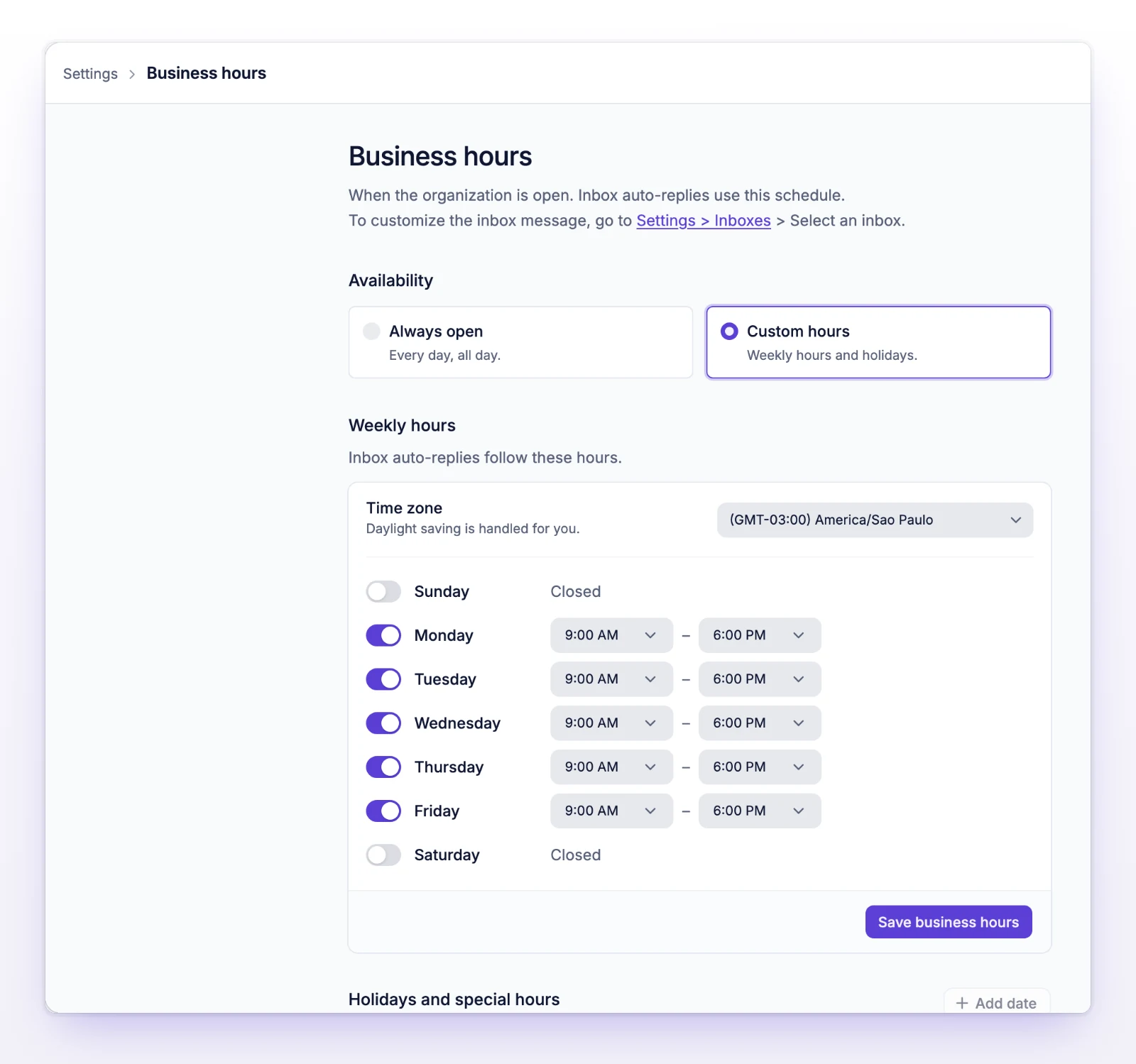
Until you save, the hours are a draft. A new draft starts in your browser's time zone, open Monday to Friday from 09:00 to 18:00. You'll see "Business hours saved." when it's done.
Opening and closing times must be different. If a day closes earlier than it opens, it runs past midnight and closes the next day. A +1 day badge shows that.
If you turn off every day, initdesk reads it as closed all the time. The page says "Closed every day, so you're always closed."
A date replaces the weekly hours for that one day. Use it for a holiday or a day with shorter hours.
Save your weekly hours first. Until then, the page says "Save your business hours to add dates." Each date appears once, so you can't add the same day twice.
To change a date, select the pencil on its row, then Save date. To remove it, use the delete button on the row. A yearly date shows Every year. If a one-off date falls on the same month and day as a yearly one, the one-off date wins that year.
This removes your weekly hours and all your holidays. Automatic replies for closed hours stop sending. Your team can still reply at any time.
Business hours decide which automatic reply a new ticket gets. Each inbox has an Automatic replies section with one message During business hours and one Outside business hours. Each new conversation gets one of them, never both.
| Your schedule | Which message can send |
|---|---|
| Always open | Only the message for open hours. The message for closed hours never sends. |
| Custom hours, open right now | The message for open hours. |
| Custom hours, closed now, including a closed date | The message for closed hours. |
| Custom hours with every day closed | Only the message for closed hours. The message for open hours never sends. |
Business hours don't assign tickets, and they don't stop your team from replying at any time. For how to set each message, see Set up auto-reply.
An automatic reply can include the Next opening time, which comes from this schedule.
You're an associate. Ask an owner or admin. The page says "You can view these hours. An account owner or admin can change them."
Save your weekly hours first, then add the date.
A day has the same opening and closing time. Change one of them, or turn the day off.
That date is already in the list. Edit the existing one.
Wait a moment, then save again.