
Roles and permissions
initdesk has three roles: Owner, Admin, and Associate. See what each one can open, change, and do in your organization.
Search portal content
Search portal content
initdesk has three roles: Owner, Admin, and Associate. See what each one can open, change, and do in your organization.
initdesk has three roles: Owner, Admin, and Associate. See what each one can open, change, and do in your organization.
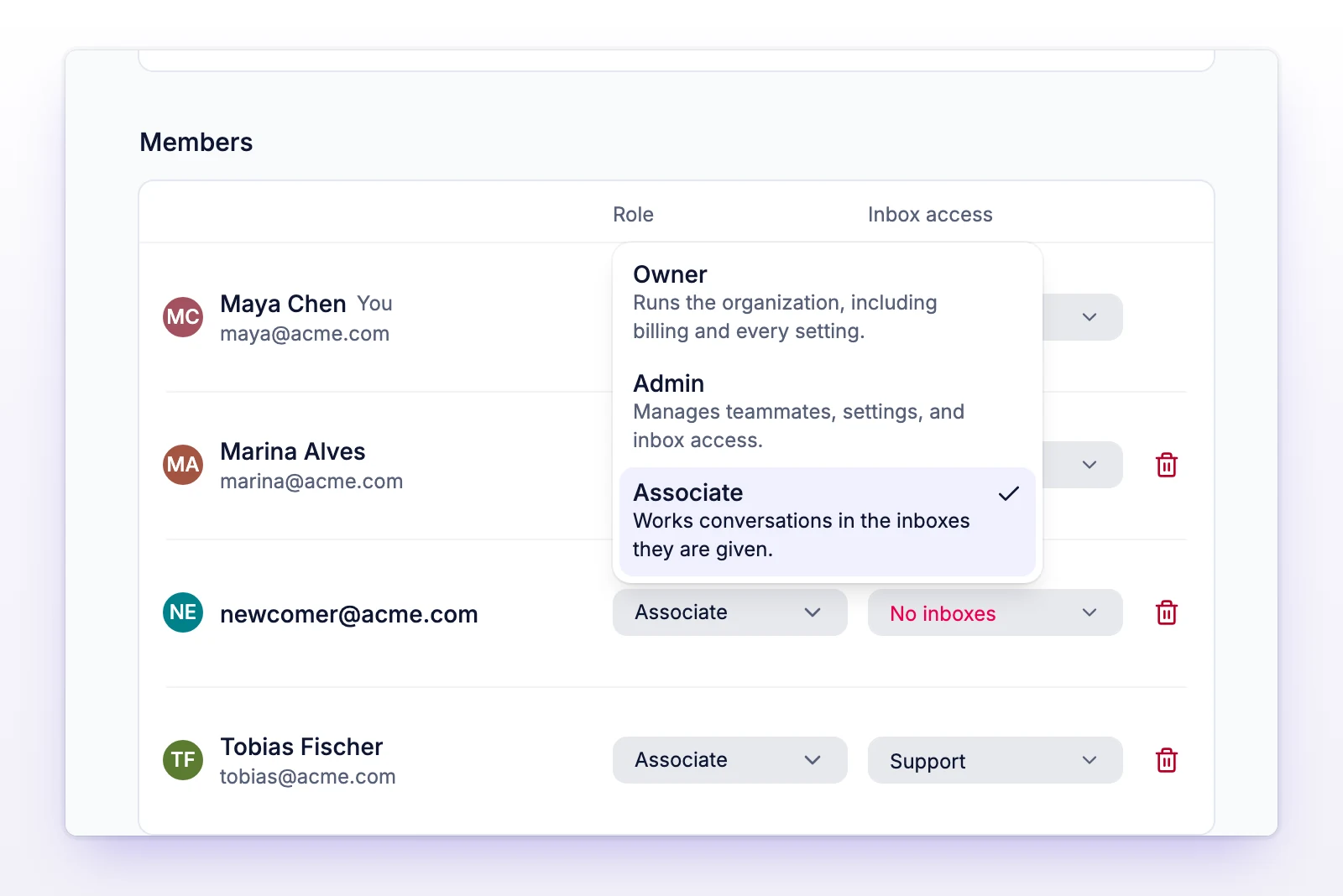
Every person in an organization has one role: Owner, Admin, or Associate. The role decides which settings they can open and what they can change. Owners and admins manage the organization. Associates work tickets.
| Role | What it's for |
|---|---|
| Owner | Runs the organization, including billing and every setting. |
| Admin | Manages teammates, settings, and inbox access. |
| Associate | Works tickets in the inboxes they are given. |
Owners and admins can see every inbox. An associate sees only the inboxes you give them access to. See Invite your team.
| Action | Owner | Admin | Associate |
|---|---|---|---|
| Work tickets in the inboxes they can see | Yes | Yes | Yes |
| Open Business hours, Notifications, Email signature, Team, Tags, Companies, Custom filters, and Saved replies in Settings | Yes | Yes | Yes |
| Change business hours | Yes | Yes | No, view only |
| See the Team page | Yes | Yes | Yes, read only |
| Invite, resend, or revoke an invitation | Yes | Yes | No |
| Change a teammate's role or inbox access | Yes | Yes, except for an owner | No |
| Remove a teammate | Yes | Yes, except an owner | No |
| Open General, Inboxes, Sending domains, Plugins, Bring Your Own Data, API, and Webhooks in Settings | Yes | Yes | No |
| Change organization settings such as name, logo, working language, and ticket ID format | Yes | Yes | No |
| Delete the organization | Yes | Yes | No |
| Create and edit saved replies shared with the whole organization | Yes | Yes | No |
| Create and edit personal saved replies | Yes | Yes | Yes |
Billing follows its own rule. See Manage your subscription.
That's by design. General, Inboxes, and the other admin pages only show for owners and admins. To change a role, go to Settings > Team. Only owners and admins can do it.
Their inbox access doesn't include that inbox. An owner or admin can change it on the Team page.