
Invite your team
Invite people by email, choose their role and the inboxes they can see, and change or remove access later from Settings > Team.
Search portal content
Search portal content
Invite people by email, choose their role and the inboxes they can see, and change or remove access later from Settings > Team.
Invite people by email, choose their role and the inboxes they can see, and change or remove access later from Settings > Team.
Add everyone who answers customers. People on your team are unlimited, and inviting someone doesn't change your bill. You pay for tickets, not for users. See How pricing works.
Only owners and admins can invite people or change access. Associates can read the Team page but can't change anything. See Roles and permissions.
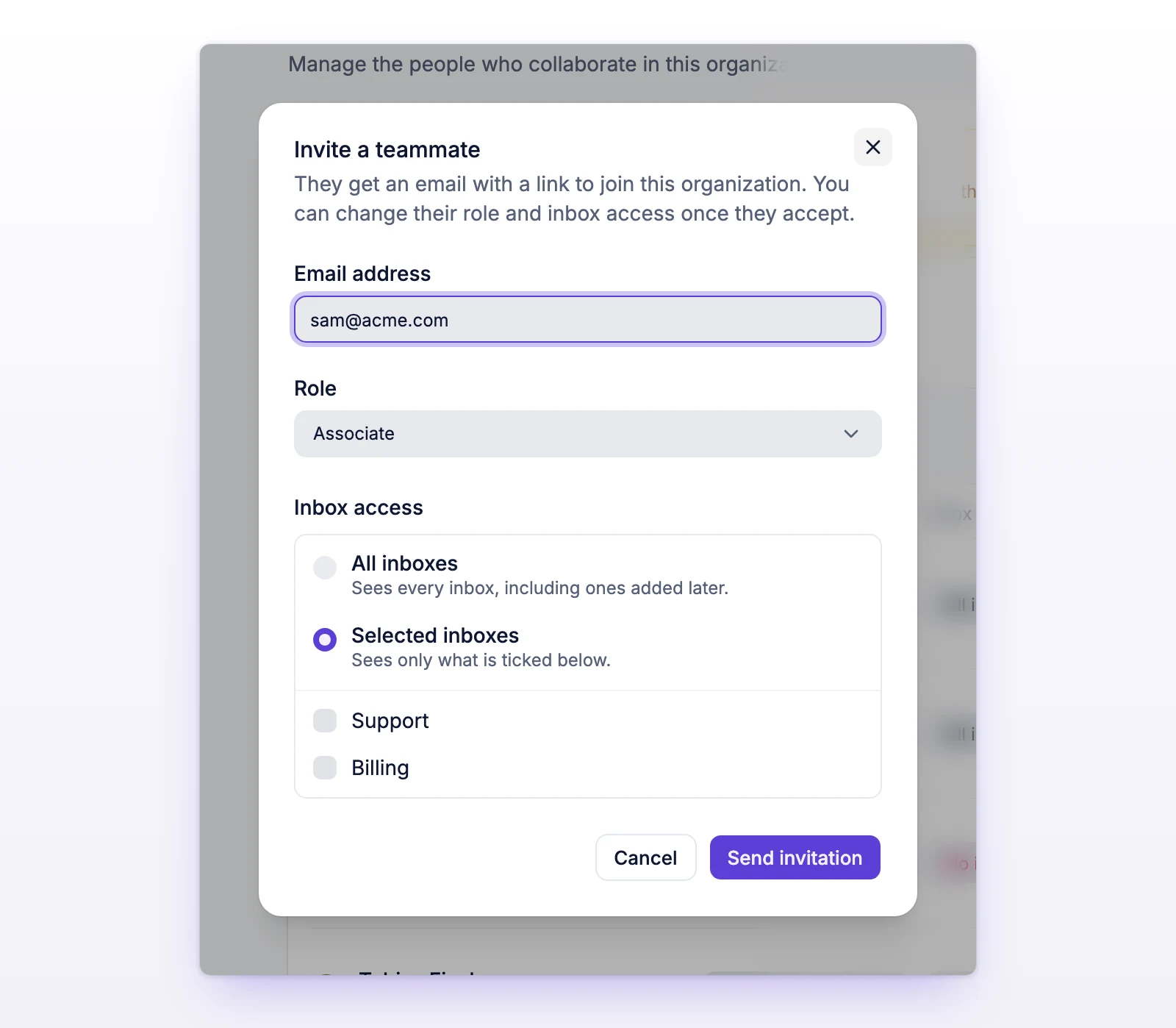
You'll see "Invitation sent to" with their address. They get an email with a link to join the organization. You can change their role and inbox access after they accept.
An invitation stays valid for 14 days. Admins always see every inbox, so the inbox choice only applies to associates. An associate needs at least one inbox, or All inboxes, before you can send. If initdesk can't load your inboxes, give access to all inboxes, or refresh the page to choose specific ones.
They land in Tickets of your organization. If they sign in first and have invitations waiting, they'll see You have invitations with Accept and Decline for each one. Not now leaves the invitation for later.
Invitations that nobody has accepted yet show under Pending invitations.
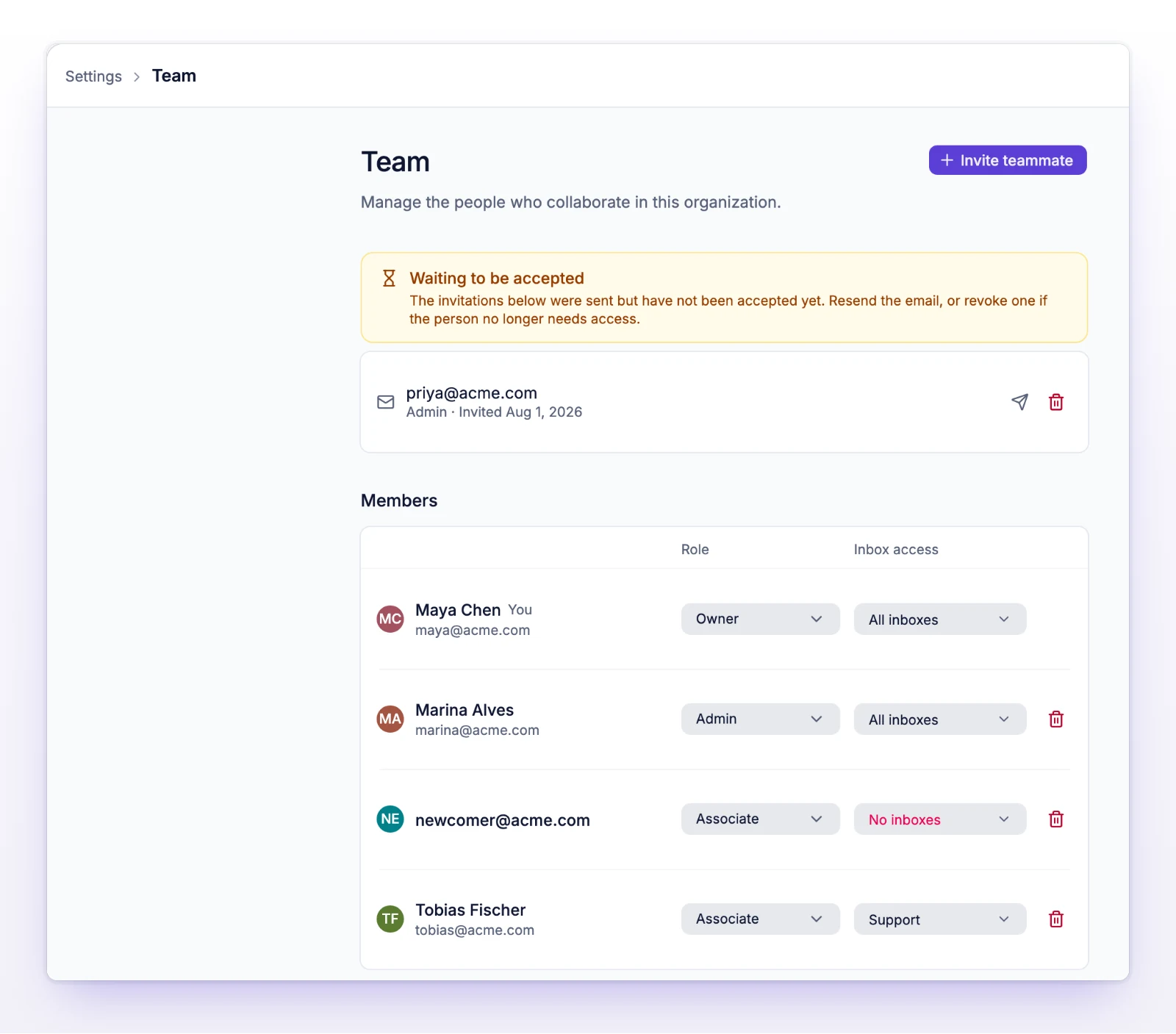
Inbox access saves by itself, and you'll see "Inbox access updated." Role changes save as soon as you pick one. If a save fails, select Retry or Revert.
All inboxes sees every inbox, including ones you add later. Selected inboxes sees only the inboxes ticked.
To remove a teammate, select the remove button on their row and confirm Remove. They lose access right away. The tickets they worked on stay in the organization.
To leave an organization yourself, select the leave button on your own row and confirm Leave. You lose access immediately. An owner or admin has to invite you back.
An admin can't remove an owner, and the last owner can't be removed. An associate can't leave on their own. Ask an owner or admin to remove you.
That email address already has a pending invitation or a place on your team. Look in Pending invitations and Members. To send the email again, select Resend.
They'll see "This invitation is invalid, expired, or has already been used." Select Resend on their pending invitation, or revoke it and send a new one.
They're signed in with another email address. They select Switch account, then sign in with the address you invited. If initdesk asks them to verify their email address first, they confirm it and open the invitation again.
Ask them to check spam, and check that you typed the address correctly. Then select Resend.