
Manage your subscription
Subscribe after your trial, update your payment method, and cancel from Settings > Subscription and the billing customer portal.
Search portal content
Search portal content
Subscribe after your trial, update your payment method, and cancel from Settings > Subscription and the billing customer portal.
Subscribe after your trial, update your payment method, and cancel from Settings > Subscription and the billing customer portal.
Open Settings > Subscription to subscribe, check your renewal date, update your payment method, or cancel. Account owners and admins manage billing.
New organizations start with a 14-day free trial. No card is needed. While the trial runs, the sidebar shows how many days are left and an Activate button.
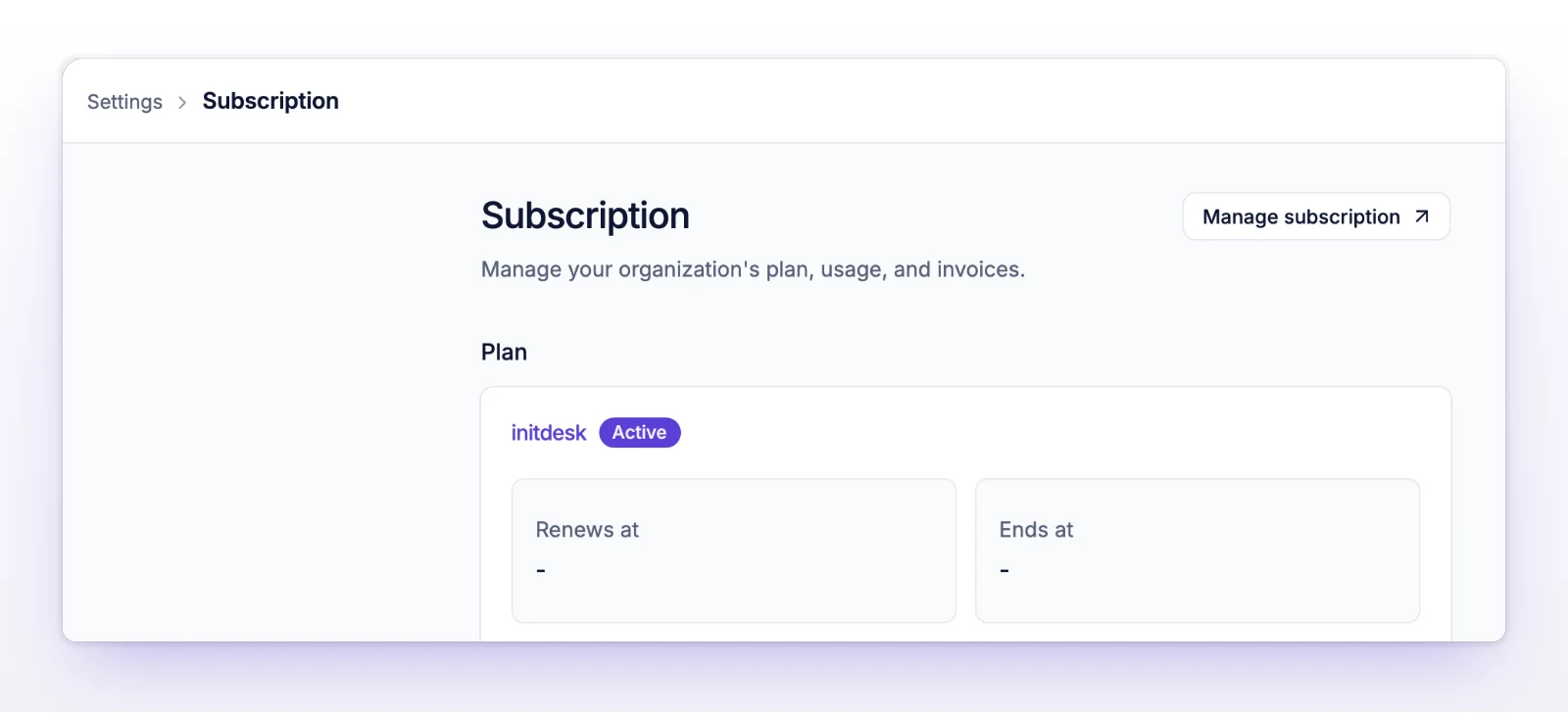
When checkout finishes you return to the Subscription page. The Plan section shows the plan with the Active status. For what the plan costs, see How pricing works.
If you leave checkout without paying, you see "Checkout cancelled." Nothing changes. Select Subscribe again when you're ready.
The status changes to Expired, and initdesk emails you to choose a plan. The sidebar shows Subscription expired with a Renew plan button, and the Access line on the Subscription page shows Disabled. Select Subscribe to start again.
During the trial, a reply to a customer can't add Cc or Bcc recipients other than the customer. initdesk shows "During trial, replies cannot include extra CC or BCC recipients." The limit goes away when you subscribe.
The Plan section lists the plan name and a status badge, then these dates:
| Line | What it means |
|---|---|
| Trial ends | The last day of your free trial, with the days left. Only shown during a trial. |
| Renews at | When the next billing period starts. |
| Ends at | When a cancelled subscription stops. Empty if you haven't cancelled. |
| Access | Appears as Disabled when your organization has lost access. |
The page doesn't show how many tickets you've used this period. See How tickets are billed.
| Status | What it means and what to do |
|---|---|
| Trial | You're in the free trial. Choose a plan before it ends. |
| Active | Your subscription is running. |
| Free | You have no paid plan. Pick a plan to subscribe. |
| Past due | Your last payment didn't go through. Update your payment method. |
| Unpaid | The account has unpaid invoices. Settle them in the customer portal. |
| Paused | The subscription is paused. Resume it in the customer portal. |
| Cancelled | You cancelled and the subscription ended. Subscribe again to continue. |
| Expired | The trial or the subscription ended. Subscribe to start again. |
When a payment fails, the sidebar also shows Payment overdue with an Update payment button.
You cancel in the billing customer portal. There's no separate cancel button in initdesk.
You can cancel at any time. There's no annual lock-in. Ends at shows the date your subscription stops.
When it ends:
Cancelling the subscription doesn't delete your organization. If you also want to delete the organization, cancel an active or paused subscription first. Then use Delete organization in the Danger Zone on Settings > General. If you try it earlier, initdesk tells you to cancel the subscription in Billing first.
Billing belongs to account owners and admins. Ask one of them to subscribe or update the payment method.
The billing service didn't answer. Wait a moment, then select Try again.
There is nothing to subscribe to right now. Check back later, or contact support.