⌘ K

Search

Search portal content

AI customer support in one tabAI customer support in one tab
⌘ K

Search

Search portal content

AI customer support in one tabAI customer support in one tab
  • Reply to a ticket
  • Ticket statuses
  • Start a new ticket
  • Assign tickets
  • Add internal notes
  • Use saved replies
  • Send and view attachments
  • Tag tickets
  • Set ticket priority
  • Snooze a ticket
  • Follow up with customers
  • Replies to closed tickets
  • Search and filter tickets
  • Save ticket views
  • Update tickets in bulk
  • Merge tickets
  • Change the requester
  • Move to another inbox
  • Report spam
  • Translate messages
  • Use Cc and Bcc
  • Sender verification
  • Handle sensitive requests
  • Manage customers
  • Manage companies
  • Ticket analytics
  1. Home
  2. Manage tickets

Start a new ticket

Write to a customer first. Open the New ticket window, pick the inbox and recipient, and send. The conversation starts as a ticket in your list.

Start a new ticket

Write to a customer first. Open the New ticket window, pick the inbox and recipient, and send. The conversation starts as a ticket in your list.

Most tickets start when a customer writes to you. Start one yourself when you need to reach out first: a follow-up after a phone call, a heads-up about an outage, or a message to someone who hasn't written in.
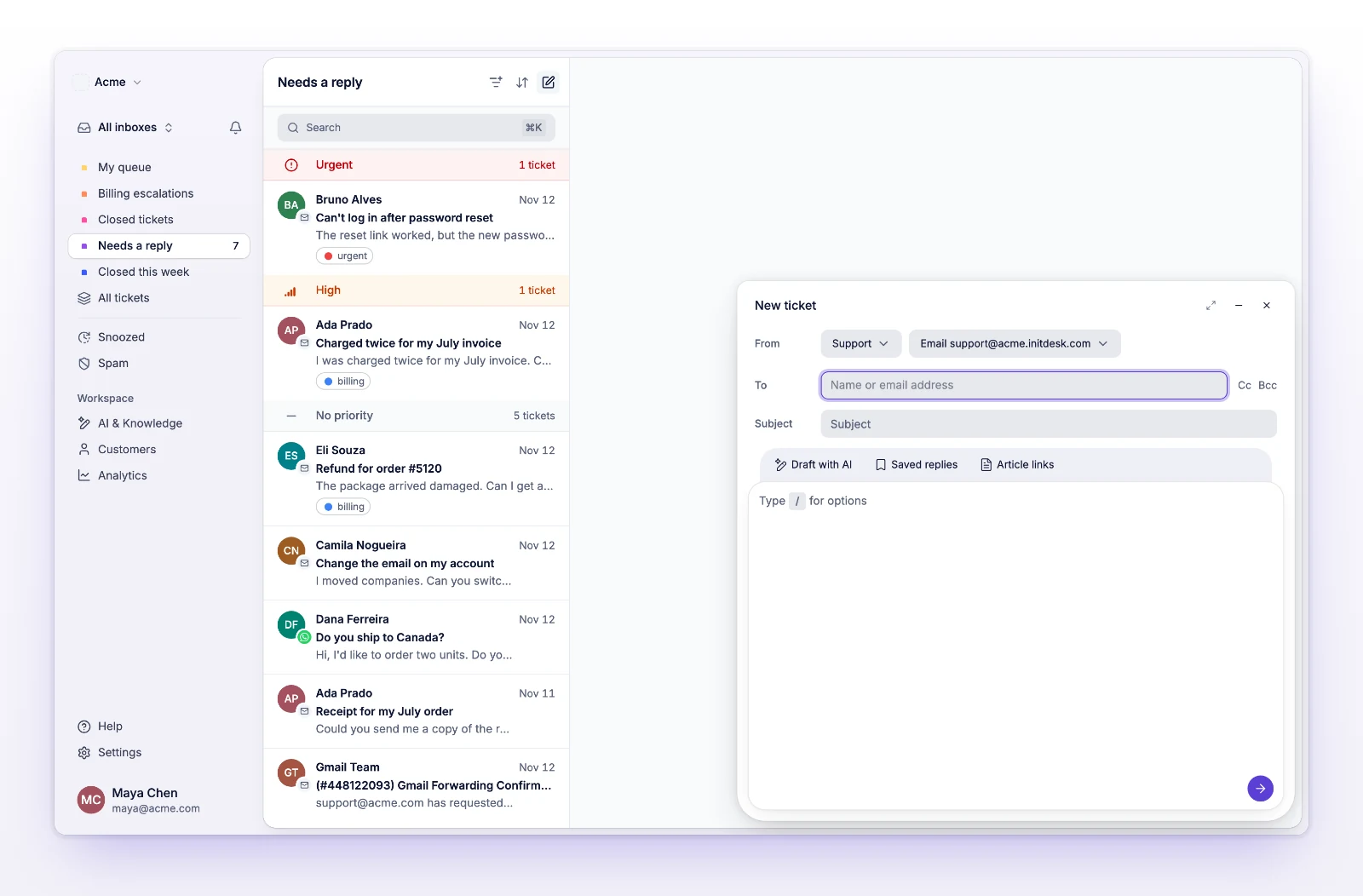
Start a ticket

  1. Select New ticket above the ticket list, or press N anywhere in initdesk.
  2. In From, choose the inbox you want to send from. If you have a default inbox, it's already chosen.
  3. In To, type a name or email address. initdesk searches your customers. Pick a match, or choose the "Use" option with the address you typed to add a new customer.
  4. Add Cc or Bcc recipients if you need them. See Use Cc and Bcc.
  5. Enter a Subject.
  6. Write your message. The writing tools match a reply: formatting, attachments, Saved replies, and Article links. You can also draft with AI. See Reply to a ticket.
  7. Send with the arrow button (Send message), or press Cmd+Enter on a Mac or Ctrl+Enter on Windows.
The New ticket window with From, To, Subject, and the message editor
Pick the inbox, add a recipient and a subject, and write the message.

initdesk sends the message and shows Ticket created. Select Open ticket in that message to follow the conversation.

The ticket starts as Waiting on customer, because you wrote first. When the customer answers, it becomes Needs response. See Ticket statuses.

You need a message or an attachment, a recipient, and a subject. You can attach up to 20 files. See Send and view attachments.

Start a WhatsApp ticket

If the inbox has WhatsApp connected and templates are available for your organization, choose WhatsApp in Channel. A WhatsApp ticket starts with an approved template, because you're the one writing first.

  1. In Channel, choose WhatsApp.
  2. In To, enter the Phone number with the country code, starting with +.
  3. Add the customer's name if you know it. Customer name (optional) helps you find the ticket later.
  4. Enter a Subject. It names the ticket in initdesk. It isn't sent on WhatsApp.
  5. Choose a template and fill in its variables.
  6. Send with the arrow button (Send message).

See Use WhatsApp templates for how templates work.

Keep a draft while you do something else

Select Minimize message (Minimize · keep draft) to get the window out of the way. Your message, recipients, and attachments stay. Press N to bring the draft back.

To throw a draft away, select Discard message. initdesk asks you to confirm.

If you switch to another organization with an unsent message, initdesk warns you that leaving discards it.

What a new ticket doesn't do

  • It doesn't send an automatic reply. Automatic replies are for tickets customers start. See Set up auto-reply.
  • It doesn't pick an assignee on its own. Assign it afterward. See Assign tickets.
  • You can't set a priority while you write. New tickets start as No priority. Set one after you send. See Set ticket priority.

If something's not working

If you see "No inbox is available. Ask an organization manager to add one, then refresh."

Your organization has no inbox you can send from. Ask an admin to add one or give you access, then select Refresh inboxes. See Create an inbox.

If you see "Couldn’t load sending options."

Select Retry sending options.

If you see "Ticket creation limit reached. Try again later."

initdesk limits how many tickets your organization can create this way each hour. Wait a while and try again.

If you see "During trial, ticket recipients must be active organization members."

During the free trial, a new ticket can only go to people in your own organization. Cc and Bcc recipients other than the requester aren't allowed either ("During trial, CC or BCC other than the requester is not allowed."). Both limits end when you're no longer on the trial.

If you see "Wait for attachments to finish uploading, or remove failed uploads."

An attachment is still uploading or failed. Wait for it to finish, or remove it, then send again.

If you see "Sending could not be confirmed. Check your tickets before starting another message."

The message may have gone out. Look in your ticket list before you send it again.

Related

  • Reply to a ticket
  • Use Cc and Bcc
  • Use WhatsApp templates
  • Ticket statuses
Ticket statuses

Every ticket is waiting on your team, waiting on the customer, snoozed, or closed. Learn what moves a ticket between them and how to filter by each.

Assign tickets

Give a ticket an owner so your team knows who is handling it. Assign from the ticket or the list, and set a default owner for a company.

Powered by initdesk
On this page
  • Start a new ticket
  • Start a ticket
  • Start a WhatsApp ticket
  • Keep a draft while you do something else
  • What a new ticket doesn't do
  • If something's not working
  • If you see "No inbox is available. Ask an organization manager to add one, then refresh."
  • If you see "Couldn’t load sending options."
  • If you see "Ticket creation limit reached. Try again later."
  • If you see "During trial, ticket recipients must be active organization members."
  • If you see "Wait for attachments to finish uploading, or remove failed uploads."
  • If you see "Sending could not be confirmed. Check your tickets before starting another message."
  • Related