
Assign tickets
Give a ticket an owner so your team knows who is handling it. Assign from the ticket or the list, and set a default owner for a company.
Search portal content
Search portal content
Give a ticket an owner so your team knows who is handling it. Assign from the ticket or the list, and set a default owner for a company.
Give a ticket an owner so your team knows who is handling it. Assign from the ticket or the list, and set a default owner for a company.
Assign a ticket to a teammate so everyone knows who is handling it. A ticket can have one assignee, or none.
Press T to open the same menu from the keyboard.
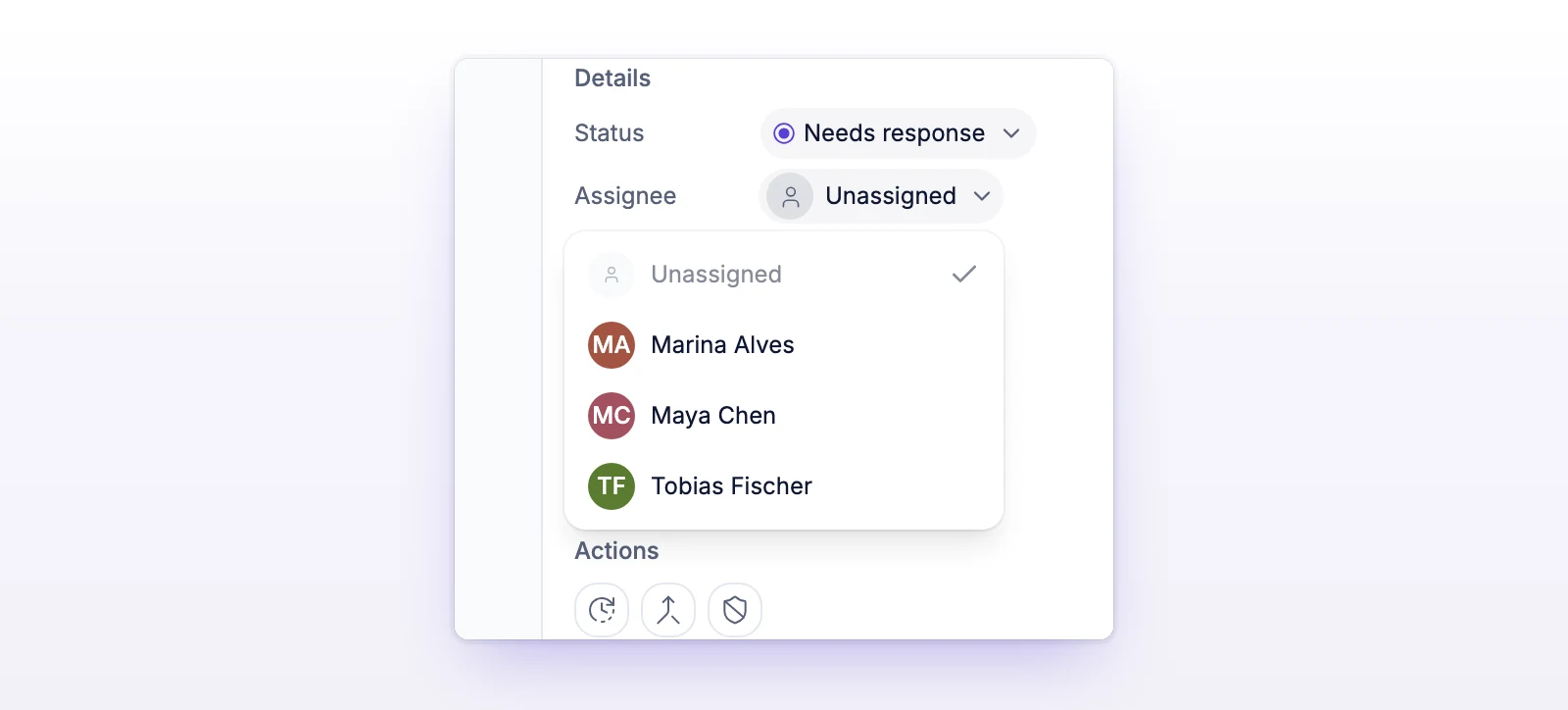
The thread records the change as "Assigned to" with the teammate's name. Your team sees that line. Customers don't.
You can also assign from the ticket list. Hover over a row and select the assignee avatar.
You can change the assignee on open and closed tickets. The T key works on open tickets only.
The menu lists teammates who can see the ticket's inbox: people with access to all inboxes, and people who were given access to this inbox. Everyone else is left out. To change who has access, see Invite your team.
A company can have a default assignee. When a new ticket comes in from someone in that company, it's assigned to that teammate right away, if nobody else assigned it and the teammate can see the inbox.
This only applies to new tickets. It doesn't change tickets that already exist. See Manage companies.
Assigning doesn't change the ticket's status, and it doesn't stop anyone else from replying.
The ticket may be busy with another change. Wait a moment and try again.
initdesk couldn't confirm the change. Select the avatar again to check the current assignee.
You no longer have access to this ticket's inbox. Ask an admin to give you access.
The teammate you picked can't take this ticket, usually because they don't have access to its inbox. Pick someone else.
Select it to load the list again.