⌘ K

Search

Search portal content

AI customer support in one tabAI customer support in one tab
⌘ K

Search

Search portal content

AI customer support in one tabAI customer support in one tab
  • Reply to a ticket
  • Ticket statuses
  • Start a new ticket
  • Assign tickets
  • Add internal notes
  • Use saved replies
  • Send and view attachments
  • Tag tickets
  • Set ticket priority
  • Snooze a ticket
  • Follow up with customers
  • Replies to closed tickets
  • Search and filter tickets
  • Save ticket views
  • Update tickets in bulk
  • Merge tickets
  • Change the requester
  • Move to another inbox
  • Report spam
  • Translate messages
  • Use Cc and Bcc
  • Sender verification
  • Handle sensitive requests
  • Manage customers
  • Manage companies
  • Ticket analytics
  1. Home
  2. Manage tickets

Tag tickets

Create tags in Settings, add them to tickets, and filter your list by tag so related conversations are easy to find.

Tag tickets

Create tags in Settings, add them to tickets, and filter your list by tag so related conversations are easy to find.

Tags are labels you put on tickets: billing, bug, refund, vip. Use them to group related conversations, filter your list, and build views.
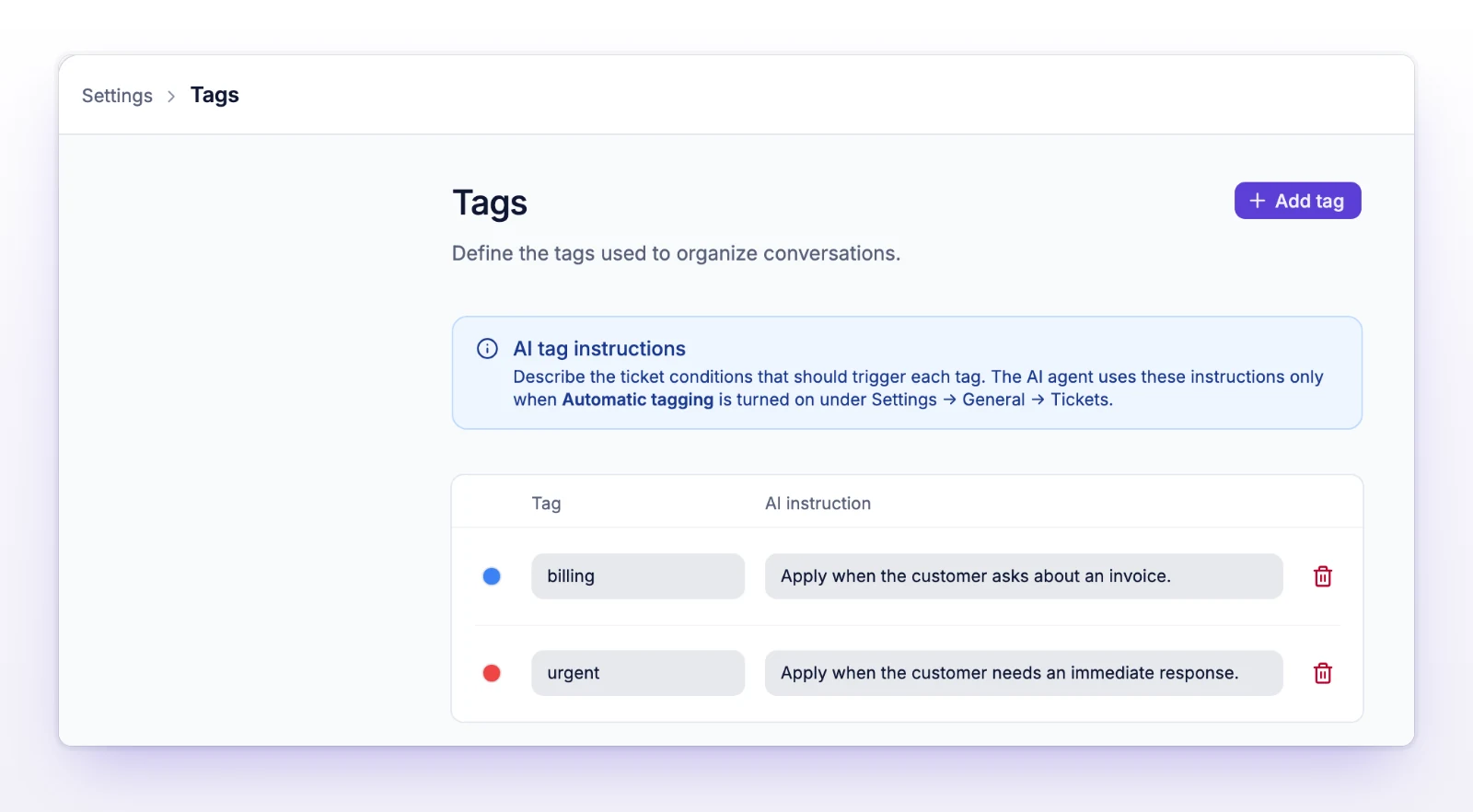
Create a tag

  1. Go to Settings > Tags.
  2. Select Add tag.
  3. Enter a Tag name.
  4. Pick a color with Change color.
The Tags settings page with a list of tags and colors
Name each tag and pick a color.

Each tag saves when you leave its row. There's no separate save button.

A tag name can be up to 20 characters. initdesk writes it in lowercase, with hyphens instead of spaces and symbols, so "Refund Request" becomes refund-request. Two tags can't have the same name. If you try, initdesk says "A tag with this name already exists in this organization."

An organization can have up to 20 tags. After that, you see "This organization has reached its tag creation limit." Delete a tag you don't use to add a new one.

Rename, recolor, or delete a tag

On Settings > Tags:

  • Change the Tag name or the color in the tag's row. It saves when you leave the row. Select Revert to undo an edit you haven't saved.
  • To delete a tag, use Delete tag. initdesk asks you to confirm. This can't be undone, and the tag is removed from the tickets that had it.

Everyone on your team, including associates, can open Settings > Tags.
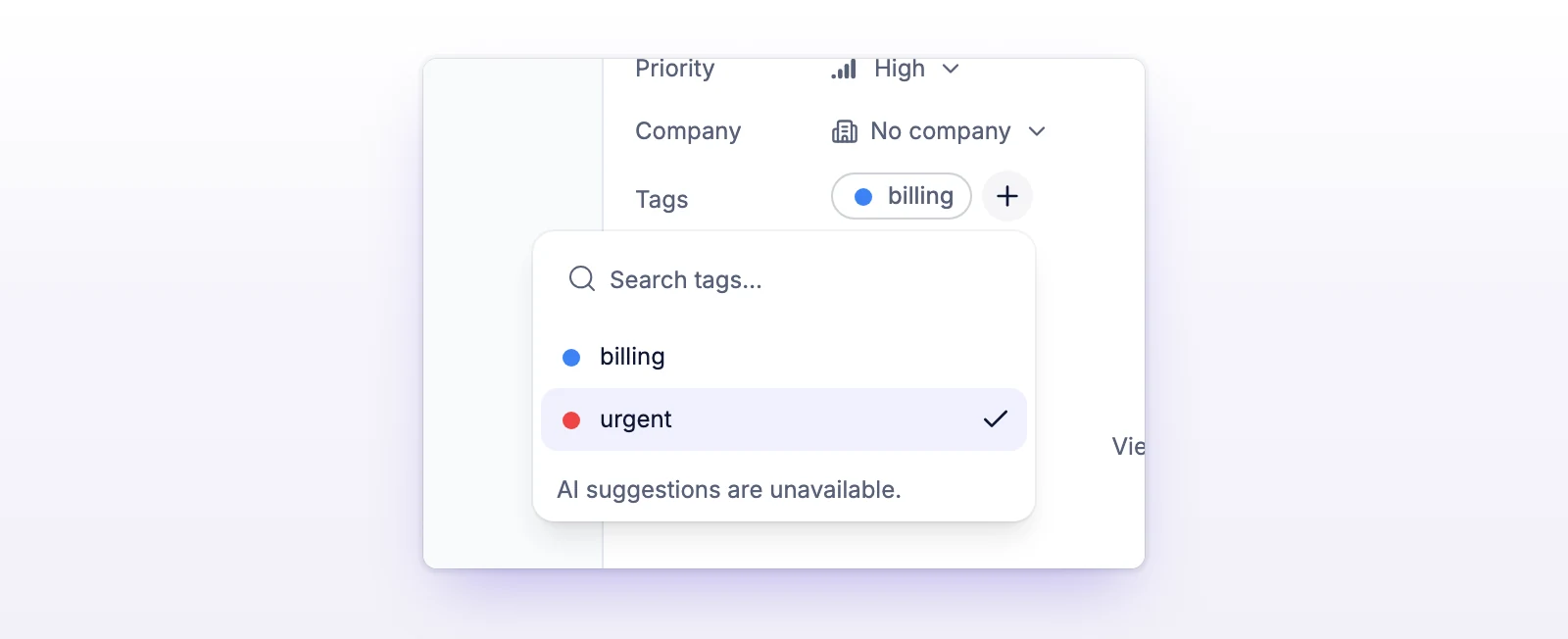
Add tags to a ticket

  1. Open the ticket.
  2. In the details pane on the right, find Tags. Select Add tags, or select a tag that's already there.
  3. Search with Search tags…, and select a tag to add it. Select it again to remove it.
  4. To make a new tag, type its name and choose the Create option that appears.
The Tags editor on a ticket with search, AI suggestions, and tags
Search for a tag, or type a new name to create it.

You can also remove a tag by selecting the remove icon on the tag itself.

A ticket can have more than one tag. A tag you create here is added to your organization's tag list too, and counts toward the 20-tag limit.

The ticket list shows each ticket's tags. A row that has many shows how many more there are.

Let AI suggest tags

The tags editor can show AI suggestions. initdesk can also tag new tickets for you. See Auto-tag tickets.

Find tickets by tag

Filter: Select Filters above the ticket list, then use Tags. A chip like "Tag: billing" shows what's applied. See Search and filter tickets.

Saved views: In a custom filter, add a With tag rule to see only tickets that carry one of the tags you pick, or Without tag to leave those tickets out. See Save ticket views.

If something's not working

If you see "Tag name must be at most 20 characters."

Shorten the name.

If you see "Tag name is required."

Type a name before you leave the row.

If you see "This tag no longer exists."

A teammate deleted it. Refresh the page.

If you see "Could not confirm that this tag was saved. Try again."

Check the tag's current name and color on the page, then try again.

If you see "A selected tag is no longer available. Refresh the tags and try again."

Someone deleted a tag while you were picking. Reload the ticket and choose again.

If you see "This organization has reached the tag creation limit. Choose an existing tag."

You can't create more tags. Pick one from the list.

Related

  • Auto-tag tickets
  • Save ticket views
  • Search and filter tickets
Send and view attachments

Attach files to replies, preview and download what customers send, load blocked email images, and print a ticket. Limits and blocked types included.

Set ticket priority

Mark how urgent a ticket is so your team works the most pressing ones first. Set it from the ticket or the list, and sort by it.

Powered by initdesk
On this page
  • Tag tickets
  • Create a tag
  • Rename, recolor, or delete a tag
  • Add tags to a ticket
  • Let AI suggest tags
  • Find tickets by tag
  • If something's not working
  • If you see "Tag name must be at most 20 characters."
  • If you see "Tag name is required."
  • If you see "This tag no longer exists."
  • If you see "Could not confirm that this tag was saved. Try again."
  • If you see "A selected tag is no longer available. Refresh the tags and try again."
  • If you see "This organization has reached the tag creation limit. Choose an existing tag."
  • Related