
Save ticket views
Turn a set of rules, like status, assignee, or tag, into a view in your ticket list. Keep it for yourself or share it with the team.
Search portal content
Search portal content
Turn a set of rules, like status, assignee, or tag, into a view in your ticket list. Keep it for yourself or share it with the team.
Turn a set of rules, like status, assignee, or tag, into a view in your ticket list. Keep it for yourself or share it with the team.
A custom filter is a saved set of rules. It shows up in your sidebar as a view, so the tickets you work from are one click away. Make filters for yourself, or share them so the whole team works from the same views.
In the ticket list, the sidebar group Ticket views lists your views in order. After them come All tickets, Snoozed, and Spam. A view can show a count of matching tickets next to its name. The count follows the inbox you picked at the top of the group.
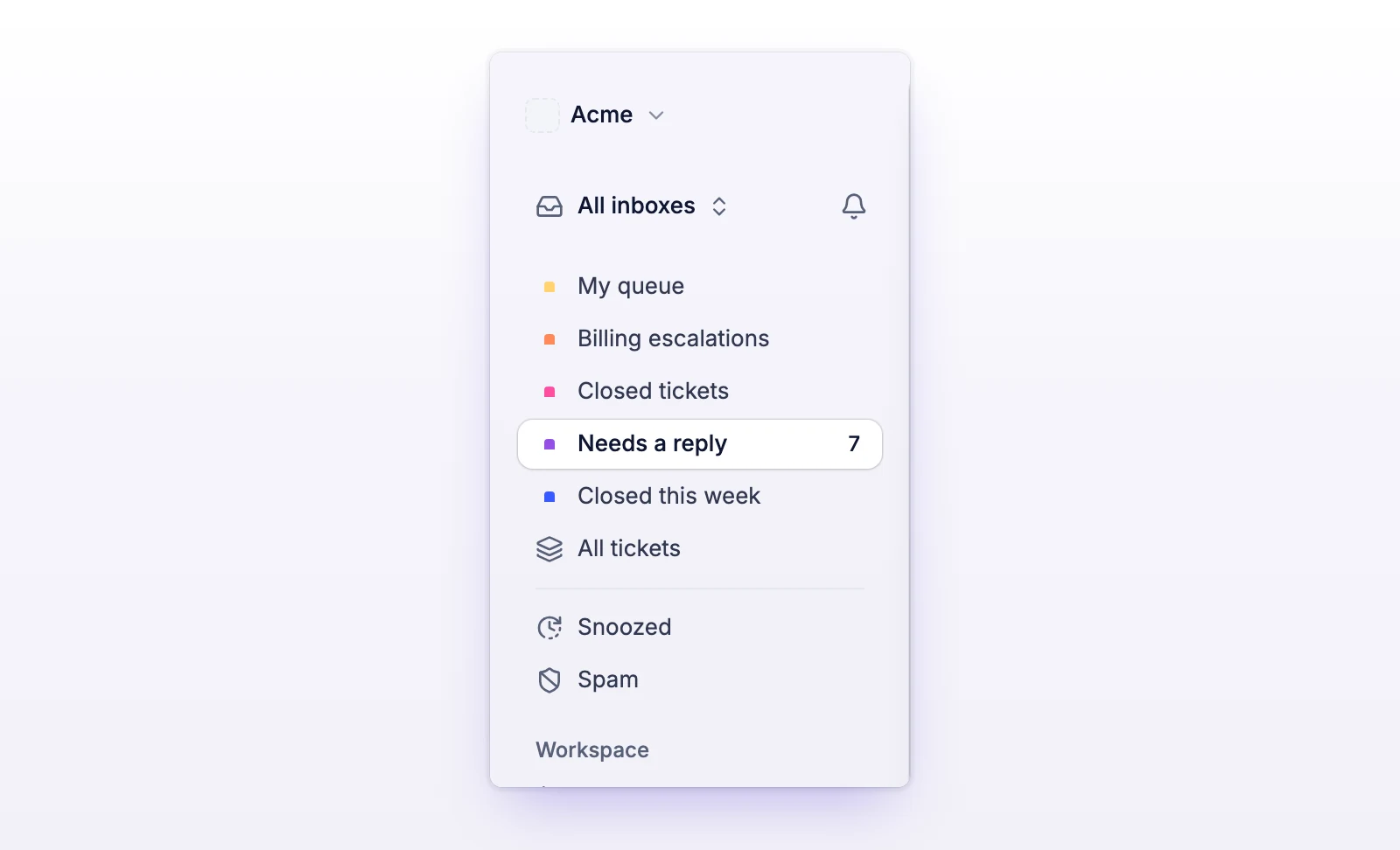
Every new organization starts with five shared views:
| View | What it shows |
|---|---|
| My queue | Tickets assigned to you that are waiting on your team and aren't snoozed. |
| Unassigned | Tickets with no assignee that are waiting on your team and aren't snoozed. |
| Needs response | Tickets waiting on your team that aren't snoozed. |
| Waiting on customer | Tickets waiting on the customer that aren't snoozed. |
| Closed | Closed tickets. Shown without a count. |
These are normal views. You can rename them, change their rules, reorder them, or delete them. Until someone renames a default view, its name follows each person's language.
When you open the ticket list with no view selected, initdesk opens the first view in your list that has tickets.
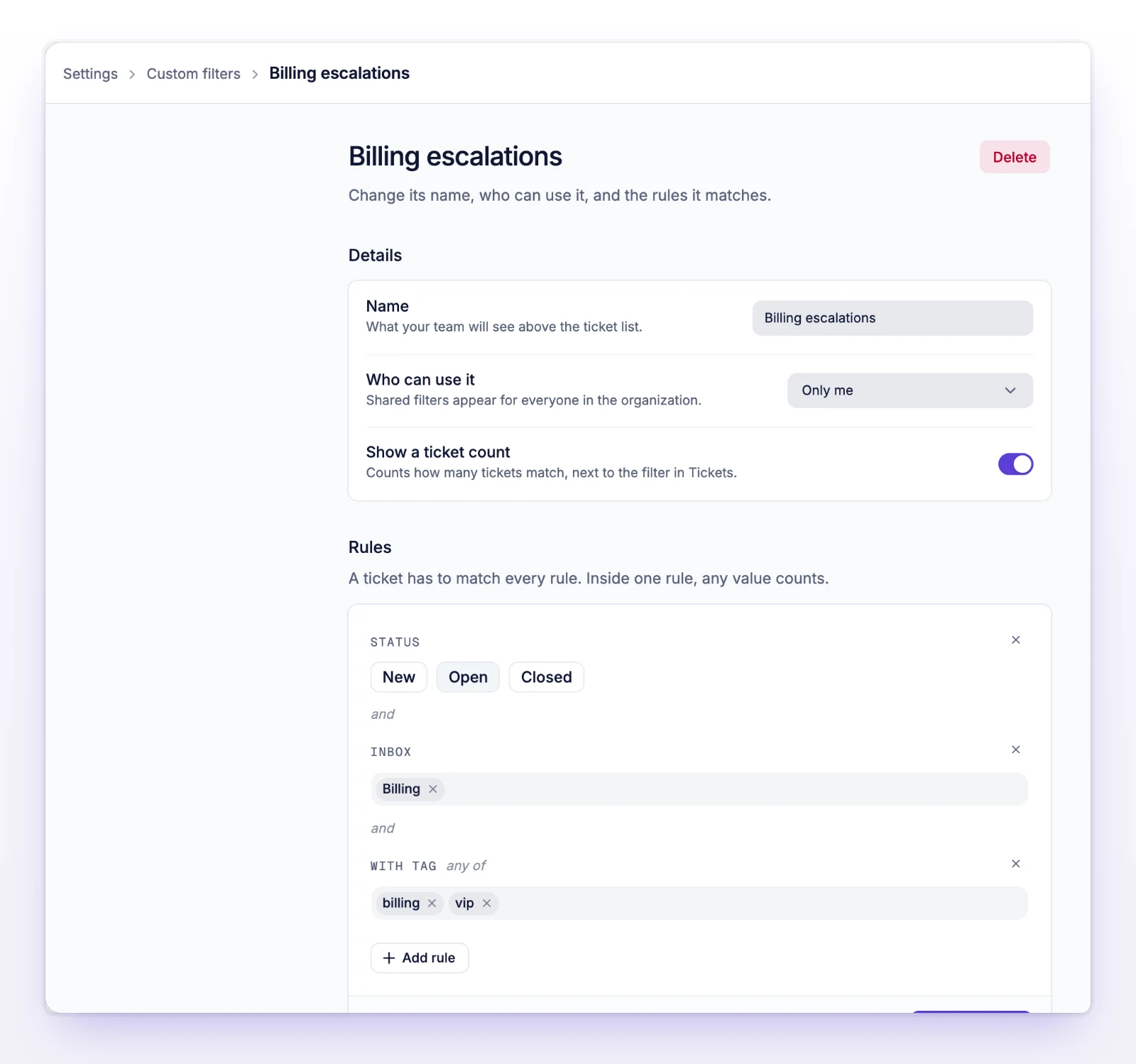
The filter appears in the sidebar right away. Views are created only in Settings > Custom filters. The ticket list's Filter button is for one-off filtering and doesn't save anything.
A ticket has to match every rule. Inside one rule, any value counts. For example, Status is New or Open matches tickets in either state.
| Rule | Values |
|---|---|
| Status | New, Open, Closed |
| Priority | The priority levels. See Set ticket priority. |
| Waiting on | Your team, The customer, Nobody |
| Assignee | Me, Unassigned, or specific people |
| Inbox | One or more inboxes |
| Channel | Email, Telegram, WhatsApp |
| Origin | Email, API, Telegram, WhatsApp, Help Center |
| With tag | Only tickets with one of these tags |
| Without tag | Leave out tickets with one of these tags |
| Closed as | Resolved, Invalid, Customer inactivity, No response, Other, Not classified |
| Snoozed | Yes or No |
Closing a ticket clears who it was waiting on. A filter that asks for closed tickets that are also waiting on your team or the customer matches nothing. Drop the Status rule, or set Waiting on to Nobody.
| Only me | Everyone in the organization | |
|---|---|---|
| Who sees it | Only you | Everyone on your team |
| Who can create, edit, reorder, or delete it | You | Account owners and admins |
| Where it's listed in settings | Your filters | Shared filters |
Anyone on your team can make Only me filters. If you aren't an account owner or an admin, the Everyone in the organization choice is turned off, and you'll see "Only account owners and admins can share a filter."
Pick a different name. Two of your own filters can't share a name.
You're not an account owner or an admin. Ask one of them to create the filter, or keep it as Only me.