
Send and view attachments
Attach files to replies, preview and download what customers send, load blocked email images, and print a ticket. Limits and blocked types included.
Search portal content
Search portal content
Attach files to replies, preview and download what customers send, load blocked email images, and print a ticket. Limits and blocked types included.
Attach files to replies, preview and download what customers send, load blocked email images, and print a ticket. Limits and blocked types included.
Attach files to replies and internal notes, preview and download files customers send, and print a ticket when you need a paper or PDF copy.
You can attach files in three ways.
Each file shows as a chip under the message while it uploads. Wait for every chip to finish before you send. A chip that says Failed has a retry action and a remove action. Select the "Why did the file fail to upload?" link on it to see the reason.
A message can have only attachments and no text.
Attachments work the same way on internal notes. See Add internal notes. They also work in the New ticket window. See Start a new ticket.
| Rule | Limit |
|---|---|
| Size | 50 MB per file. Empty files aren't attached. |
| Number | Up to 20 attachments per ticket draft. Your reply draft and your note draft share this count. |
| Blocked types | Program and script files, such as .exe, .bat, .cmd, .com, .msi, .scr, .js, .vbs, .ps1, .lnk, and .reg, plus SVG images and HTML files. |
| Allowed | Everything else, including .zip, PDF, Office documents, images, and audio. |
The blocked list applies to every channel. initdesk checks the file name's last part only, so a .zip that holds an .exe isn't opened or checked.
A file you upload and never send is removed after about 24 hours.
Compress the file, or share a link instead.
Remove some attachments, or send them in two messages.
The file has no content. Pick another one.
That file type is blocked for safety. Share the content another way, for example through a link.
An upload expired before you sent. Remove the chips that failed, and attach the files again.
Attachments appear under the message. Select one to open the preview.
.avif, .gif, .jpeg, .jpg, .png, and .webp.ogg, .oga, .opus, .mp3, .m4a, and .aac, with a playerOther file types have no preview. Download them instead.
In the preview:
If you see "Preview unavailable", select Open in new tab to open the attachment instead.
When a message has 2 or more attachments, Download all saves them together. If you see "These attachments are too large to download together.", download them one at a time. One download can hold up to 500 files and about 2 GB.
A voice message from a customer shows a player. If Transcribe voice messages is on, a text transcription appears with it: Receiving audio…, then Transcribing…, then the text. Turn it on under Settings > General > Tickets. It works with WhatsApp. If it's off, the message shows "Transcription is turned off".
Some emails include images from other websites. When an image uses an insecure (http) connection, initdesk blocks it and shows "Some images were blocked because they use an insecure connection." Select Load images to load them. initdesk can load up to 12 PNG, JPEG, GIF, or WebP images, up to 5 MiB each. It hides one-pixel tracking images.
If you see "Some images couldn’t be loaded.", select Retry.
For an email that looks cut off, select Show full email, and Hide full email to collapse it again.
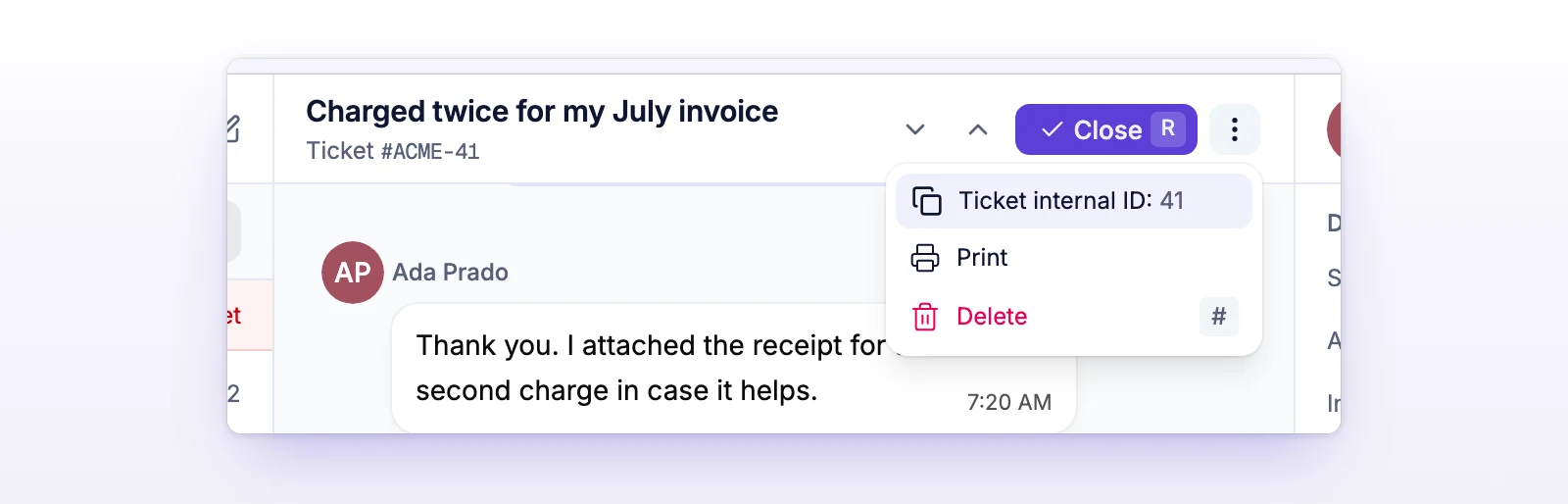
Your browser's print dialog opens. From there you can print on paper or save as a PDF.
The printout has the subject, the ticket number, the origin, the sender, and the assigned teammate. Below that it lists each message with its sender, time, Cc recipients, text, and the names of its attachments. It doesn't include the attachment files, internal notes, or system events, so it's safe to hand to a customer.
Print is unavailable until the conversation has loaded. If you see "Couldn’t prepare this ticket for printing.", select Try again.