
Auto-tag tickets
New tickets get up to 3 of your tags without anyone sorting them. Turn Automatic tagging on or off, and tell the AI when each tag applies.
Search portal content
Search portal content
New tickets get up to 3 of your tags without anyone sorting them. Turn Automatic tagging on or off, and tell the AI when each tag applies.
New tickets get up to 3 of your tags without anyone sorting them. Turn Automatic tagging on or off, and tell the AI when each tag applies.
When a new ticket arrives, initdesk can read it and add the tags from your list that fit. Your team spends less time sorting and more time replying. Tags describe what a ticket is about. They aren't priority, and they don't assign or route anything.
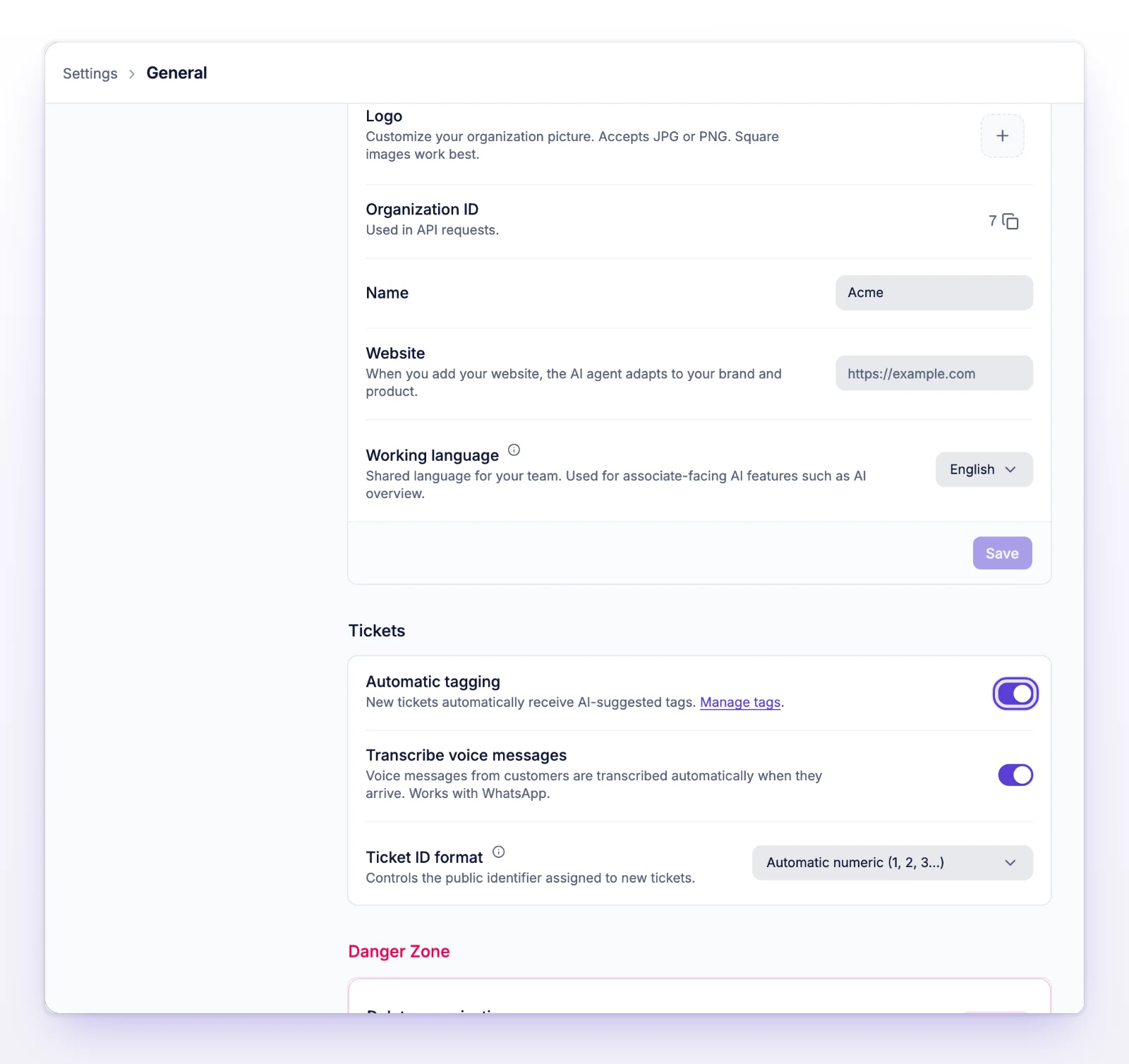
The switch is on unless someone turned it off. Changing it affects new tickets only. Tickets that already have tags keep them.
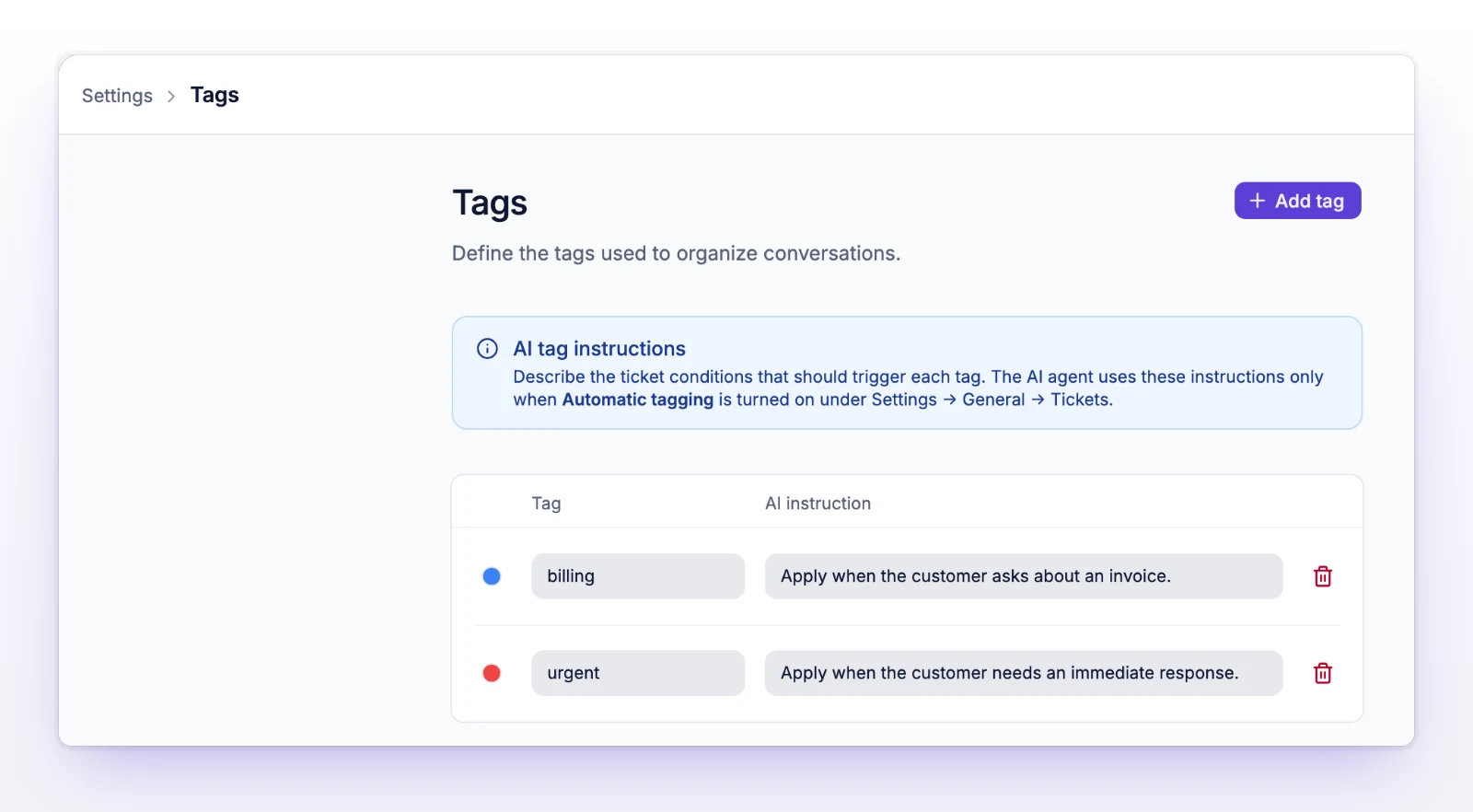
The AI can only use tags you've created. Create and edit them at Settings > Tags. See Tag tickets.
Each tag has an AI instruction. It finishes the sentence "Apply this tag when the ticket…". For example:
| Tag | AI instruction |
|---|---|
billing |
…asks about an invoice, a charge, or a payment method |
bug |
…describes something that is broken or behaves differently than expected |
feature-request |
…asks for something the product doesn't do yet |
| What happens | Detail |
|---|---|
| When it runs | Once, when the ticket is created. It doesn't retag when the customer replies later. |
| What it reads | The ticket subject and body, and your tags with their AI instructions. |
| How many tags | 0, 1, 2, or 3. It adds none when none fit. |
| Which tags | Only tags that already exist in your organization. It never creates a new tag. |
| Existing tickets | Not touched. |
| Spam and imported tickets | Skipped. |
It only adds tags. It never removes one. Your team can still add, change, or remove tags on any ticket by hand, and your changes stay.
If your organization has no tags, nothing is applied.
Open Settings > Tags and tighten the AI instruction for that tag. Say what the ticket must contain, and add what it doesn't cover. Overlapping tags, such as billing and pricing, confuse the choice. Delete one of them, or write instructions that separate them.
Edit that tag's AI instruction so it is narrower. To stop all automatic tags, switch Automatic tagging off.