⌘ K

Search

Search portal content

AI customer support in one tabAI customer support in one tab
⌘ K

Search

Search portal content

AI customer support in one tabAI customer support in one tab
  • How AI works
  • Write agent instructions
  • Use AI drafts
  • Auto-tag tickets
  • Improve AI answers
  1. Home
  2. AI & Knowledge

Use AI drafts

Open a ticket, choose Draft with AI, then edit and send the reply it writes. Add guidance, refine the draft, or undo it.

Use AI drafts

Open a ticket, choose Draft with AI, then edit and send the reply it writes. Add guidance, refine the draft, or undo it.

Draft with AI writes a reply for you from the ticket, your Skill, and your published articles. You read it, change what you want, and send it. Nothing goes to the customer until you send.
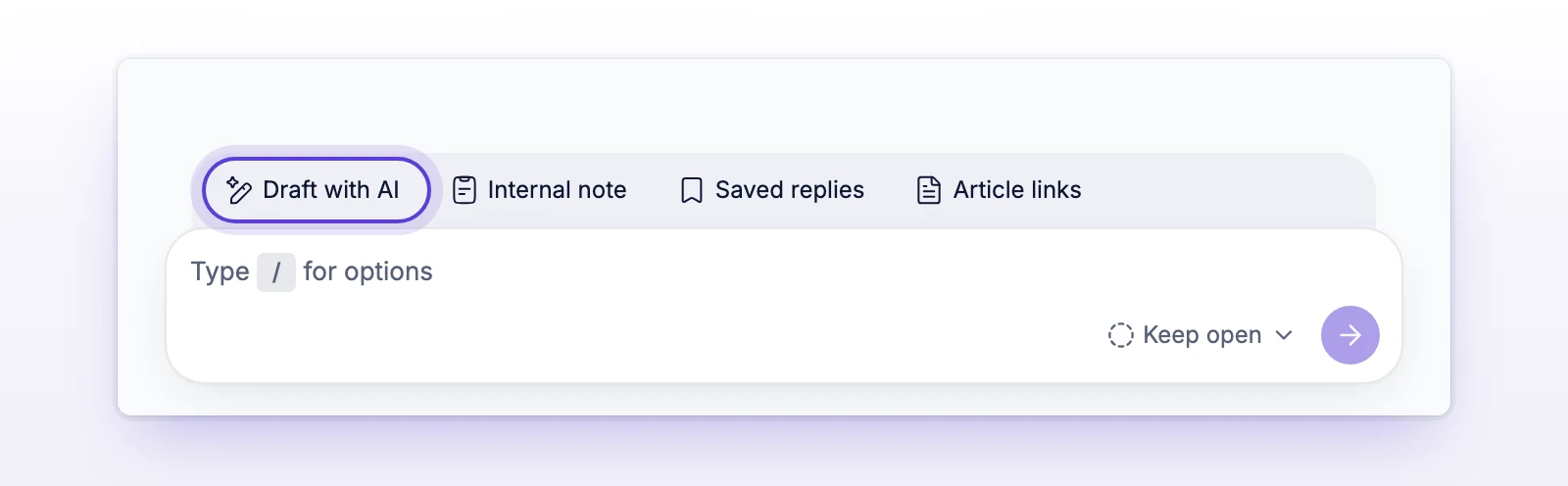
Draft a reply

  1. Open the ticket.
  2. In the row of tools above the reply box, select Draft with AI.
  3. Optional: in the box that opens, tell the AI what to draft. For example, "Keep it short and ask for the invoice number first."
  4. Select the arrow button (Generate), or press Ctrl+Enter (Cmd+Enter on Mac).
The reply box on a ticket with the Draft with AI button in the tool row
Draft with AI sits in the row of tools above your reply.

The draft appears in the reply box as it's written. To stop it early, close the AI box.

When it's done, read the draft, edit it like any reply, and send it. The AI is a starting point. You decide what the customer receives.

Guidance can be up to 2,000 characters. It's for this ticket only. For rules that apply to every draft, write them in your Skill. See Write agent instructions.

Refine or undo a draft

After a draft, the AI box asks how to refine it, and the arrow button changes to Refine.

  • Refine: type what to change, such as "More formal" or "Add the steps for resetting a password", then select the arrow button. The AI keeps working on the same draft.
  • Undo AI draft (the curved arrow): puts back what was in the reply box before you generated. It's available only while you haven't edited the draft. If you have, initdesk shows "The AI draft changed, so it wasn’t undone." and leaves your text as it is.

Generating a new draft replaces what is in the reply box. If you wrote something first, Undo AI draft brings it back.
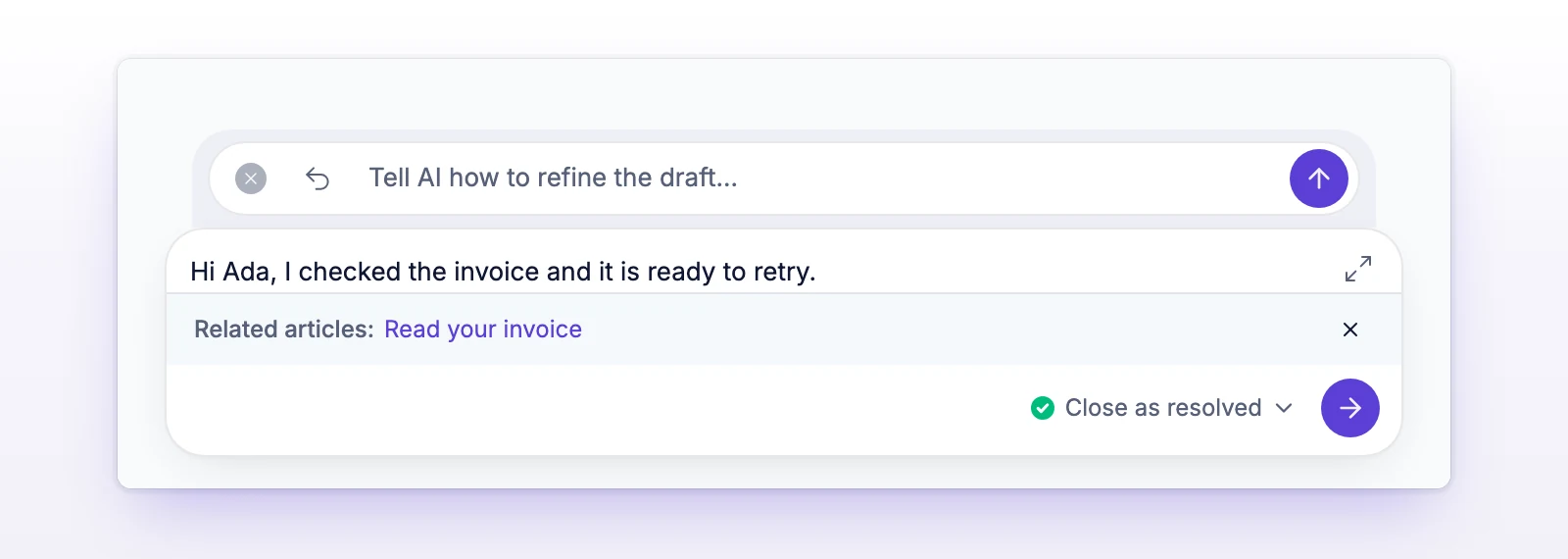
The AI box after a draft, with the close, undo, and arrow buttons, and the written draft in the reply box
Refine the draft in plain words, or undo it.

What the draft is built from

The AI reads these for each draft:

  • Your Skill, which sets tone and rules.
  • The ticket and its messages.
  • Up to 5 past tickets from the same customer.
  • Data from your active plugins, such as Bring your own data, which is the same data you see beside the ticket. If the customer has no email address on the ticket, no plugin data is included.
  • Up to 5 passages from your published articles that are closest to the customer's question.
  • Your guidance for this draft, if you typed any.

It doesn't read draft articles. Anything marked Draft in Collections & Articles is out of reach until you publish it.

If it finds no matching article, it still writes a reply from the ticket, your Skill, and the other data. It may then ask the customer for more detail. Read those drafts with extra care. See Improve AI answers.

How a draft behaves

  • The draft is a reply from your team. It doesn't mention that an AI wrote it.
  • It answers in the language of the ticket.
  • It adapts to the channel. On WhatsApp and Telegram it's shorter and reads like a chat message. On email it aims to give a complete answer in one reply.
  • When a draft clearly resolves the ticket, initdesk sets Status after reply to Close as resolved. Check it before you send. You can change it to any other status.
  • It doesn't send, assign, tag, or close anything on its own.
  • It can be wrong. Check prices, dates, refunds, and account details. Take extra care with billing disputes, legal requests, and security issues.

AI overview

At the top of a ticket, AI overview gives a short summary of the ticket. It's open when you open a ticket. Select it to collapse it.

The overview is written in your organization's Working language, set in Settings > General. Changing that language doesn't rewrite overviews that already exist. An overview written later uses the new language.

initdesk doesn't create an overview for tickets that look like marketing email, automated receipts, or spam.

If something's not working

If you see "Draft generation is temporarily rate limited."

initdesk is limiting draft requests for now. Wait a moment, then select Generate again.

If you see "Unable to generate a reply."

The AI couldn't write a draft this time. Try again. If it keeps failing, write the reply yourself and tell support through Help in the left sidebar.

If you see "Your session expired. Sign in and try again."

Log in again, then reopen the ticket and generate a new draft.

If the draft ignores your articles

The AI only sees published articles, and only the passages closest to the question. See Improve AI answers.

Related

  • Write agent instructions
  • Improve AI answers
  • Reply to a ticket
  • How AI works
Write agent instructions

Write the Skill that tells initdesk's AI how to reply: your tone, what to avoid, and what to ask for. It shapes every AI draft you create.

Auto-tag tickets

New tickets get up to 3 of your tags without anyone sorting them. Turn Automatic tagging on or off, and tell the AI when each tag applies.

Powered by initdesk
On this page
  • Use AI drafts
  • Draft a reply
  • Refine or undo a draft
  • What the draft is built from
  • How a draft behaves
  • AI overview
  • If something's not working
  • If you see "Draft generation is temporarily rate limited."
  • If you see "Unable to generate a reply."
  • If you see "Your session expired. Sign in and try again."
  • If the draft ignores your articles
  • Related