
Improve AI answers
Find out why the AI gave a wrong answer or had none, and fix it. Most fixes are one published article that answers one question.
Search portal content
Search portal content
Find out why the AI gave a wrong answer or had none, and fix it. Most fixes are one published article that answers one question.
Find out why the AI gave a wrong answer or had none, and fix it. Most fixes are one published article that answers one question.
Start with what you saw, find the likely cause, then apply the fix. There is no screen in initdesk that lists what the AI couldn't answer. These steps use what you can see today: your articles, your tickets, and your help center search report.
| What you saw | Most likely cause | Fix |
|---|---|---|
| The chat said it couldn't find an article and offered a person | No published article covers the question | Write the article |
| The chat answered, but the answer was wrong or old | The article is wrong, old, or says two things | Fix the article |
| An article exists, but the AI doesn't use it | It's a draft, it's new, or its words don't match the question | Check why the article isn't used |
| A draft reads wrong in tone | The Skill is too general | Tighten the Skill |
| A draft doesn't know the customer's order or plan | The data isn't connected | Add customer data |
| The chat can't do something for the customer, such as change an account | The chat only reads articles | Expected. The chat hands over to your team |
This is the most common case.
In the help center chat, the AI is told that nothing was found, and it says so. It doesn't make up an answer from memory. It offers to hand over to your team. If the customer agrees, it asks for their name and email, then creates a ticket with the conversation in it. The customer is told the team will follow up by email.
So a customer who asks something you haven't written down ends up in your queue as a new ticket. The ticket's text starts with "Support request escalated from help center chat."
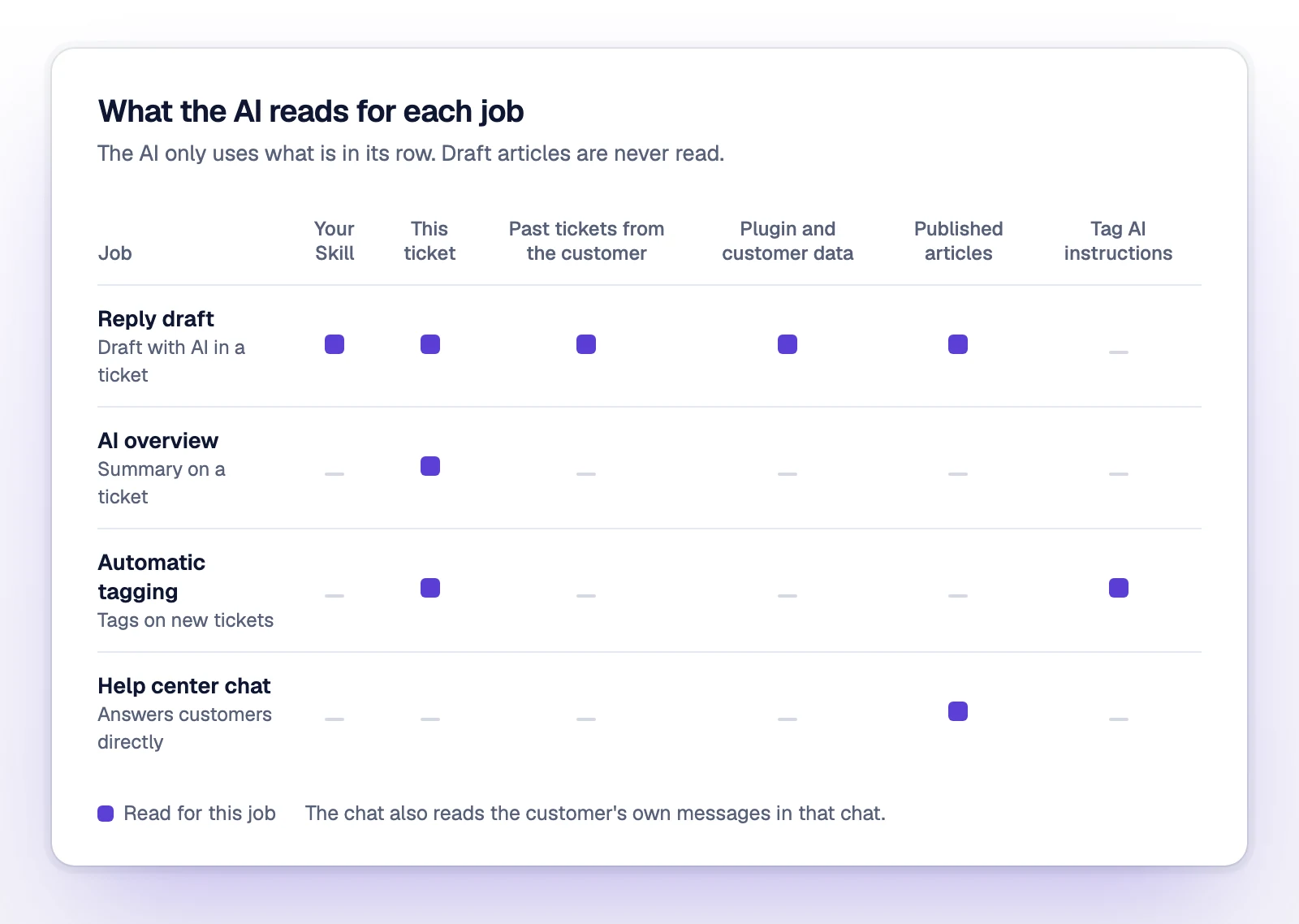
In an AI draft, the AI still writes a reply from the ticket, your Skill, the customer's history, and plugin data. With no article behind it, the reply is general. It may ask the customer for more detail. Treat it as a rough start and check every fact.
Those tickets are your list of missing articles. Each one is a question a customer asked in their own words.
What makes an article work for the AI:
To see which words customers use, open your help center report in Analytics. Top searches lists up to 10 search terms from your help center and widget. See Help center analytics. Chat counts there show activity. They don't tell you whether an answer was right.
If a customer's question has two answers depending on plan or region, write each case into the article, labeled.
Work down this list:
The Skill shapes reply drafts. It doesn't change the help center chat. If drafts sound off:
For a one-time change, use the guidance box in Draft with AI instead. See Use AI drafts and Write agent instructions.
Drafts can use data from your active plugins, such as Bring your own data. If your replies need an order status or a plan, connect that data. Drafts read it from the same panels you see beside the ticket. The help center chat doesn't use it.
Test with the same wording the customer used. Ask your help center chat the question. For drafts, open a similar ticket and select Draft with AI. If the answer is still wrong, go back to the article and read it as a customer would.