
Set up webhooks
Have initdesk send a JSON message to your URL when a ticket is created, replied to, assigned, or resolved. Set it up and check each delivery.
Search portal content
Search portal content
Have initdesk send a JSON message to your URL when a ticket is created, replied to, assigned, or resolved. Set it up and check each delivery.
Have initdesk send a JSON message to your URL when a ticket is created, replied to, assigned, or resolved. Set it up and check each delivery.
A webhook sends a message to a URL you control each time something happens to a ticket in your organization. Use it to log events, update another system, or start an automation. initdesk pushes events to you. To read or change initdesk data on demand, use the API instead.
POST with a JSON body.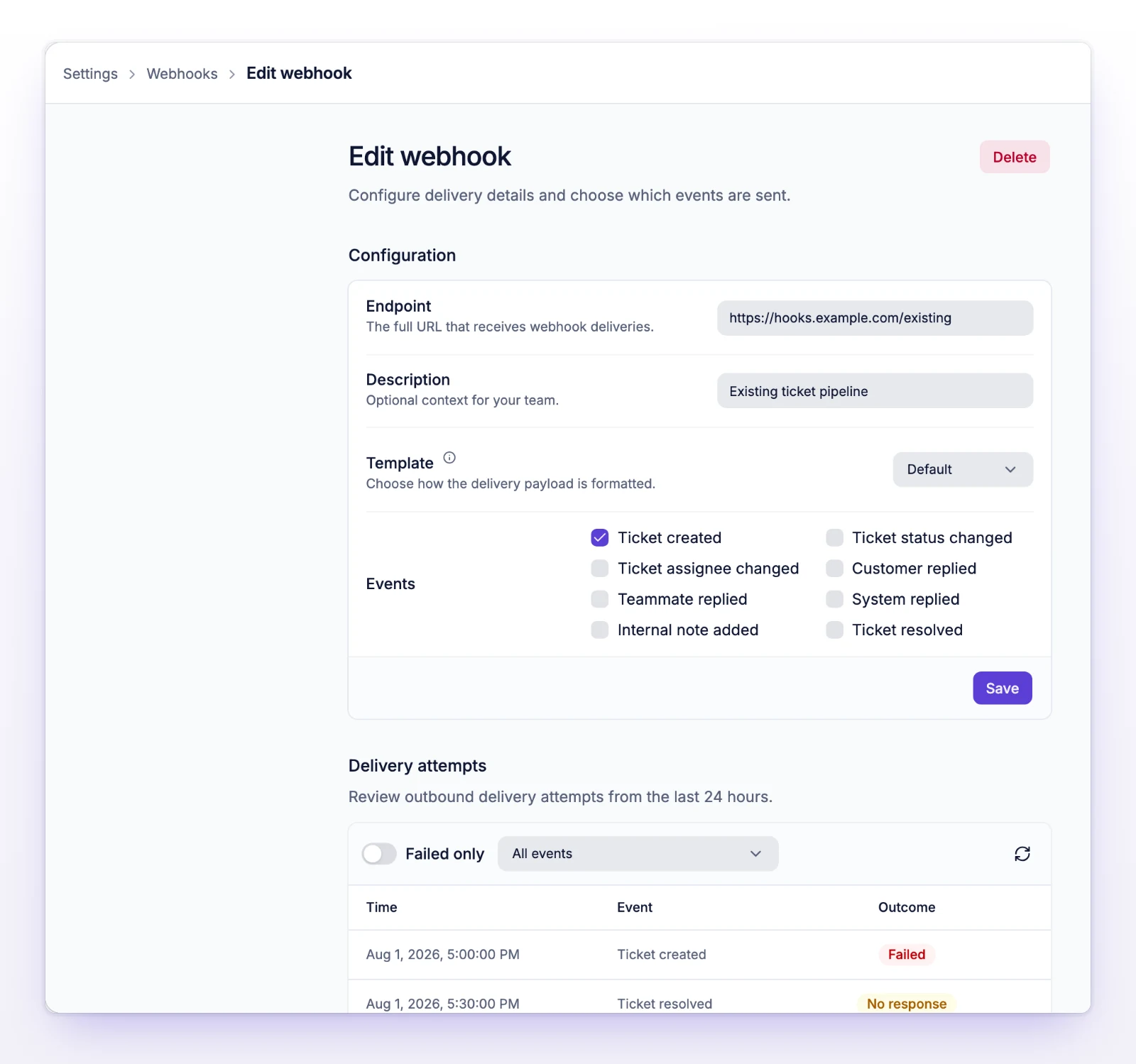
To test it, do something that triggers one of your events, such as creating a ticket, and check that your server got the request.
| Event in the app | Name in the payload | When it fires |
|---|---|---|
| Ticket created | ticket.created |
A new ticket is created. |
| Ticket status changed | ticket.changed_status |
A ticket's status changes. |
| Ticket assignee changed | ticket.changed_assignee |
A ticket is assigned, reassigned, or unassigned. |
| Customer replied | ticket.customer_replied |
A customer sends a message. |
| Teammate replied | ticket.associate_replied |
Someone on your team replies to the customer. |
| System replied | ticket.system_replied |
initdesk posts a message that the customer can see. |
| Internal note added | ticket.internal_note_created |
Someone adds an internal note. |
| Ticket resolved | ticket.resolved |
A ticket is resolved. |
Pick only the events you need. If your receiver shouldn't see private notes, leave Internal note added off.
With the Default template, the request is a POST with Content-Type: application/json and this shape:
{
"event": "ticket.created",
"data": { }
}
event is the name of the event. data holds the ticket's details at the moment the event fired. Read event first, then use data. New fields can appear over time, so ignore the ones you don't know.
The Slack template sends a Slack-formatted message instead of this shape. To post ticket activity to a Slack channel with inbox routing, use the Slack plugin.
2xx status as soon as you accept the event, and do slow work afterward.400 or higher, a timeout, or a network error counts as a failed delivery. initdesk tries again with growing waits, up to 10 more times.Open Settings > Webhooks, then open the webhook. Delivery attempts lists what initdesk sent in the last 24 hours. Each row shows the time, the event, and the outcome: Success, Failed with the status code, or No response when your server didn't answer.
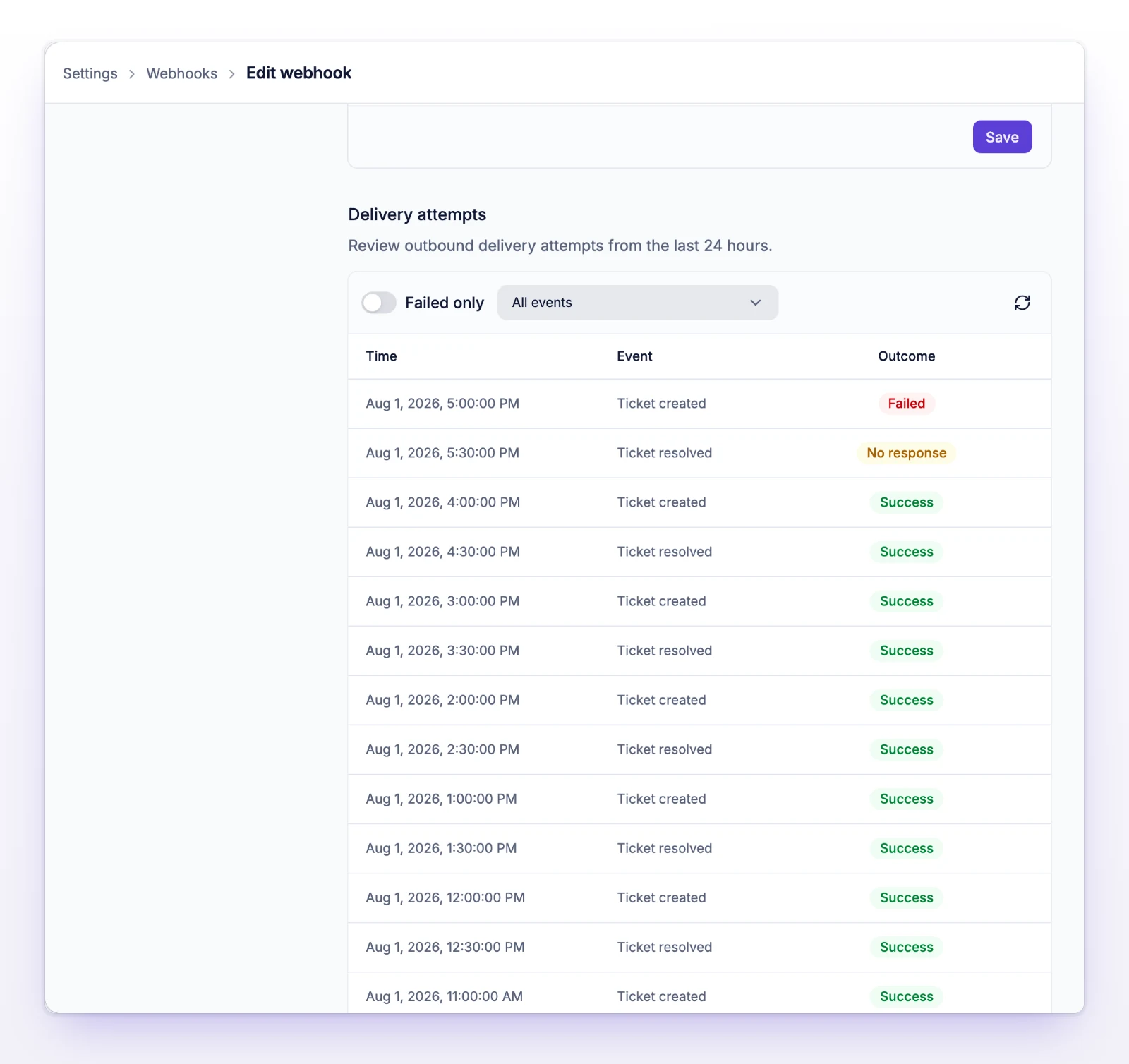
initdesk keeps delivery attempts for about 24 hours. They aren't a long-term log, so store what you need on your side. Query parameters in the endpoint URL can hold secrets, so don't share a screen that shows them.
Open the webhook from Settings > Webhooks, change what you need, and select Save. To remove it, select Delete, then confirm with Delete webhook. You can't undo it, and events stop going to that URL right away.
Check that the webhook has the event you expect ticked under Events. Then open Delivery attempts. If a row shows Failed or No response, your server rejected or missed the request. Check your firewall and your URL. If there are no rows, the event may not have fired, or the attempt is older than 24 hours.
The URL is missing or malformed. Paste the full URL. It can be up to 2,048 characters.
Check status.initdesk.com for an incident.