
Choose inbox channels
See where customers can reach an inbox: email, WhatsApp, and Telegram. Pick the channels you need, then follow the link to set each one up.
Search portal content
Search portal content
See where customers can reach an inbox: email, WhatsApp, and Telegram. Pick the channels you need, then follow the link to set each one up.
See where customers can reach an inbox: email, WhatsApp, and Telegram. Pick the channels you need, then follow the link to set each one up.
A channel is a way for customers to reach an inbox. Every channel turns a customer message into a ticket in that inbox, so your team uses the same ticket tools for all of them.
You connect channels to an inbox, not to the whole organization. One inbox can have email, WhatsApp, and Telegram at the same time.
| Channel | Good for | Setup | Where to start |
|---|---|---|---|
| Customers who write to a support address | Ready on every inbox. Forward your support address to the inbox address. | Forward your support address | |
| Customers who already message your business on WhatsApp | Connect a WhatsApp Business number through Meta. One number per inbox. | Connect WhatsApp | |
| Telegram | Customers or communities that already use Telegram | Create a bot with BotFather and paste its token. One bot per inbox. | Connect Telegram |
| Discord | Private beta, by request only | Select the card to ask for access. | See "Ask for Discord access" below |
WhatsApp and Telegram are open to every organization. Discord is the only channel you request access to.
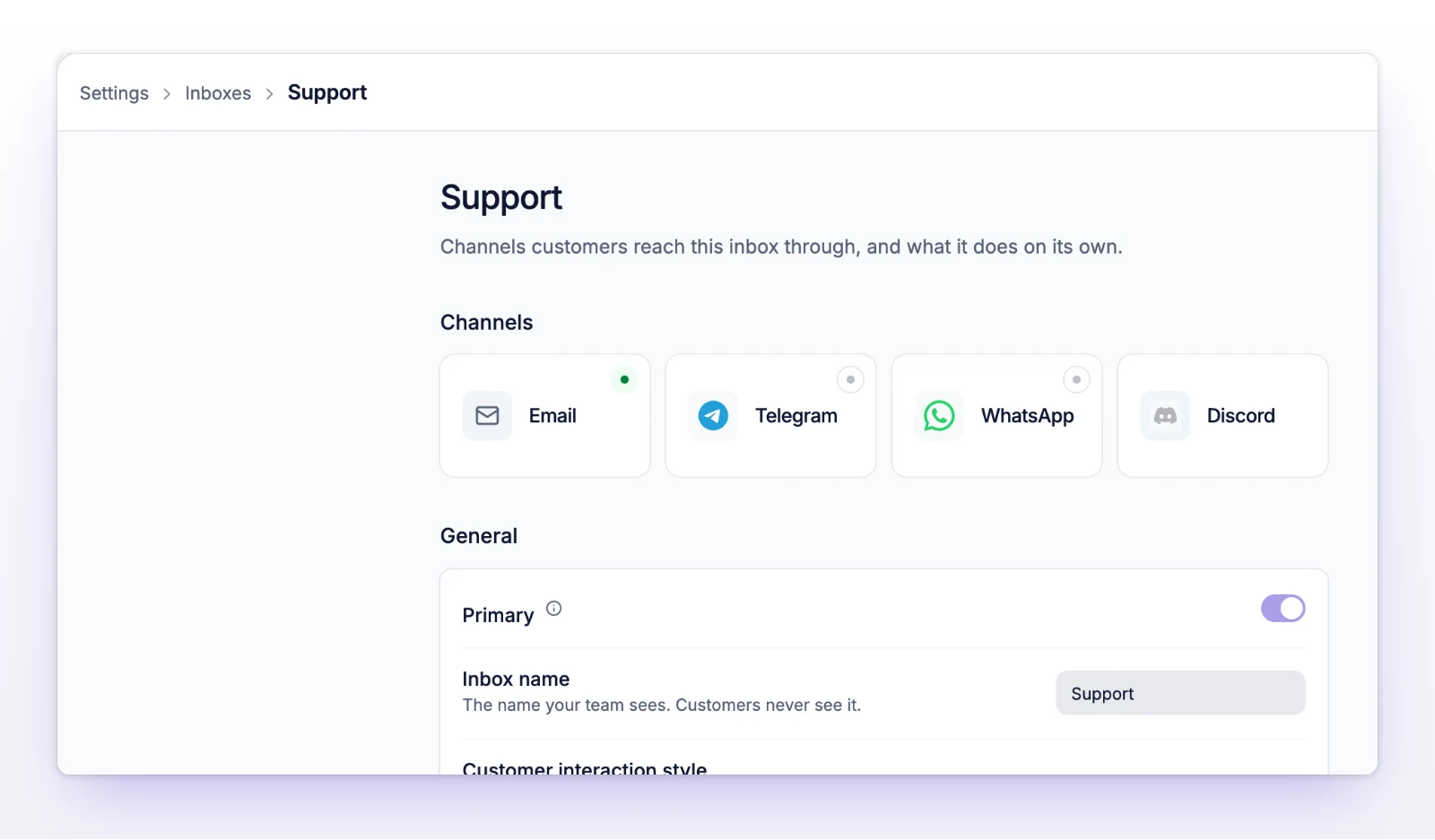
Each card has one of these statuses:
| Status | Meaning |
|---|---|
| Active | Connected, and messages arrive as tickets. |
| Paused | Connected, but Receive messages is off. New messages don't create tickets. |
| Attention | Connected, but the channel stopped delivering messages. Open the page for the fix. |
| Not connected | Nothing is connected yet. |
| Beta | You can only ask for access. |
Discord has no settings page. Select its card, then Send request in the dialog that opens ("Request Discord beta access"). We'll get in touch about joining the beta.
Keep a channel on an existing inbox when the same team answers it with the same tone and automatic replies. Create a separate inbox when the messages need a different team, different automatic replies, or a different customer group. See Create an inbox.