
Add AI chat to your site
Paste one script tag on your website to add a chat button. Visitors search your articles and ask the AI, and it hands off to your team by email.
Search portal content
Search portal content
Paste one script tag on your website to add a chat button. Visitors search your articles and ask the AI, and it hands off to your team by email.
Paste one script tag on your website to add a chat button. Visitors search your articles and ask the AI, and it hands off to your team by email.
The AI chat puts a small chat button on your website. Visitors can search your help center, browse your collections, and ask a question in their own words. The AI answers from your published articles. If it can't help, it hands the conversation to your team as a ticket.
In the app this page is called Chat widget.
</body> tag of every page where the chat should appear. You can also add it through your tag manager.The snippet looks like this:
<script async src="https://{your-public-id}.kb.center/widget.js"></script>
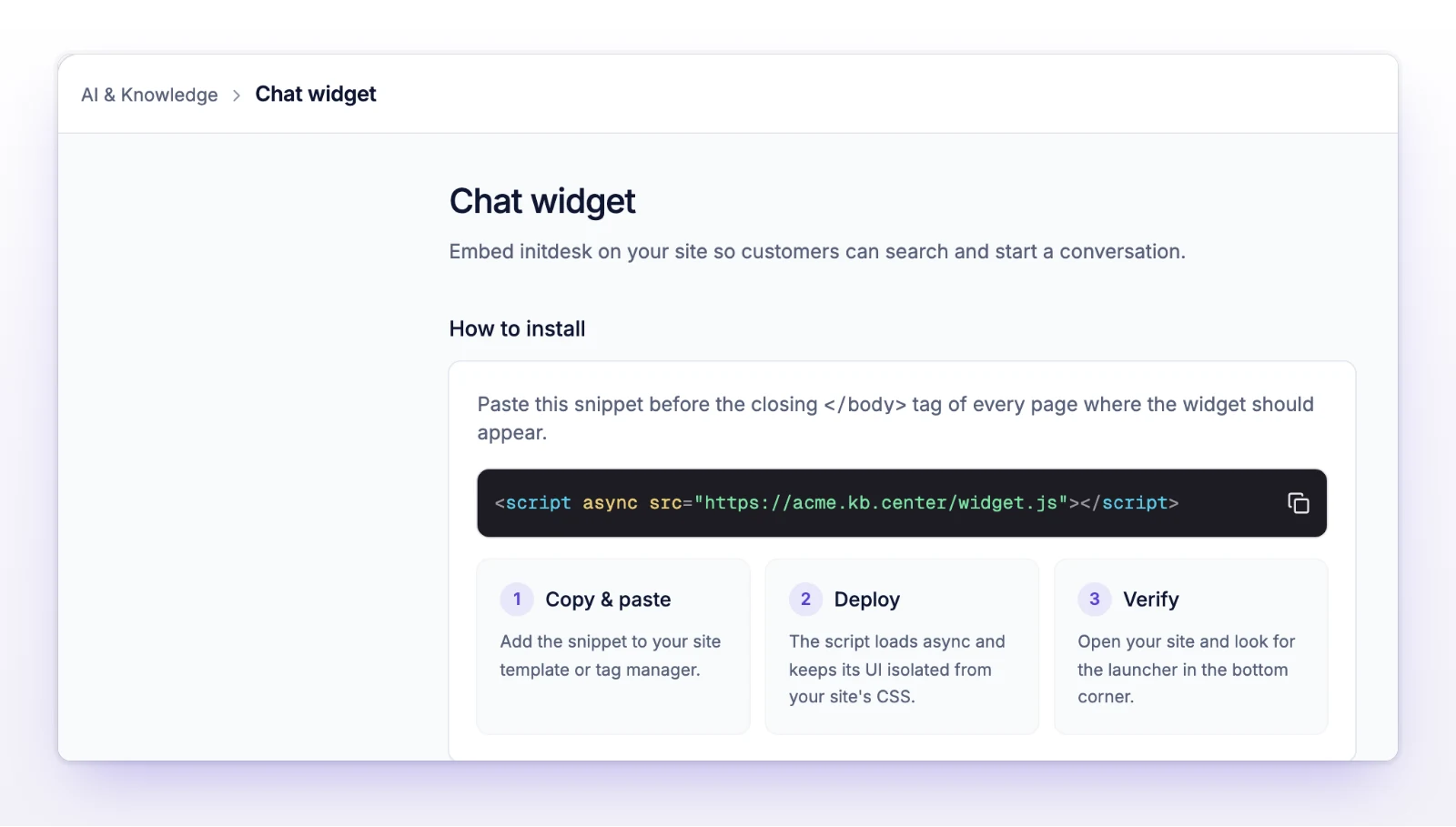
The script loads async, so it doesn't slow your page down. The chat runs in its own frame, so your site's CSS doesn't change how it looks.
The snippet always uses your kb.center address, even if you connect your own domain. Leave it as it is. {your-public-id} is your organization's Public ID.
To change the color or the name the chat shows, go to AI & Knowledge > Help Center > Settings. See Set up your help center.
The help center site shows the same chat button on its own pages. You don't need to add anything there.
For each question, the AI looks up the most relevant published articles and answers from them.
| It uses | It doesn't use |
|---|---|
| Your published articles | Drafts and archived articles |
| Internal notes and your tickets | |
| Billing, orders, or customer account data |
If the answer isn't in a published article, the chat can't give it. To improve its answers, publish or fix the article. See Publish articles.
The chat also reads the title and address of the page the visitor is on, the browser language, and the time zone. It uses them to understand the question. Messages are limited to 1,000 characters.
The AI hands the conversation to a person when:
Before it creates the ticket, the AI asks for the visitor's name and email, so your team can reply. Then it creates a ticket in your default inbox with the conversation as the first message. The visitor gets a confirmation in the chat.
Your team replies by email, not in the chat. The chat doesn't show replies from people on your team.
If your inbox shows ticket numbers to customers, the confirmation includes the number. See Choose ticket numbering.
Chat tickets arrive as new tickets in your default inbox, with the subject the AI wrote from the conversation. The first message begins "Support request escalated from help center chat."
You can set options before the snippet loads. Put this above the script tag:
<script>
window.InitdeskWidgetSettings = { position: "left" };
</script>
position: "left" or "right" (default "right").launcherIcon: "solid" (default) or "stroke", the style of the chat button's icon.After the script loads, InitdeskWidget("open"), InitdeskWidget("close"), and InitdeskWidget("toggle") open and close the chat from your own button.
Chat messages and sessions are counted on the Analytics page. See Help center analytics.
Check that the snippet is on the page and sits before </body>. Check that your help center is Published under AI & Knowledge > Help Center > Settings.
The AI didn't respond. The visitor can ask again in a moment. If it keeps happening, contact initdesk from Help.
The answer is probably missing from, or unclear in, a published article. Fix or add the article. See Improve AI answers.