
Set up redirects
Send visitors from an article or collection's old address to its new one, so links in emails, bookmarks, and search results keep working.
Search portal content
Search portal content
Send visitors from an article or collection's old address to its new one, so links in emails, bookmarks, and search results keep working.
Send visitors from an article or collection's old address to its new one, so links in emails, bookmarks, and search results keep working.
A redirect sends visitors from an old address to the article or collection that replaced it. Add one when you change an article's URL address, move it to another collection, or rename a collection's address. Without it, anyone with the old link lands on a not-found page.
You need one when an address that customers may already have stops working:
You don't need one for a new article, or for a change to the title or body. The address stays the same.
The article must be published first. A draft shows "Publish this article before adding redirects."
/old-article. You can also paste the whole old link. Only the path is kept.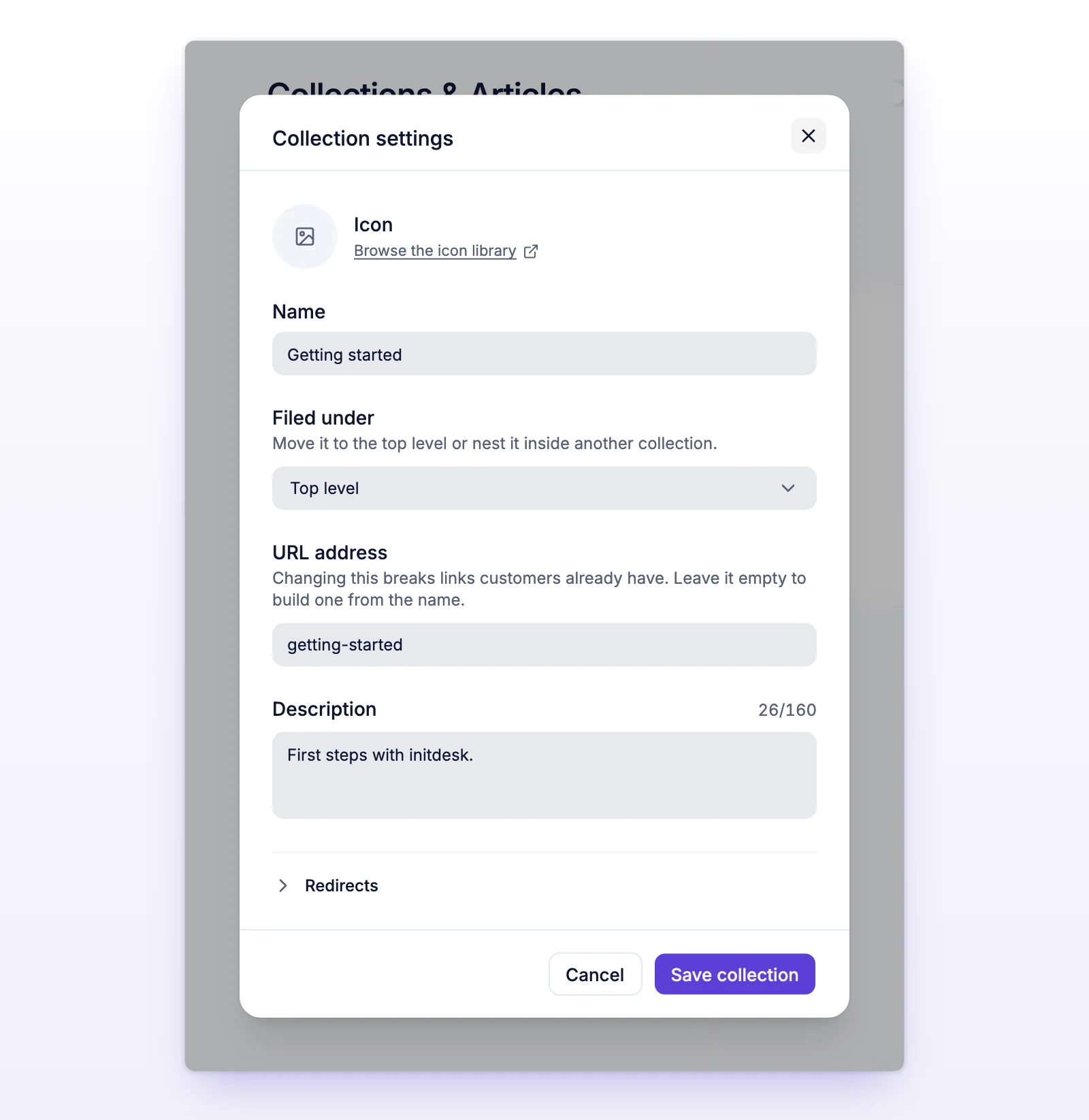
Adding a redirect saves the article with it, including your other changes. The number next to Redirects shows how many the article has.
The collection needs at least one published article. A collection redirect only covers the collection's own page. It does not cover the articles inside it. Add a redirect to each article too.
Next to the path, select Remove. Select Undo to put it back before you save. Removed paths stop redirecting once the change is saved.
A redirect marked Inactive is saved but doesn't send anyone anywhere.
A visitor who opens the old address is sent on to the current address of the article or collection. It's a permanent redirect, so browsers and search engines learn the new address.
If you later change the article's address again, the redirect follows it. You don't need to update it.
Write it the way it appears after the domain, starting with /.
| Allowed | Not allowed |
|---|---|
A path like /old-article or /old-collection/old-article |
A query string (?), a fragment (#), or a wildcard (*) |
| A full link from your old help center. The path is kept, the domain is dropped | A path that ends in .md |
| Up to 2,048 characters | / alone |
| Up to 50 redirects for each article or collection | Paths owned by the help center, such as /account, /api, /widget, and /robots.txt |
Also:
That path is a live page or belongs to another redirect. Pick a different old path, or remove the other redirect first.
The path has something that isn't allowed, like ?, #, or *, or it points to a reserved page such as /account, or it ends in .md.
An article or collection can have up to 50. Remove the ones that no longer get traffic.
You typed a path but didn't select Add redirect. Add it, or clear the field.
Check that the article is published and that the redirect shows in the list. Wait a few minutes, then try again.