
Import articles
Start your help center from your website with AI, copy an existing one with an MCP assistant, or ask us to plan the import. Drafts only, until you publish.
Search portal content
Search portal content
Start your help center from your website with AI, copy an existing one with an MCP assistant, or ask us to plan the import. Drafts only, until you publish.
Start your help center from your website with AI, copy an existing one with an MCP assistant, or ask us to plan the import. Drafts only, until you publish.
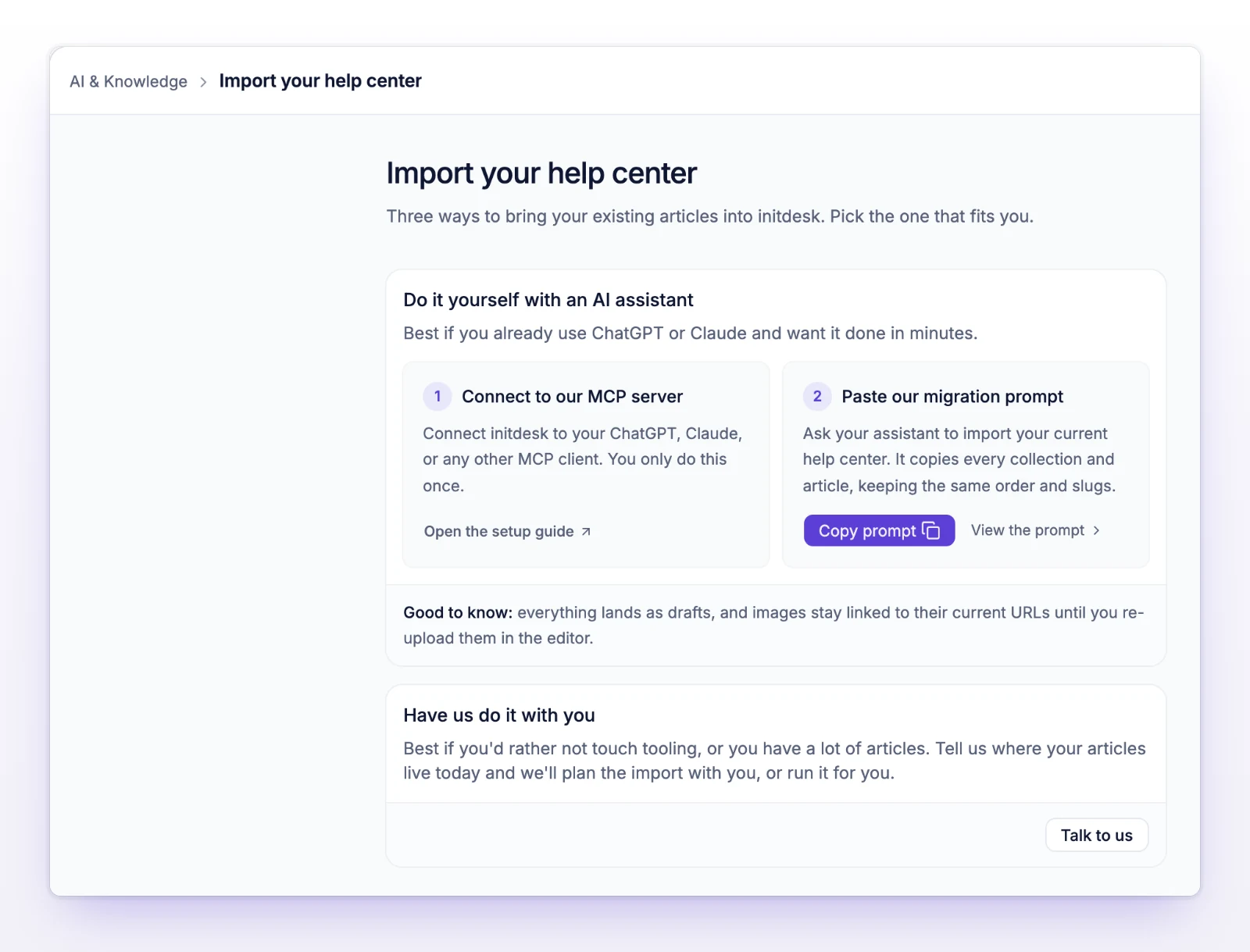
You don't have to retype your help center. Go to AI & Knowledge > Help Center > Import your help center and pick one of three ways in. Everything lands as drafts. Nothing goes live until you publish it.
| Way | Use it when |
|---|---|
| Start from your website | You don't have a help center yet. AI reads your site and proposes collections and articles. |
| Do it yourself with an AI assistant | You already have a help center, and you use ChatGPT, Claude, or another MCP client. |
| Have us do it with you | You'd rather not touch tooling, or you have a lot of articles. |
Start from your website only appears while your help center has no collections. Once you have one, the page shows the other two options.
Use this when you're starting from scratch. The AI reads your public pages and drafts a structure for you to approve.
yourcompany.com.You review the titles before anything is created. The page tells you how many collections and articles are ticked. When it's done, you'll see how many collections and articles were created as drafts. Open Collections & Articles to edit them, then publish what you approve.
A proposal is kept for about an hour. After that, run it again to get a fresh one.
Use this to copy an existing help center. The assistant creates every collection and article through the initdesk MCP server (Model Context Protocol, a standard way for AI assistants to use another app). It keeps the same order, nesting, and URL addresses.
[your current help center URL] with the address of your current help center.Everything it creates is a draft. Images stay linked to their current web addresses until you upload them again in the editor. The assistant gives you a list of the images it kept. Re-upload them before you shut down the old help center, because the links point to it.
Select Talk to us. It opens Help, where you can message the initdesk team. Tell them where your articles live today and they'll plan the import with you, or run it for you.
Start with your 5 to 10 most common questions. Published articles improve the AI's answers right away.
Your help center already has a collection. This option only starts a help center from scratch. You'll see "Your help center already has collections. Generating from a website is only for starting from scratch." if you try.
The site may have blocked the crawl, or had too little content. Try again from a page with more of your product on it, using Use a different address.
Proposals last about an hour. Select Enter website address and generate a new one.
Tick at least one collection before you select Create drafts.
Open Collections & Articles and check what's there before you generate again, so you don't create duplicates.