
Migrate to initdesk
Zendesk and Help Scout migrations are free and assisted. We import about 1,000 tickets into a sandbox first, you check them, then we import the rest.
Search portal content
Search portal content
Zendesk and Help Scout migrations are free and assisted. We import about 1,000 tickets into a sandbox first, you check them, then we import the rest.
Zendesk and Help Scout migrations are free and assisted. We import about 1,000 tickets into a sandbox first, you check them, then we import the rest.
We do the migration for you. For Zendesk and Help Scout it's free, with no limit on volume or history. You request it, check a sample, and we run the full import. Nothing is sent to your customers.
Your trial is extended while the migration runs.
Importing 100,000 tickets with attachments can take up to 24 hours.
We import your conversations with their replies, customers, tags, attachments, internal notes, users, and ticket status. Imported tickets keep their original status, dates, and authors.
Saved replies, macros, and automations don't come across by default. We can review that case by case.
Your help center articles move separately. You can ask us to copy them, or use AI & Knowledge > Help Center > Import your help center and follow the steps to use your own AI assistant with the initdesk MCP (Model Context Protocol) server. Collections and articles keep their names, order, and slugs, and arrive as drafts. Images stay linked to your old help center until you upload them again, so do that before you close your old account. See Import articles.
We only read from your old tool. Nothing there changes, so keep it until you've checked the full import.
Assisted migration is ready for Zendesk and Help Scout. For any other tool, such as Freshdesk or Zoho Desk, write to support@initdesk.com before you start. We review what can be imported from its API, or from a CSV export, before we confirm anything.
Forwarding your support address works with any tool. It brings new emails into initdesk from the first day, so you can start before the history moves.
The setup guide also has a Coming from another tool? step, where you choose the tool you use today.
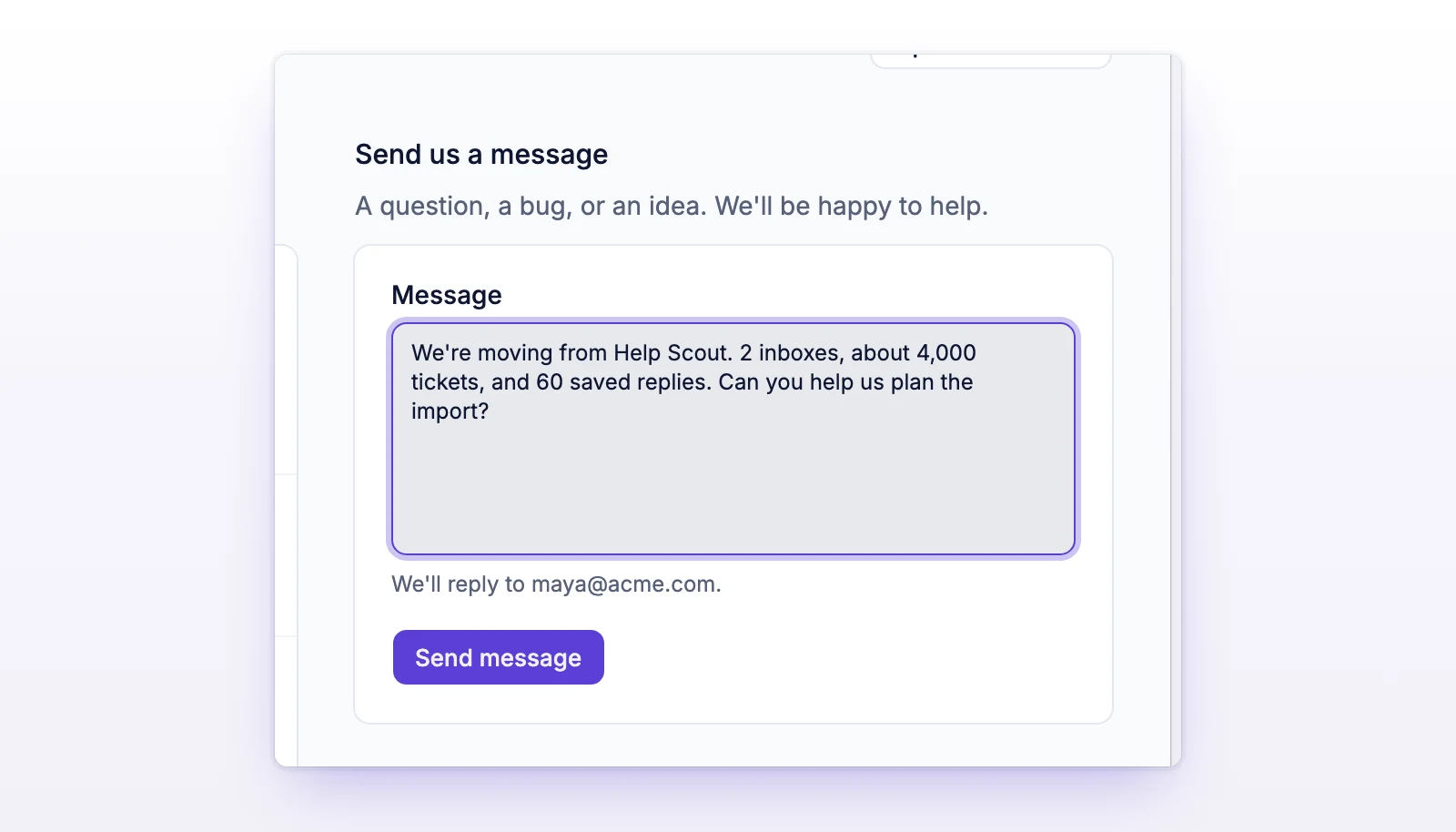
You may see "Messages aren't available on this deployment. Email support@initdesk.com instead." Email support@initdesk.com with your organization name and the tool you're moving from.
Tell us which tickets and what's wrong when you reply. We fix it before the full import.