
Quick start
Go from signup to a working help desk in 10 steps, from your first ticket and AI draft to your company email, your team, and a help center.
Search portal content
Search portal content
Go from signup to a working help desk in 10 steps, from your first ticket and AI draft to your company email, your team, and a help center.
Go from signup to a working help desk in 10 steps, from your first ticket and AI draft to your company email, your team, and a help center.
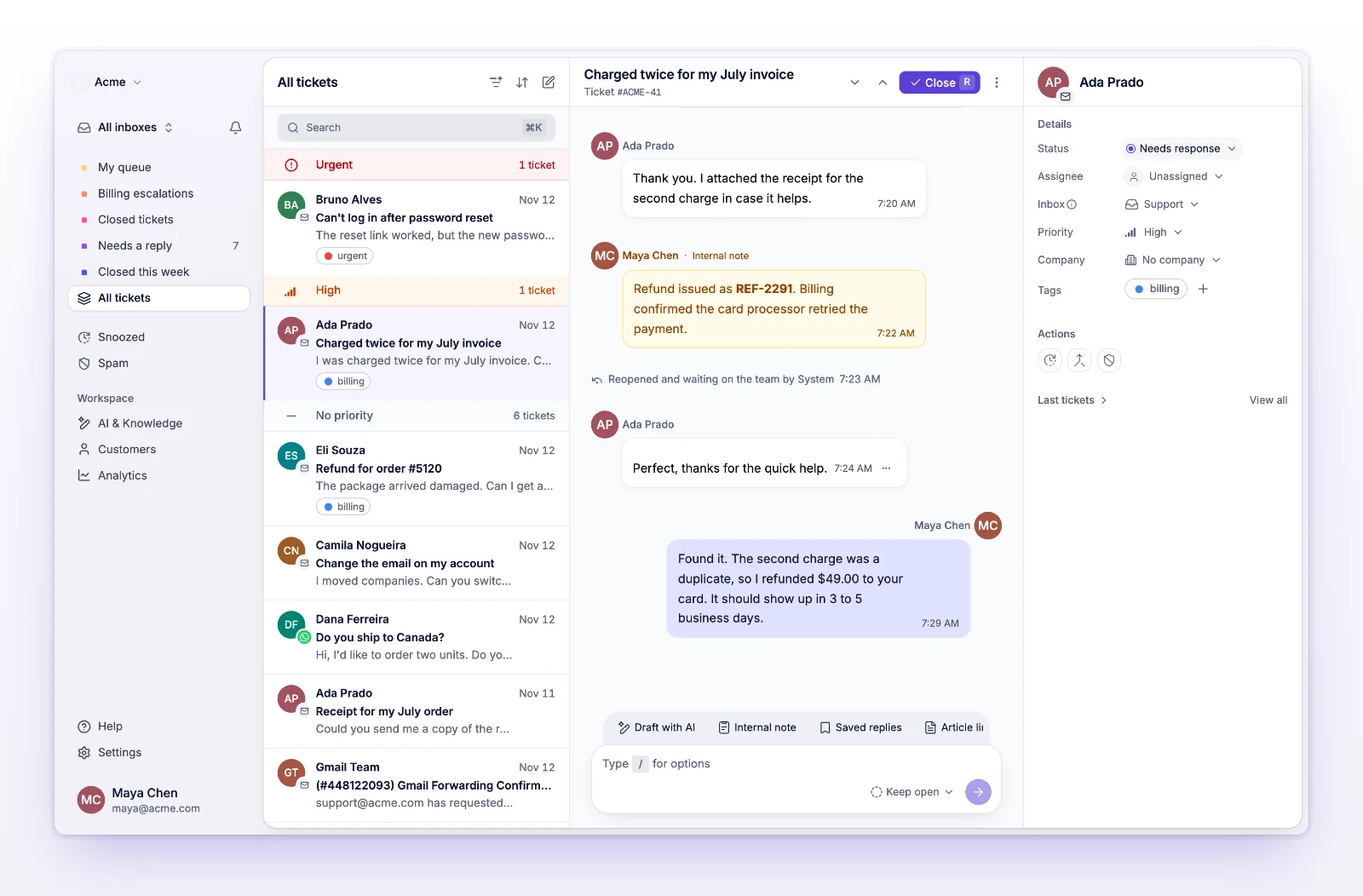
initdesk is a help desk for the whole team. Email, WhatsApp, Telegram, and chat from your site all land in one place as tickets. AI drafts the reply from your help center, the ticket history, and your own customer data. A person reads it and sends it.
There's one plan, and the price follows ticket volume, so adding a user or an inbox costs nothing. Bring in everyone who talks to customers: support, product, engineering, and operations.
This page gets you from signup to answering customers. Most teams finish the first 5 steps in one sitting.
Five words cover almost everything:
| Term | What it is |
|---|---|
| Organization | Your company's space in initdesk. One login can belong to several. |
| Inbox | Where tickets arrive. Each inbox has its own email address, and you can connect WhatsApp and Telegram to it. Many teams run one inbox per product or brand. |
| Ticket | One customer conversation, with every reply and internal note in order. |
| AI agent | Drafts replies inside tickets and answers customers in the AI chat. You teach it your tone and your rules. |
| Help center | Your public articles. Customers read them, and the AI answers from them. |
When setup finishes, open Help in the sidebar. That's where the guide below lives in the app.
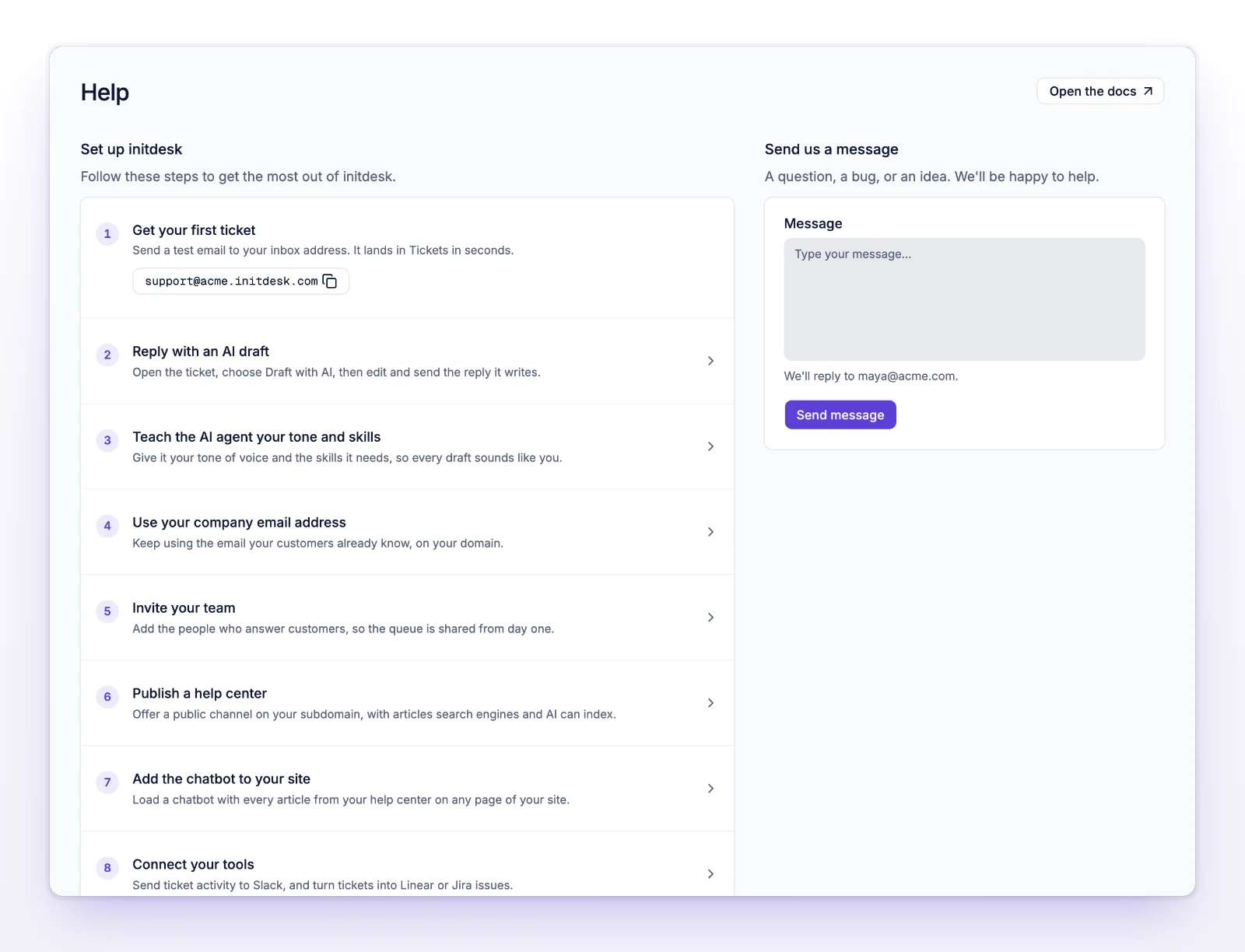
You can do these in any order. This order gets you answering customers soonest.
Copy your inbox address from the first step of the guide and send it a test email from your personal account. It shows up in Tickets within seconds.
That address is live from the first minute. Later you'll forward your real support address to it. See Forward your support address.
Open the ticket, choose Draft with AI, then edit the reply and send it. The draft is a starting point. Nothing goes to a customer until you send it.
See Use AI drafts.
Go to AI & Knowledge > Agent instructions and write how the agent should answer, what it must never do, and when to hand off to a person. Ten minutes here improves every draft after it.
Keep the address your customers already know. You add a few DNS records to prove you own the domain, forward your support address to initdesk, and replies go out from your own address.
See Send from your own domain.
Go to Settings > Team and add the people who answer customers, so the queue is shared from day one. Users are unlimited because the price follows ticket volume, not headcount.
See Invite your team.
Go to AI & Knowledge > Collections & Articles and write your first articles. Customers find answers on their own, search engines and AI assistants can index them, and your AI agent answers from them.
Already have articles somewhere else? See Import articles. Starting fresh? See Set up your help center.
Go to AI & Knowledge > Chat widget and copy the snippet into your site. Visitors ask a question and the AI answers from your published articles. When it can't help, the conversation becomes a ticket for your team.
Go to Settings > Plugins to send ticket activity to Slack and turn tickets into Linear or Jira issues.
See Connect Slack, Connect Linear, and Connect Jira.
Go to Settings > Bring Your Own Data to pull orders, plans, or anything else from your own API into the ticket sidebar. Your team stops switching tabs to look a customer up, and AI drafts get the same context.
See Bring your own data.
Install the initdesk MCP (Model Context Protocol) server, and your assistant can search tickets, reply, pull out insights, and chain several actions in one request. ChatGPT needs developer mode on a paid plan.
See Use the MCP server.
Once tickets are flowing, these save the most time:
Open Help in the sidebar and use Send us a message. It reaches the initdesk team, and we reply by email.
Moving from Zendesk, Help Scout, or another tool? See Migrate to initdesk.