
Use initdesk as a Chrome app
Improve productivity and experience by using initdesk PWA
Search portal content
Search portal content
Improve productivity and experience by using initdesk PWA
Improve productivity and experience by using initdesk PWA
Installing initdesk as a Chrome app gives you a dedicated window, a dock or taskbar icon, and a workflow that feels closer to a native app without a separate download.
initdesk ships as a Progressive Web App (PWA). Chrome can install it from app.initdesk.com in about a minute. You still sign in the same way; you just stop hunting for the right tab.
An installed Chrome app is still initdesk—the same inbox, Help Center tools, and settings. What changes is how you open it:
Standalone window — no row of unrelated browser tabs above your queue.
App icon — launch from the dock (macOS), taskbar (Windows), or Chrome’s app launcher.
Faster return visits — one click instead of “which tab was that?”
Push notifications — on supported desktop browsers and Android, alerts work best when initdesk is installed (see notification preferences).
You are not installing a different product or a limited offline client. Think of it as pinning the full web app to your desktop in a focused shell.
For the original ship note, see Installable app (PWA) on Product Updates.
Use Google Chrome on desktop (macOS, Windows, or Linux). Chromium browsers such as Microsoft Edge follow a similar flow; Safari does not support the same one-click PWA install on desktop.
Sign in at app.initdesk.com with your initdesk account. If you are new, start from signup—the install step works the same after your first login.
Stay on the app hostname (app.initdesk.com), not the marketing site (www.initdesk.com).
Open https://app.initdesk.com in Chrome and sign in.
Look at the right side of the address bar for the install control. Chrome may label it Install, show a monitor-with-arrow icon, or say Open in app once the app is already installed.
Click it and confirm Install in the dialog.
Chrome opens initdesk in its own window and adds it to your apps.
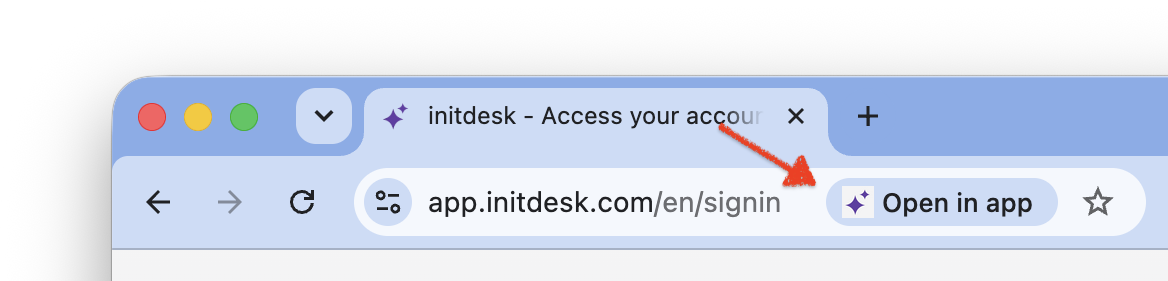
That is the whole install. Next time, launch initdesk from your applications folder, dock, or chrome://apps instead of opening a new tab.
If you do not see the address-bar icon:
Open app.initdesk.com in Chrome.
Click the three-dot menu (top right).
Choose Save and share → Install page as app (wording may vary slightly by Chrome version).
Name the app initdesk if prompted, then confirm.
You end up in the same standalone window as Option A.
A few small habits turn the install into a real workflow upgrade:
Pin the icon — on macOS, keep initdesk in the Dock; on Windows, pin it to the taskbar so support is one click away.
Close the browser tab — you no longer need app.initdesk.com open in a tab once the app window is installed. Use the app entry to avoid duplicate sessions.
Turn on notifications you will actually read — each teammate can choose email and/or push under Settings → Notifications. Organization owners enable push at the org level first; details are in initdesk’s web push and email notifications guide. Push on desktop and Android works on supported browsers when initdesk is installed or saved to the home screen.
Use keyboard-first triage in a clean window — tags, bulk actions, and the Waiting Customer tab are easier to scan when Gmail and ten other tabs are not one click away.
Less context switching. Founders and solo operators often toggle between product, inbox, and docs. A dedicated app window keeps the queue visible without losing it behind other work.
Clearer ownership of “support time.” Opening the initdesk app can be the signal that you are on tickets—not casually checking email in a tab you will forget to close.
Notifications that match how you work. With push notifications and per-user notification preferences, teammates who live in the installed app can get new-ticket alerts without leaving a browser tab open all day.
No IT deployment. There is nothing to package, approve, or push through MDM. If someone has Chrome and an initdesk login, they can install themselves—useful for contractors or part-time support.
Same unlimited-user model. initdesk does not charge per seat. Installing the app on every teammate’s machine does not change your bill; you still pay by ticket volume, not headcount. See pricing if you are comparing tools.
I do not see an Install button.
Confirm you are on https://app.initdesk.com, signed in, in Chrome (not Safari on desktop).
Try a hard refresh, or use the menu path: Save and share → Install page as app.
Corporate policies sometimes block app installs; ask IT if install options are disabled.
I installed twice from different browsers.
I want the address bar back.
Notifications are not appearing.
Org admin: enable notifications under Settings → General.
User: enable push under Settings → Notifications and allow browser permission when prompted.
On mobile, add initdesk to the home screen first, then retry.
I only see the marketing site.
www.initdesk.com is the public site (blog, pricing, updates)—not the inbox.To remove the Chrome app:
Open chrome://apps in Chrome.
Right-click initdesk → Remove from Chrome (wording may vary).
Your initdesk account and data are unchanged. Sign in again at app.initdesk.com anytime to reinstall.